> ## Documentation Index
> Fetch the complete documentation index at: https://www.cashfree.com/docs/llms.txt
> Use this file to discover all available pages before exploring further.
# Personalised Payment Form
> Send customers a pre-filled payment form with their details already populated, using a personalised link generated from your Cashfree Merchant Dashboard.
As a merchant, you can send a specific customer a payment form that already has their details filled in. Instead of sharing a generic payment form link, you generate a personalised URL from your dashboard with that customer's name, contact, and address details embedded. When the customer opens the link, their information is pre-populated and they can proceed directly to payment.
Personalised form links can only be generated for payment forms that already exist on your account. If you have not created a payment form yet, see how to [create a payment form](/payments/no-code/payment-forms/overview#creating-a-payment-form).
## Generate a personalised link for a customer
Use the following steps to create and share a personalised payment form with a customer:
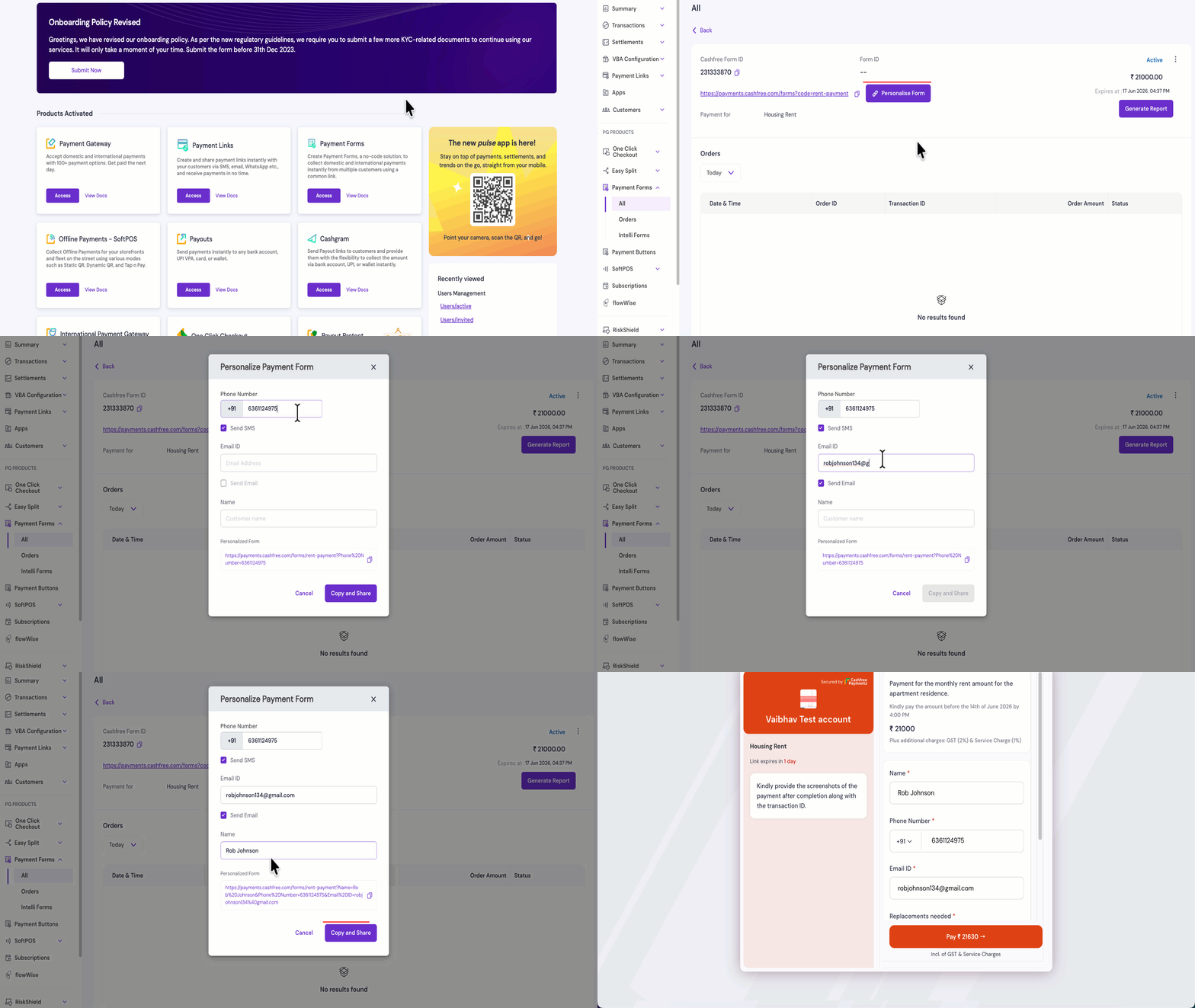
Log in to the [Merchant Dashboard](https://merchant.cashfree.com/auth/login) and navigate to **Payment Forms > All**. Select the payment form you want to personalise from the list of created forms.
On the form detail page, click the **Personalise Form** button. The personalize payment form panel will then open as an overlay.
Enter the customer details you want pre-populated on the payment form. Fill in only the fields relevant to your customer's requirements.
The **Personalized Form** field at the bottom of the panel shows the generated URL with your entered details as query parameters.
If you want to notify the customer directly, enable **Send SMS**, **Send Email**, or both this changes the action button from **Copy** to **Copy and Share**.
* If you enabled **Send SMS** or **Send Email** via the respective check boxes, click the **Copy and Share** button to copy the link and notify your customer simultaneously.
* If neither option is enabled, click the **Copy** button to copy the link to your clipboard and share it manually via WhatsApp, email, SMS, or any other channel.
The pre-filled fields are editable by the customer. They can update their details on the form, if needed before completing the payment.