> ## Documentation Index
> Fetch the complete documentation index at: https://www.cashfree.com/docs/llms.txt
> Use this file to discover all available pages before exploring further.
# Integrity Prod Setup
> Set up Cashfree Integrity for production testing by distributing your Android app through the Play Store internal track instead of sideloading APKs.
When you install your app from a source other than the Play Store and test it in a production environment, the Cashfree mobile SDK `Android, React Native, Flutter, Cordova, Ionic, Capacitor` blocks the transaction and you get the following error.
```json json theme={"dark"}
{
"message": "com.google.android.packageinstaller is not a trusted source. App should be installed from play store or another whitelisted app store.",
"code": "installer_package_not_approved",
"type": "feature_not_enabled"
}
```
In this case, the SDK does not load the page and you get an error in the `onPaymentFailure` callback. Check the error log for details.
Below are the sample scenarios when Cashfree Integrity will fail in the `PRODUCTION` Environment ( In Sandbox, it will always work).
Trying to directly run from Android Studio/Eclipse or any IDE
Trying to install from Gallery/File Explorer/Google Drive/Slack/Whatsapp or any other link
### How to properly test in production env?
To test in production, upload your app bundle/APK to the Play Store under an internal testing environment and invite your testing team to test it.
### How to do the internal testing setup?
Internal testing is useful to quickly distribute builds to a small set of testers.
This test is used to perform the initial QA checks. You can distribute your application among 100 invited testers. The feedback from your test users won’t affect your app’s public rating it is only visible to the Developer Account.
After publishing the internal test for the first time, it may take few hours for your test link to be available to testers. After that, any new release is available in a few hours. This build is directly available for testing without review.
### Create a tester list and share the invitation
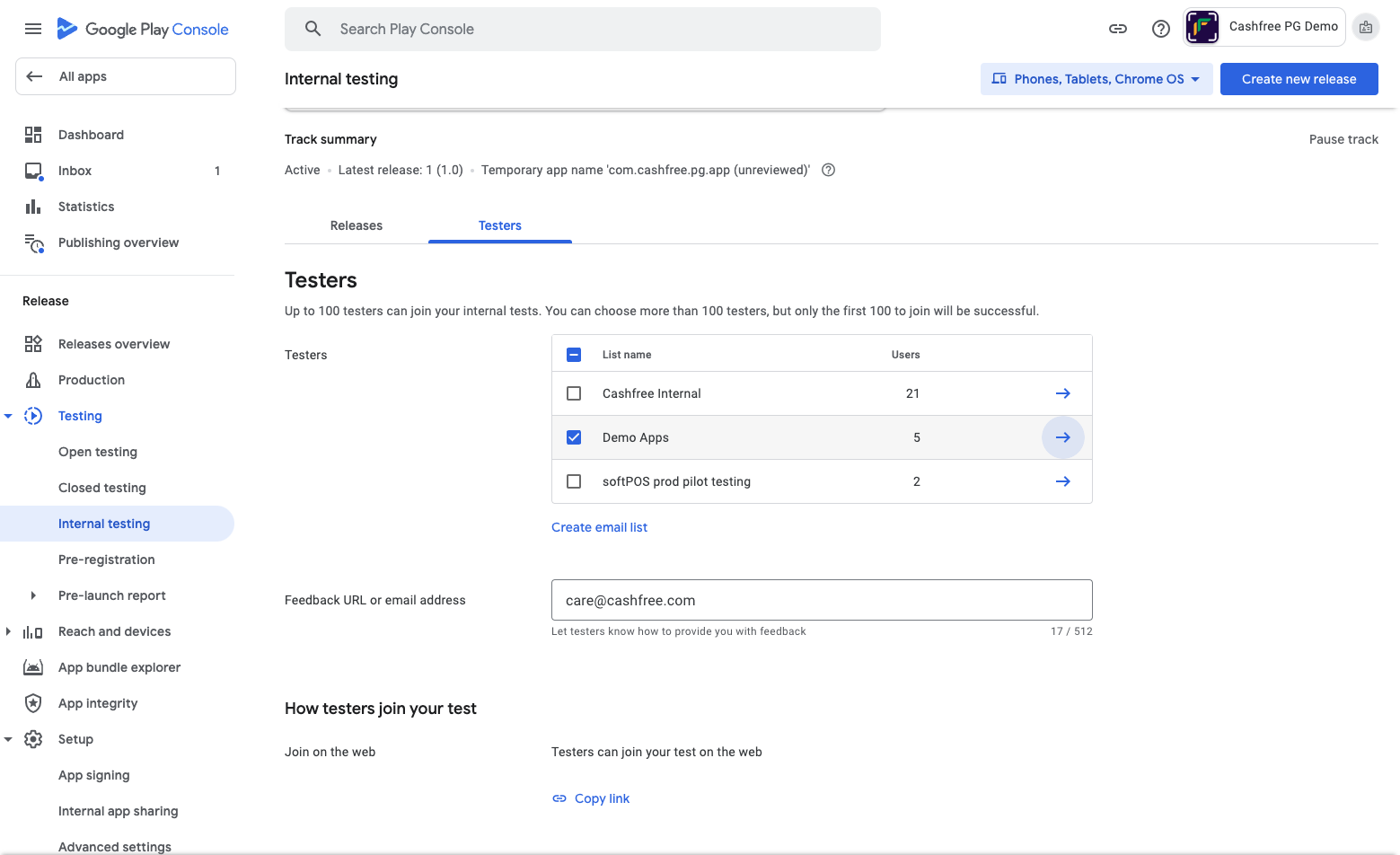
1. Open the [Play console](https://play.google.com/console/u/0/developers/9086506936822464322/app-list) and open the [Internal testing](https://play.google.com/console/u/0/developers/9086506936822464322/app/4972688618868666427/tracks/internal-testing) page under Testing.
2. Select the [Testers tab](https://play.google.com/console/u/0/developers/9086506936822464322/app/4972688618868666427/tracks/internal-testing?tab=testers)
3. Click on Create email list which opens a popup for adding multiple emails.
4. Add email addresses separated by commas or click Upload CSV file. If you use a .CSV file, put each email address on its line.
5. Select Save Changes.
6. As shown in the below screenshot Copy the link from the Tester tab.
7. Now share this link with all testers.
8. Testers have to open this link in Browser where it is logged in with a shared email.
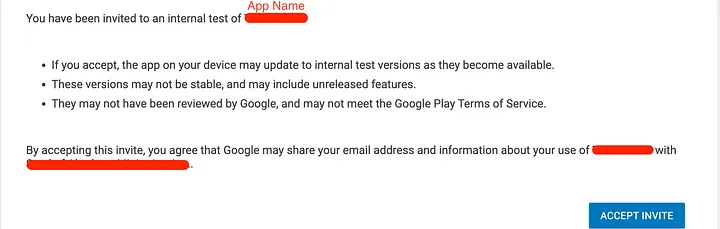
 9. When you open the invitation link in the browser, you can find this type of invitation information and click **Accept Invitation**.
 10. Create a release for the internal track in the Play Console and upload an app bundle. The app is then available on the Play Store for testers to download.
### Turn on internal app sharing
If your app has any build in production then these steps are optional but if your app has not live any version yet then this step must be followed by testers.
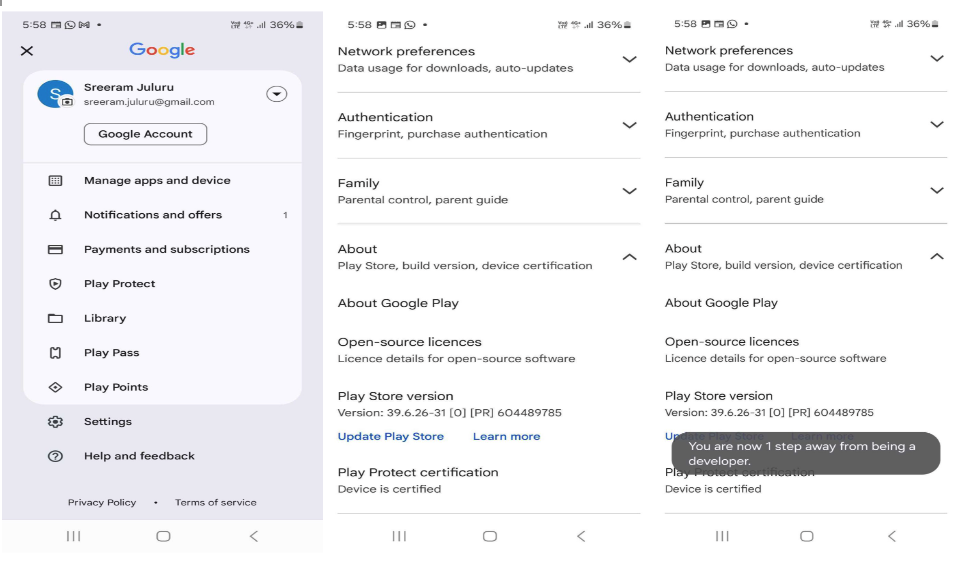
1. Open the Google Play Store app Google Play.
2. Tap Menu Menu > Settings.
3. In the “About” section, tap the Play Store version 7 times.
4. After the Internal app sharing setting appears, tap the switch to turn on internal app sharing. Tap Turn on.
10. Create a release for the internal track in the Play Console and upload an app bundle. The app is then available on the Play Store for testers to download.
### Turn on internal app sharing
If your app has any build in production then these steps are optional but if your app has not live any version yet then this step must be followed by testers.
1. Open the Google Play Store app Google Play.
2. Tap Menu Menu > Settings.
3. In the “About” section, tap the Play Store version 7 times.
4. After the Internal app sharing setting appears, tap the switch to turn on internal app sharing. Tap Turn on.
 ### Download app
1. Open the Play Store and make sure the sign-in email is your tester’s email address.
2. Now search the application on the store.
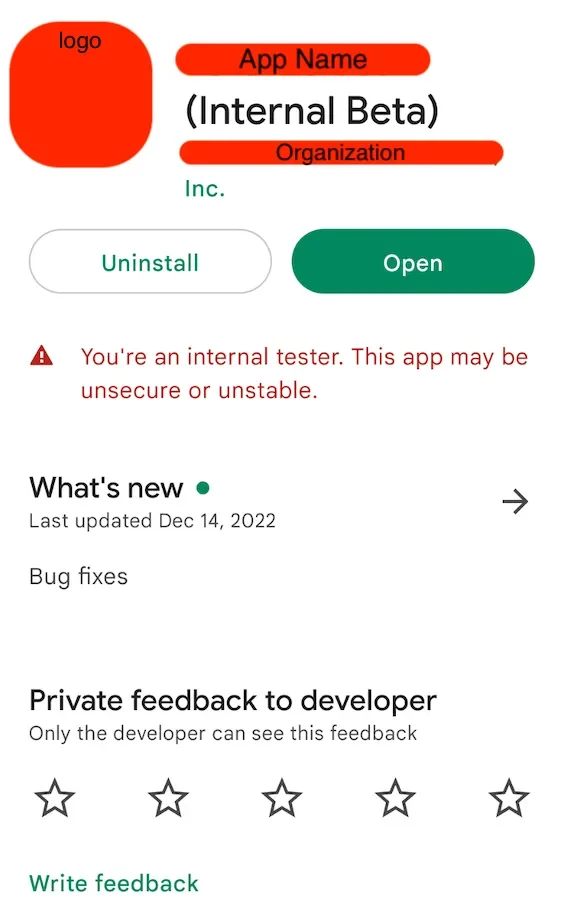
3. You can find the application shown with an internal beta label, you can download this application and start testing.
4. Make sure the Android device has Developer Mode enabled.
### Download app
1. Open the Play Store and make sure the sign-in email is your tester’s email address.
2. Now search the application on the store.
3. You can find the application shown with an internal beta label, you can download this application and start testing.
4. Make sure the Android device has Developer Mode enabled.