> ## Documentation Index
> Fetch the complete documentation index at: https://www.cashfree.com/docs/llms.txt
> Use this file to discover all available pages before exploring further.
# Other E-Commerce Plugins
> Connect Cashfree Payments to other ecommerce platforms like OpenCart with official plugins that support multiple versions, popular payment methods, and refunds.
## Opencart
Cashfree supports 3 versions for OpenCart integration,
* **OpenCart version 3.0**
* **OpenCart version 2.3 and 2.1**
Download Cashfree's official Opencart plugin
## OpenCart version 3.0
To add Cashfree Payment Gateway to your OpenCart account,
1. Download Cashfree's Plugin for Opencart Version 3.0.
2. Copy all files/folders in the Admin and Catalog folder to OpenCart installation directory.
3. Login to [OpenCart](https://www.opencart.com/).
4. In the OpenCart Dashboard, go to **Admin Panel** > **Extensions**. Select the extension type as **Payments**.
5. Click the edit button next to Cashfree in the screen.
6. Fill in the details in the configuration screen and save.
End Points: **Production** - `https://api.cashfree.com` **Test** -
`https://test.cashfree.com`
## Prestashop
Currently, we support the following PrestaShop versions:
* PrestaShop 1.7x
* PrestaShop 1.5x and 1.6x
To install the plugin
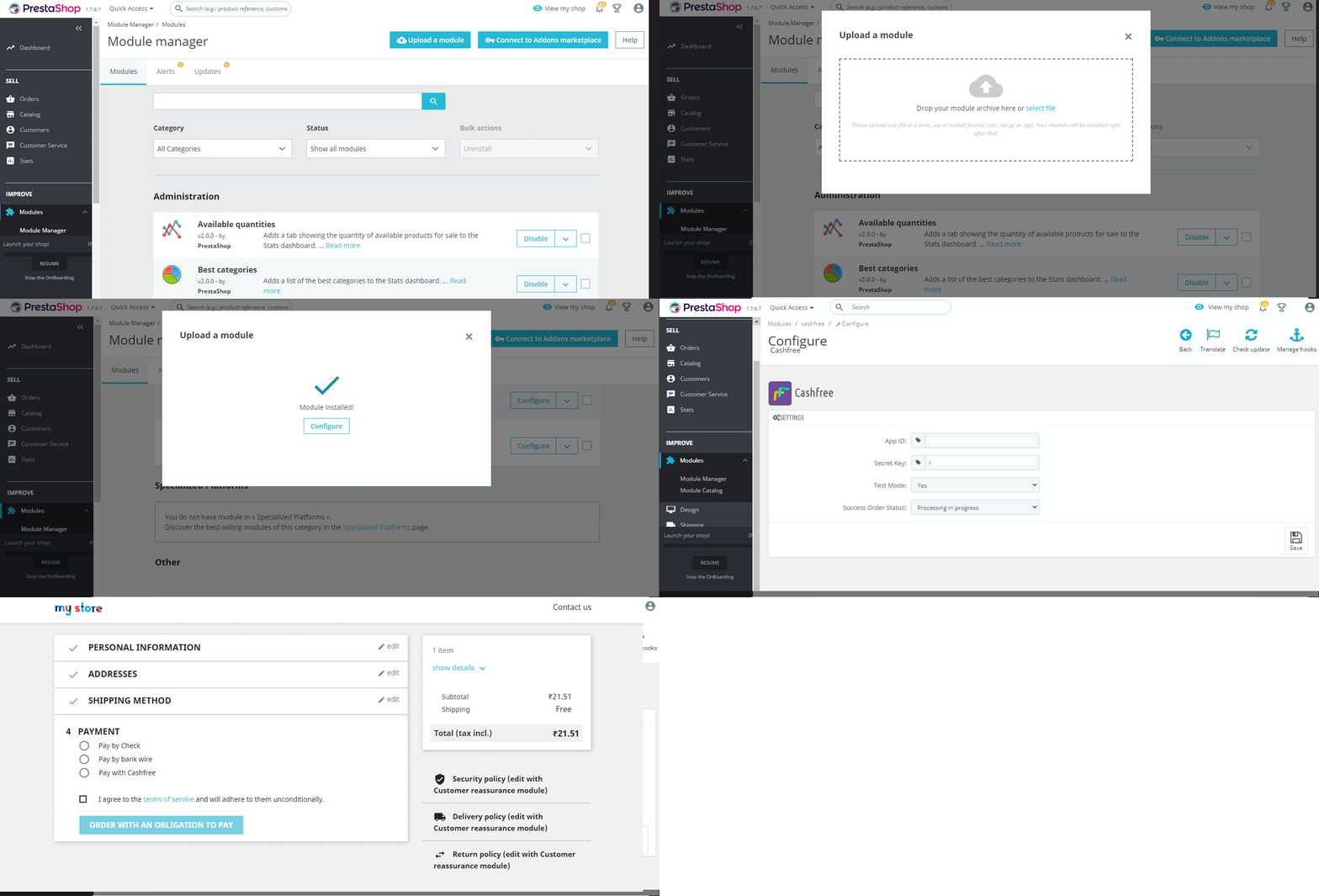
1. Log in to your PrestaShop Admin Dashboard and click **Modules** on the left side menu.
2. Click **Module Manager** > **upload a module**.
3. Select the module file to upload. Ensure the file format is as per the guidelines. On successful upload, a screen appears as shown below, and the module is successfully installed.
4. After successful installation, click **Configure** to set up the module configuration.
5. In the Configure screen:\
a. Enter your Cashfree Payment Gateway **App Id** and **Secret Key**.\
b. Select the **Test Mode** as **Yes** for **Test Environment** and **No** for **Production Environment**.\
c. Select the **Success Order Status** as **Processing in progress**.
6. Click **Save** to save the module configuration. The **Configure** screen appears as shown below.
## StoreHippo
To add Cashfree Payment Gateway to your StoreHippo account,
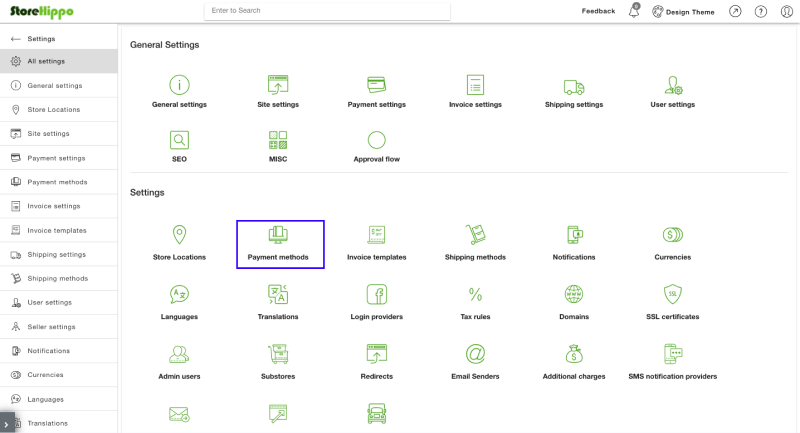
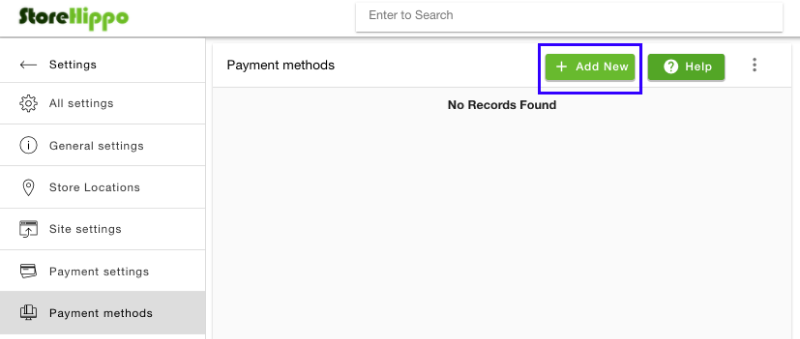
1. Log in to your StoreHippo account and click **Settings** in the left navigation section.
2. In the **Settings** section, select **Payment methods**.
3. In the **Payment methods** screen, click **Add New** to add a new payment gateway.
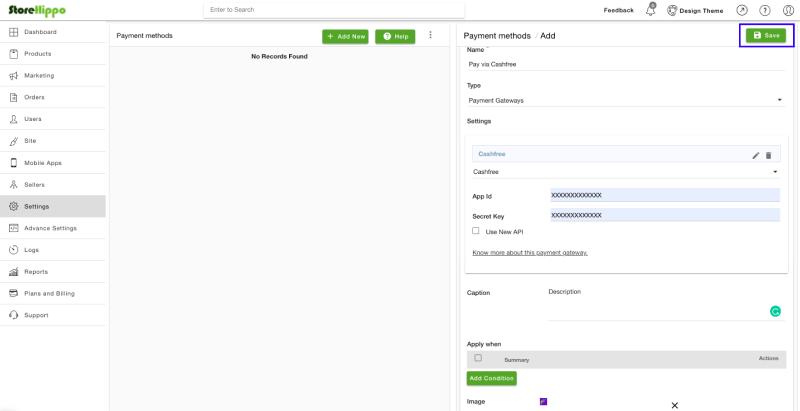
4. In the **Payment methods / Add** screen, enter the following:
* In the **Name** field specify a name to represent the payment method. This will be visible to your customers.
* In the **Type** field, select **Payment Gateways**.
* In the **Settings** field, select **Cashfree**, and enter the App ID and Secret Key. To test the integration, you can use the test keys, to accept payments from customers, enter the production keys.\
For more information on API Keys, see [Go-live checklist](/payments/online/go-live/checklist).
* In the **Caption** field, you can enter details that must be displayed on the payments page for your customers.
* In the Image field, you can select a payment method logo.
* Select the **Enabled** checkbox to activate this payment method.
5. Click **Save** to add the new payment method.
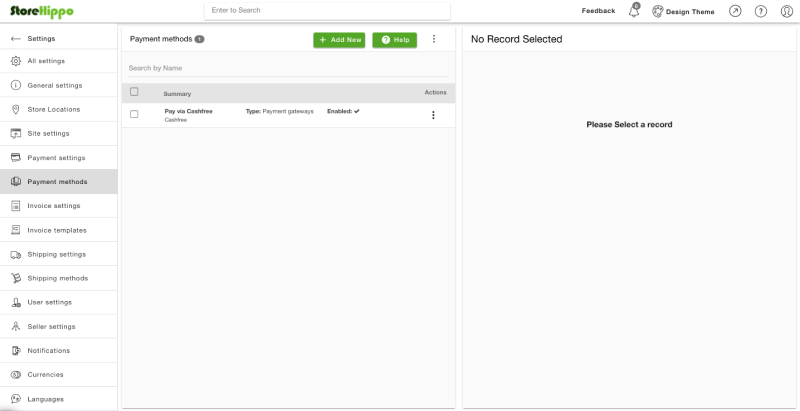
The newly added Cashfree payment method will be displayed in the available Payment Methods section as shown below. Your customers can start making payments using this option.
## WHMCS
WHMCS (Web Host Manager Complete Solution) is a web host billing and automation platform. WHMCS is the market-leading platform of choice for Web Hosting Providers and Domain Registrars to automate and manage their businesses.
Cashfree supports **WHMCS 7** and **WHMCS 8** versions for integration.
To add Cashfree Payment Gateway to your WHMCS account,
Download Module
1. Unzip the downloaded file and upload the contents of the repository to your WHMCS Installation directory.
2. Log into your site with the WHMCS administrator credentials. You can do this by adding /admin to the URL where you have installed WHMCS. For example, `www.example.com/whmcs/admin`.
3. In the WHMCS Admin Dashboard, go to **Setup** > **Payment Gateways** > **All Payment Gateways**, and select **Cashfree** from the list and activate it.
4. Enter your Cashfree Payment Gateway **App Id** and **Secret Key**.
5. Click the checkbox if you want to enable test mode.
6. Click **Save Changes**.
## ZenCommerce
To add Cashfree Payment Gateway to your Zencommerce account,
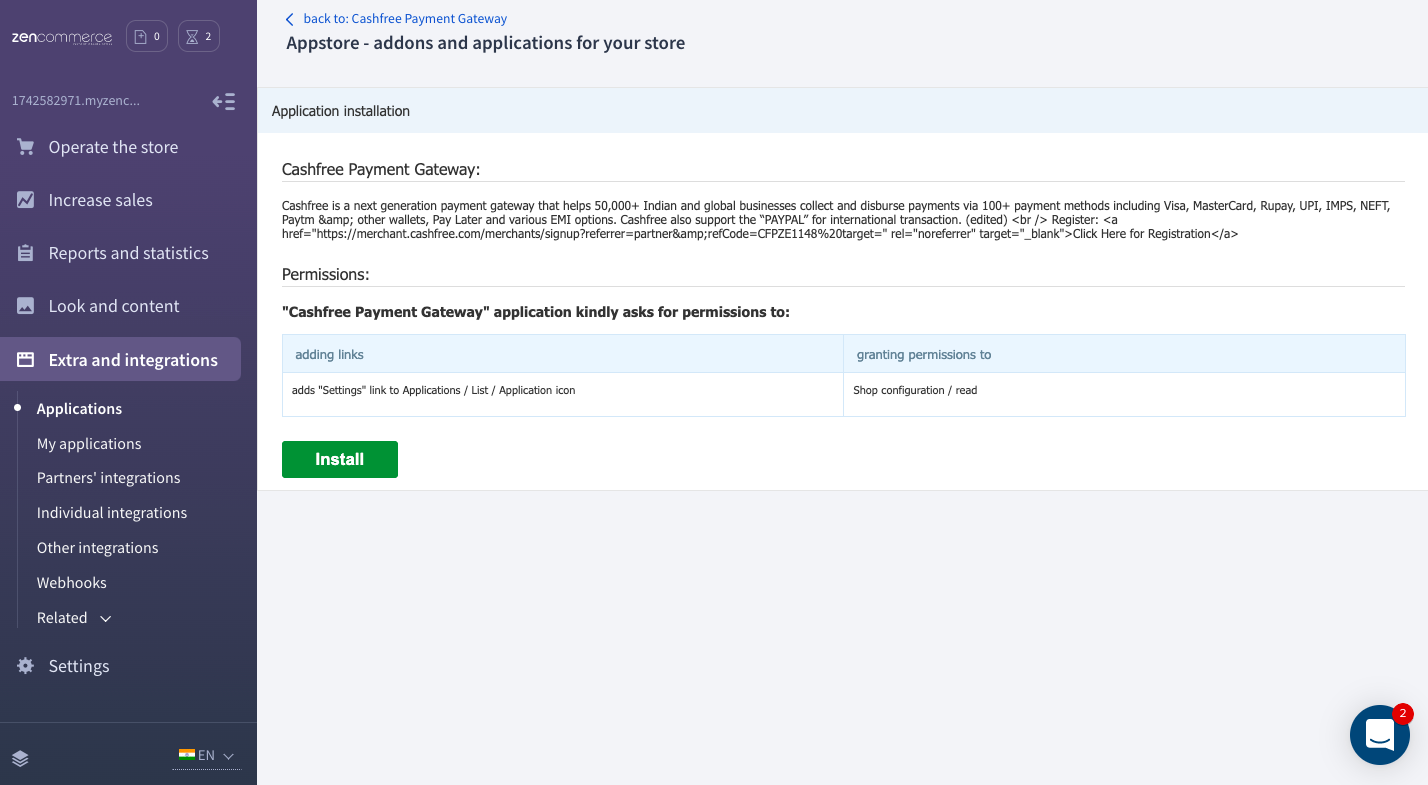
1. Log in to your Zencommerce account and click **Extras and Integrations** in the left navigation section.
2. Click **Applications** and select **Cashfree Payment Gateway**.
3. In the Cashfree Payment Gateway applications section, click **Install**.
4. In the Application Installation screen, click **Install**. After successful installation, a message **Application has been installed in your shop!** appears on the screen.
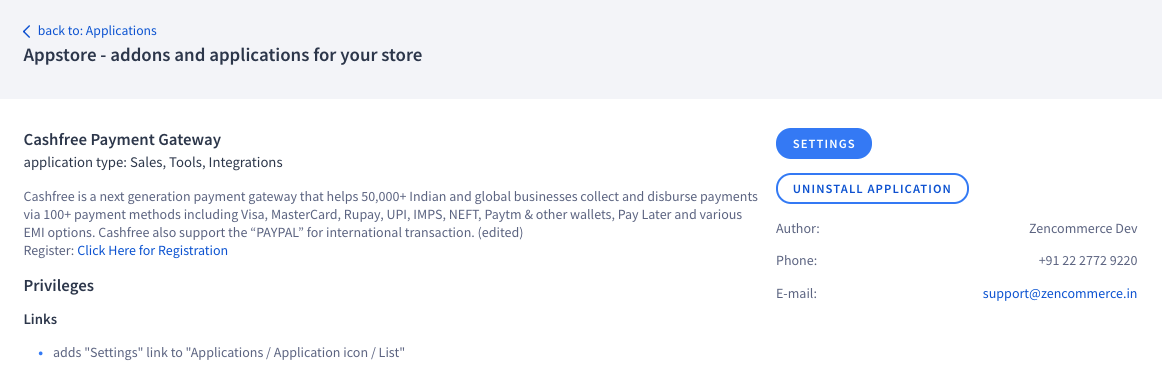
5. Click **My Applications** in the **Extras and Integrations** section. A screen appears as shown below:
6. Click the application and then click **Settings** as shown below.
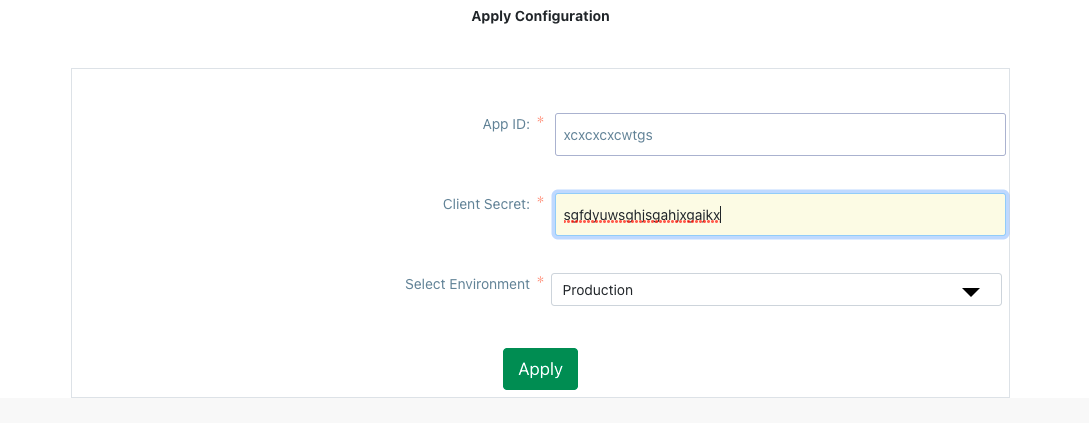
7. In the **Apply Configuration** screen, enter the **App ID** and **Client Secret** for your Cashfree Payments account. Select Production or Test as the environment and click **Apply**.
Customers can now start making payments using Cashfree Payment Gateway.
## Arastta
To add Cashfree Payment Gateway to your Zencommerce account,
Download the **upload.zip file**
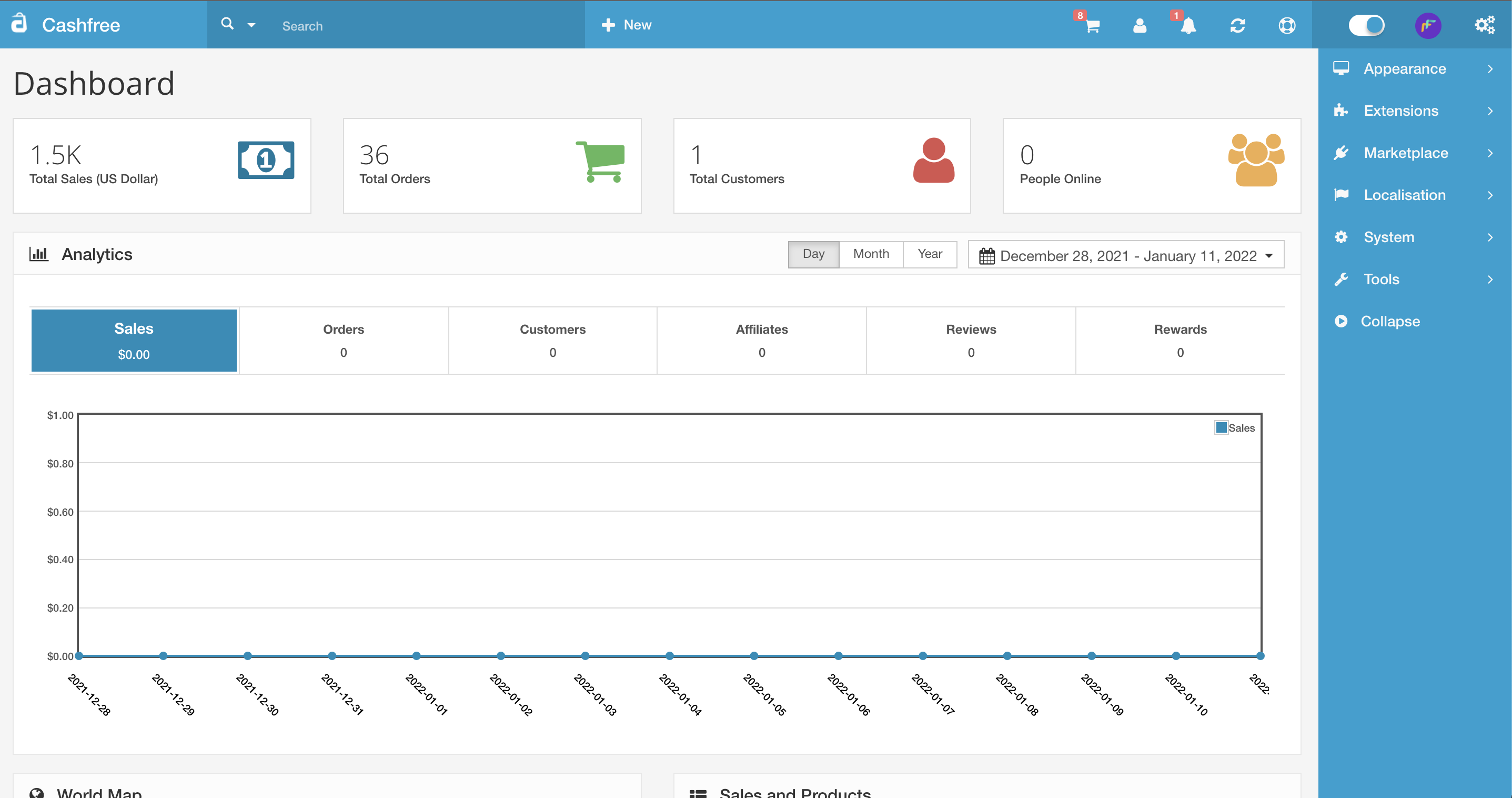
1. Login to the Arastta admin dashboard and click **Extensions**.
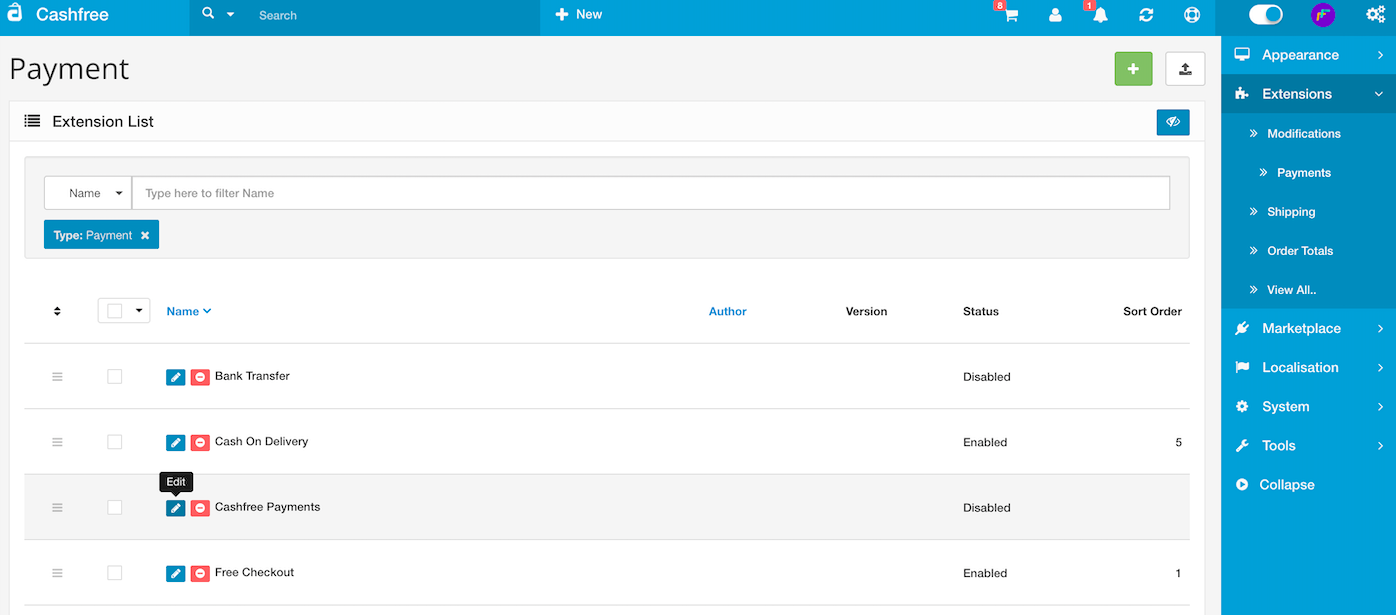
2. Select **Payments** and click the upload extension icon in the **Payment** screen and upload the **upload.zip file** you downloaded in step 1.
3. Cashfree Payments will be listed in the payment page as shown below:
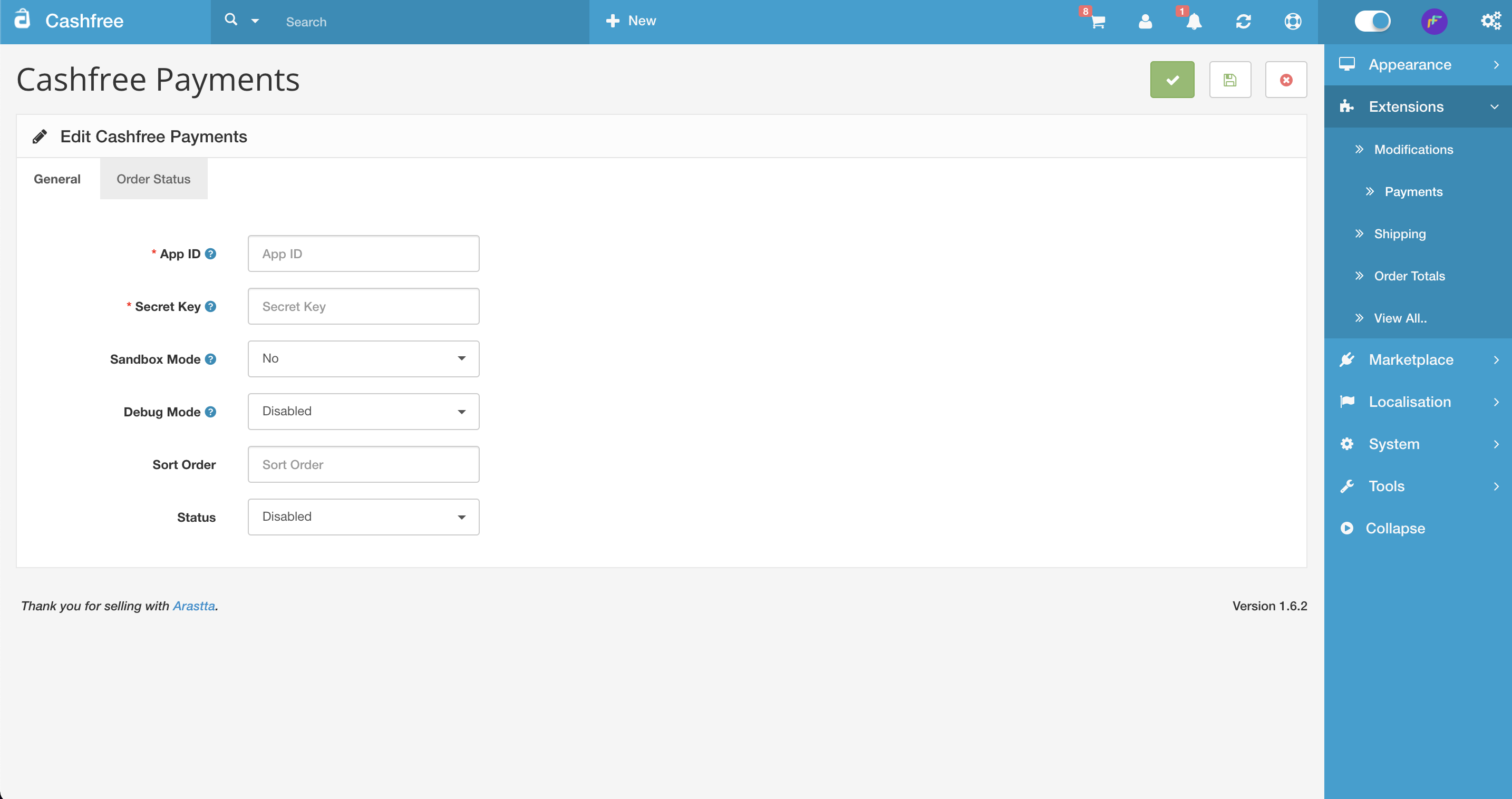
4. Click the edit icon to change the configuration.\
a. **In General tab:**
* Enter your Cashfree Payments account **App ID**.
* Enter your Cashfree Payments account **Secret Key**.
* In the **Sandbox Mode** option, select **Yes**, when you want to test the integration. Select\
**No**, when you want to accept live payments.
* Select the **Debug Mode** and **Sort Order** as per your requirements.
* Change plugin **Status** to **Enabled**.
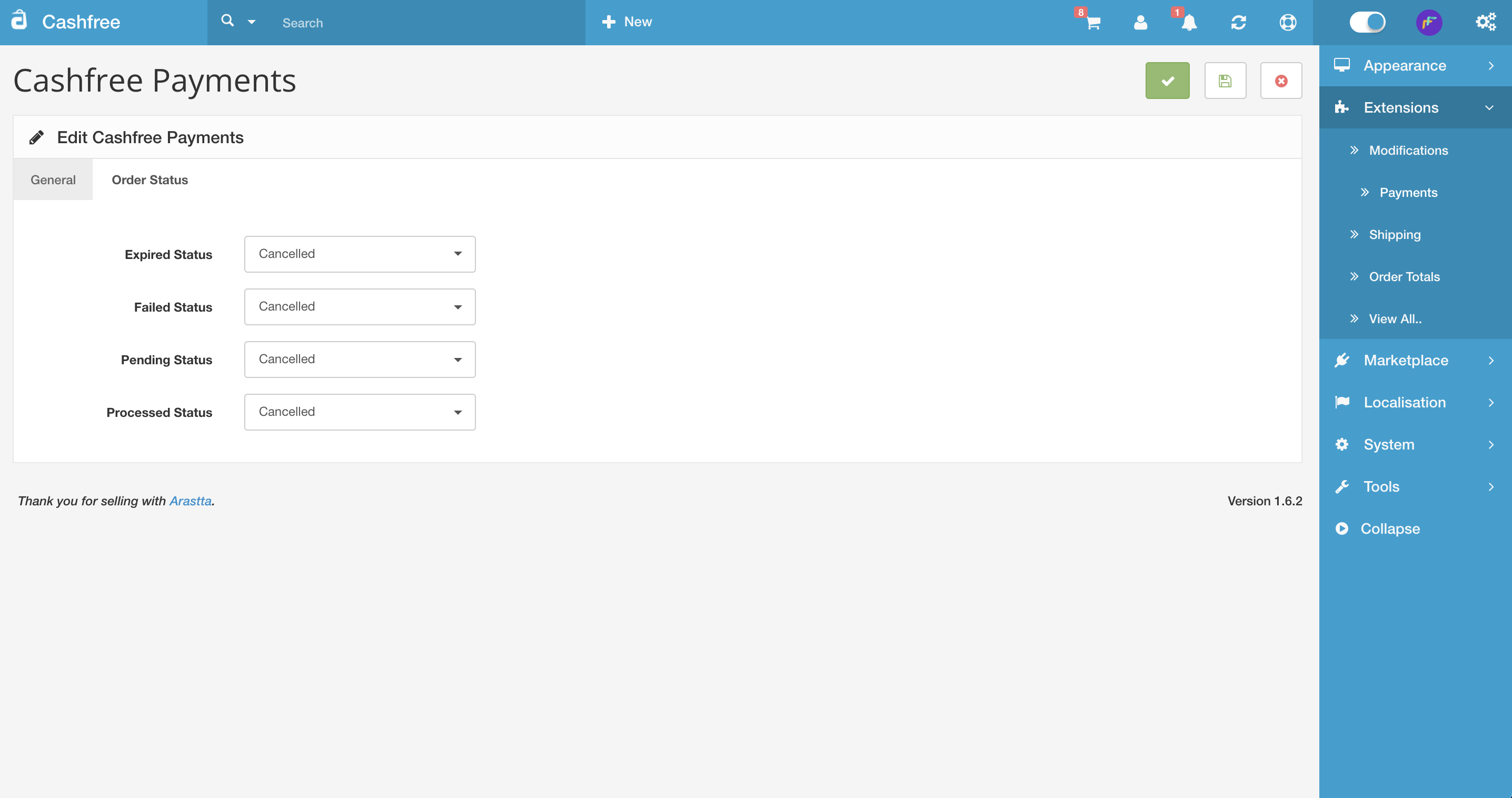
b. **In Order Status tab:**: Select order status for expired orders. - Select
order status for failed orders. - Select order status for pending orders. - Select
order status for processed orders.
5. Save the plugin settings. Your customers can start making payments using Cashfree Payment Gateway.
## CSCart
Download Cashfree's official CS-Cart plugin
To integrate,
1. Install the latest version of CS-Cart.\
The file contains integration code for interaction with the Cashfree API and allows payment in CS-Cart seamlessly.
2. Execute 'install\_cashfree.sql' against CS-Cart database. The file is available in the root directory of this file. Change prefix if you have added during installation of CS-Cart. You can either use phpmyadmin to import SQL file directly or run SQL queries in your MySQL shell.
3. Upload the contents of the repo to your CS-Cart Installation directory (the content of the app folder must be uploaded to the app folder and the content of design should be uploaded to the design folder).
**Configuration**
1. Log into CS-Cart as administrator (`http://your.cscart.store.com/admin.php`).
2. Go to **Administration** > **Payment Methods**.
3. Click the **+** icon to add a new payment method.
4. Enter Name as **Cashfree**.
5. Select Cashfree from the list and template and select "cc\_outside.tpl".
6. Enter your Cashfree Payment Gateway **App Id** and **Secret Key**.
7. Select **Currency** from the dropdown.
8. Select Test or Production environment.
9. Click **Create** to save the configuration.
Read about [whitelisting your store url](/payments/online/go-live/whitelist)
before you can accept payments on your store.
 ## StoreHippo
To add Cashfree Payment Gateway to your StoreHippo account,
1. Log in to your StoreHippo account and click **Settings** in the left navigation section.
2. In the **Settings** section, select **Payment methods**.
## StoreHippo
To add Cashfree Payment Gateway to your StoreHippo account,
1. Log in to your StoreHippo account and click **Settings** in the left navigation section.
2. In the **Settings** section, select **Payment methods**.
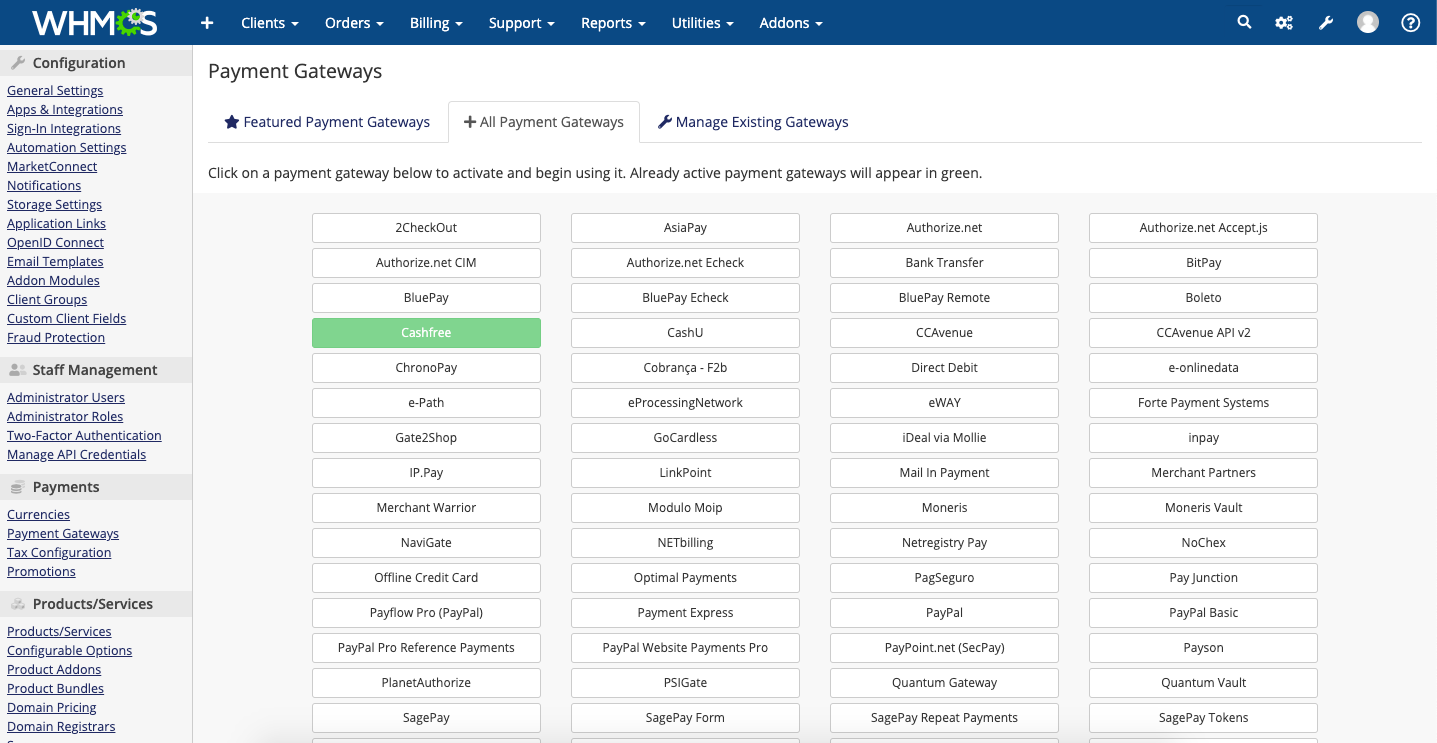 4. Enter your Cashfree Payment Gateway **App Id** and **Secret Key**.
5. Click the checkbox if you want to enable test mode.
4. Enter your Cashfree Payment Gateway **App Id** and **Secret Key**.
5. Click the checkbox if you want to enable test mode.
 6. Click **Save Changes**.
## ZenCommerce
To add Cashfree Payment Gateway to your Zencommerce account,
1. Log in to your Zencommerce account and click **Extras and Integrations** in the left navigation section.
2. Click **Applications** and select **Cashfree Payment Gateway**.
3. In the Cashfree Payment Gateway applications section, click **Install**.
4. In the Application Installation screen, click **Install**. After successful installation, a message **Application has been installed in your shop!** appears on the screen.
6. Click **Save Changes**.
## ZenCommerce
To add Cashfree Payment Gateway to your Zencommerce account,
1. Log in to your Zencommerce account and click **Extras and Integrations** in the left navigation section.
2. Click **Applications** and select **Cashfree Payment Gateway**.
3. In the Cashfree Payment Gateway applications section, click **Install**.
4. In the Application Installation screen, click **Install**. After successful installation, a message **Application has been installed in your shop!** appears on the screen.