> ## Documentation Index
> Fetch the complete documentation index at: https://www.cashfree.com/docs/llms.txt
> Use this file to discover all available pages before exploring further.
# WordPress
> Use the Cashfree WordPress plugin to embed a payment button on any WordPress page and accept cards, netbanking, UPI, and wallet payments without coding.
Cashfree's WordPress plugin allows you to easily accept payments from customers on your WordPress page by easily integrating the payment button. You can accept payments via debit card, credit card, net banking, UPI, or through any of our supported wallets.
To accept payments using Cashfree's Quick Button:
* Add a few custom variables and some markup to a page.
* Specify the amount, title, description and other custom details as page metadata.
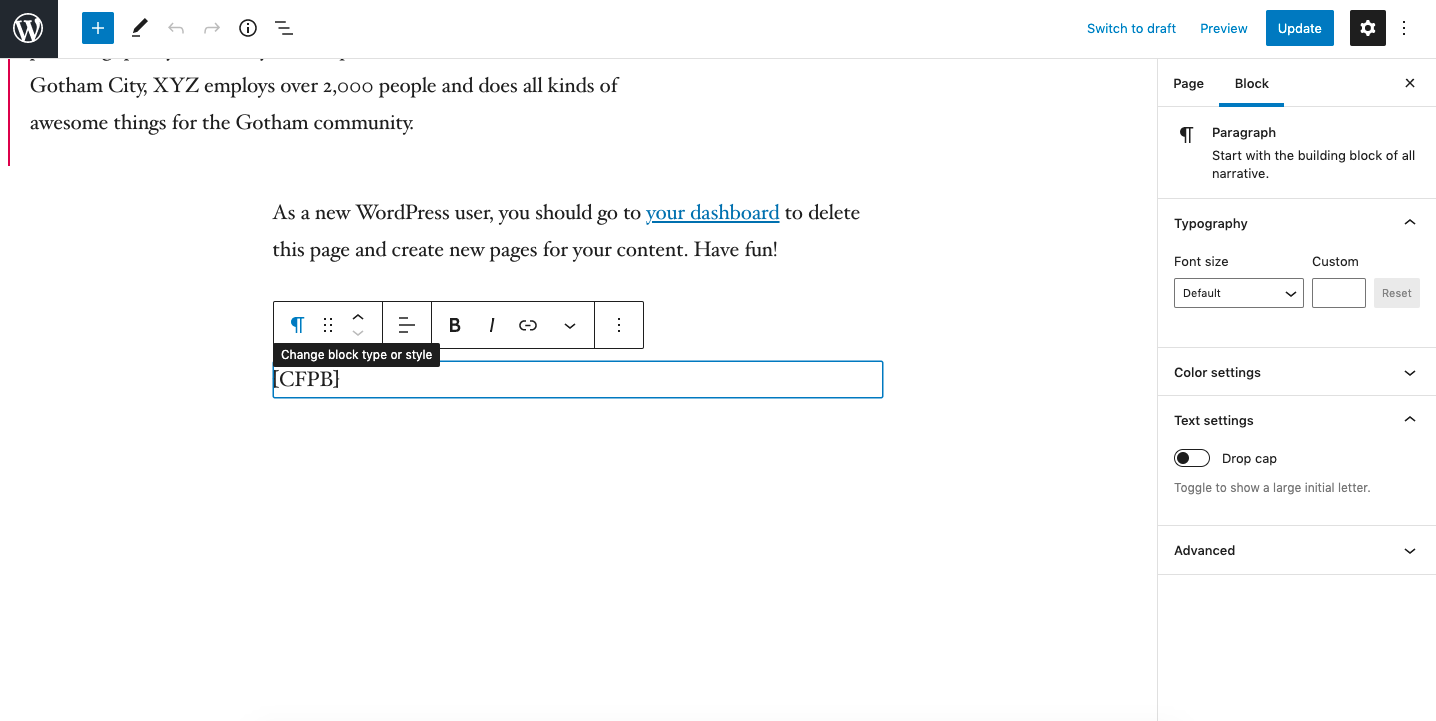
* Write `[CFPB]` where you want the Pay With Cashfree button to be displayed. The plugin takes over and completes the payment after customers click the payment button.
## Configuration
1. Download Cashfree's [Quick Button plugin](https://github.com/cashfree/cashfree-quick-button).
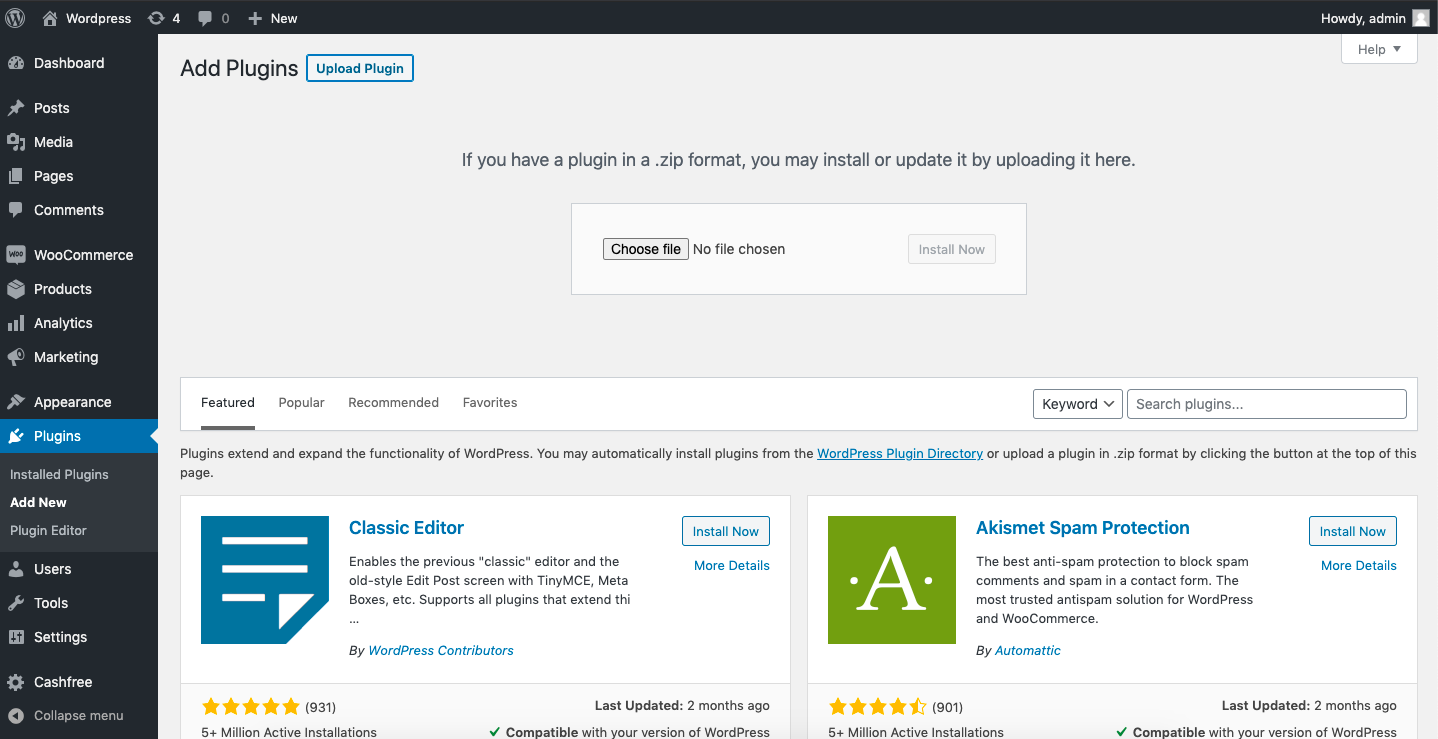
2. Go to your WordPress site > Plugins > Add New.
3. Upload the plugin.
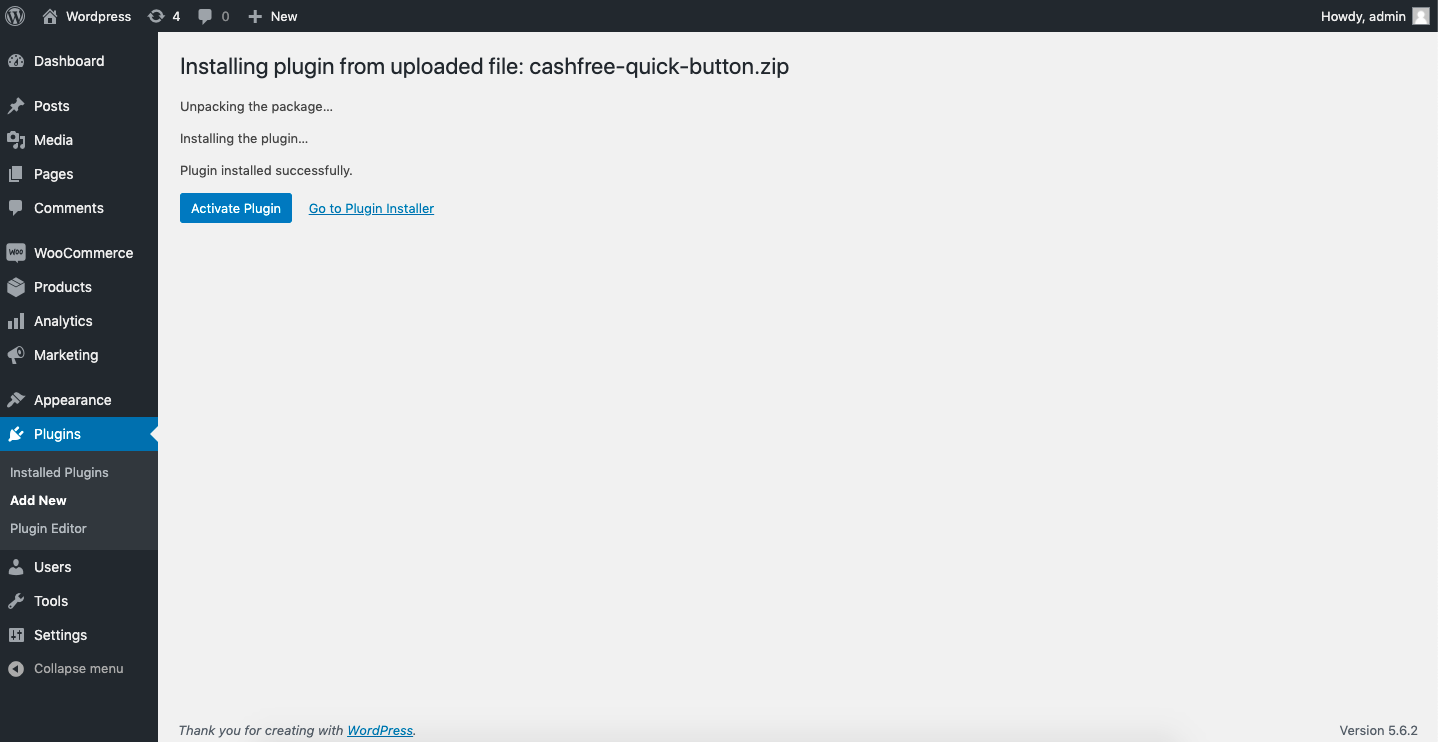
 4. Select **Activate Plugin**.
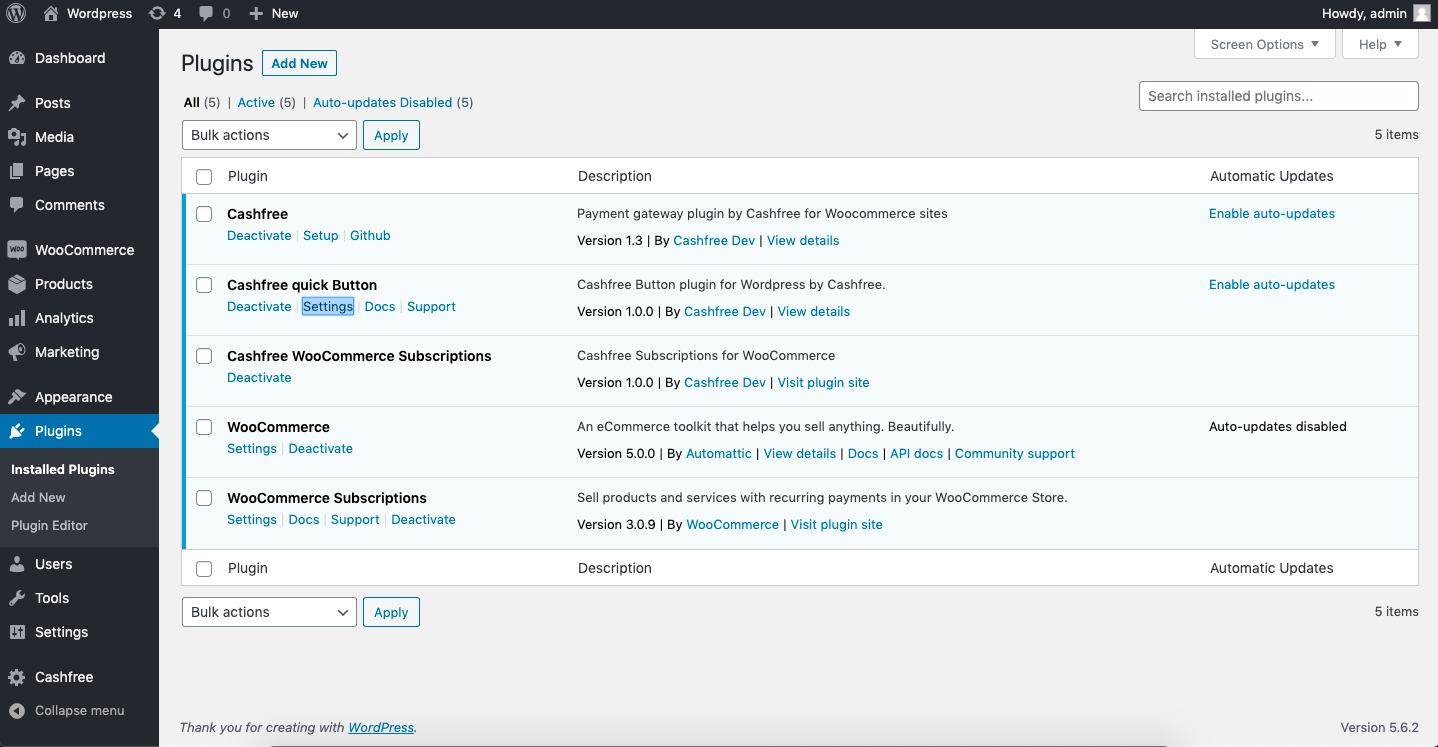
 5. Select **Settings**.
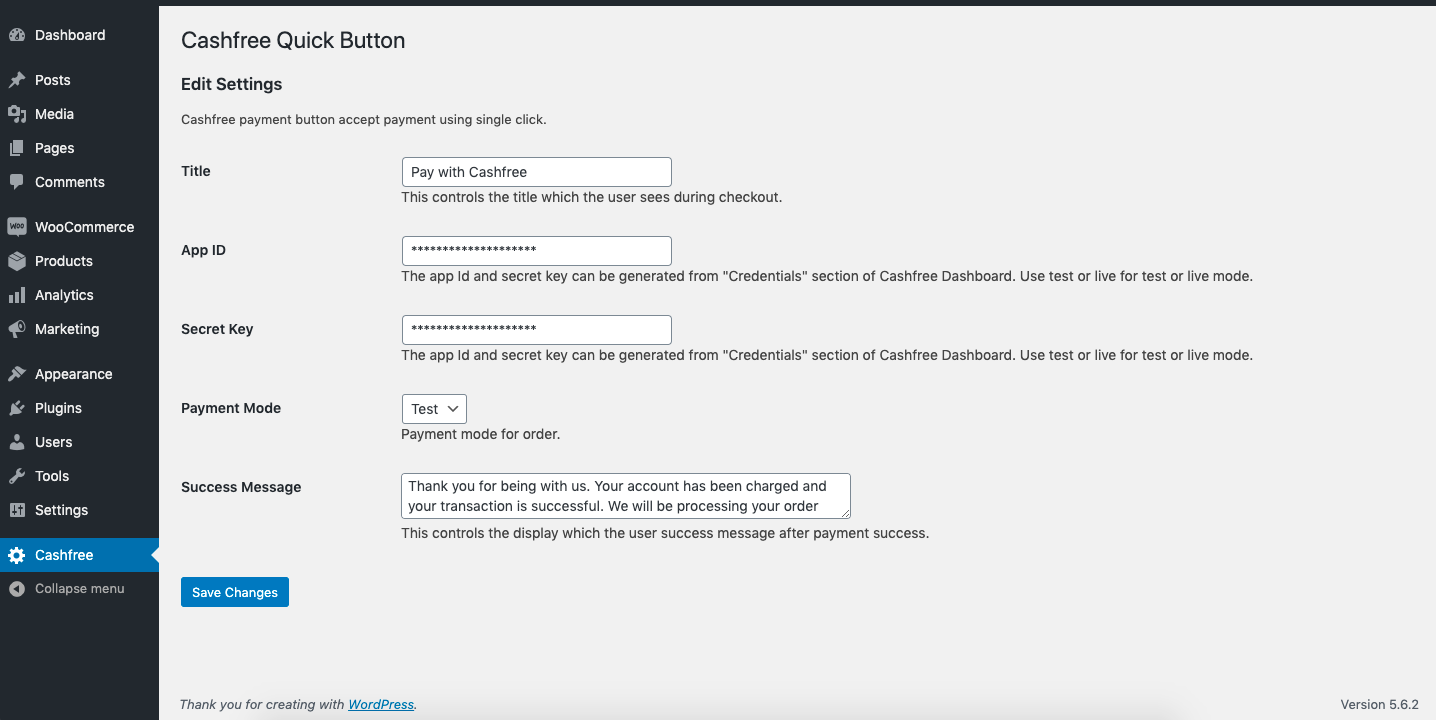
 6. In the **Edit Settings** screen, enter the **Title, App ID, Secret Key, Payment Mode** (Test/Prod) and the **Success Message**. Click Save Changes.
 ## Add custom fields
1. In your WordPress site, open the page where you want the payment button to be displayed.
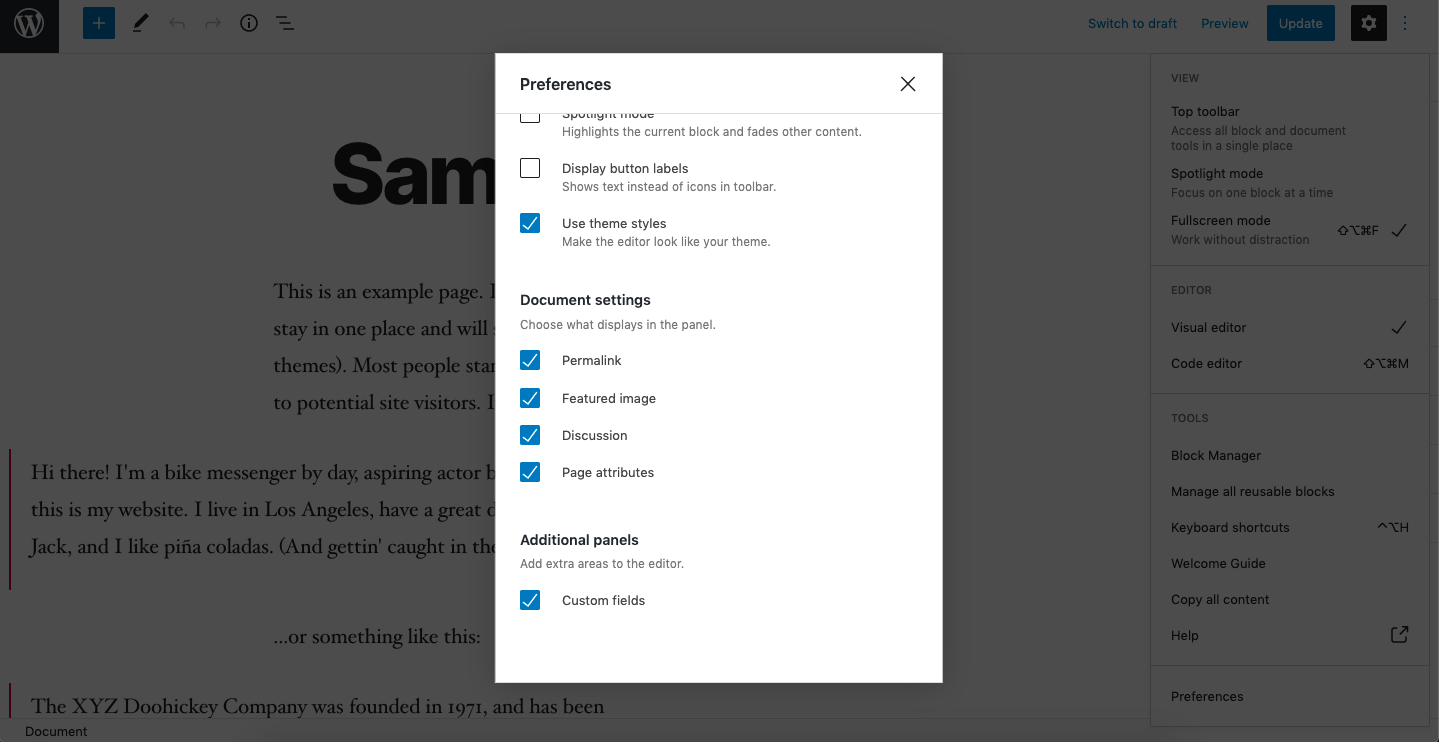
2. Click the more icon and select **Preferences**.
3. In the **Preferences** screen, enable the option **Custom fields**. You will now have the option to add custom fields to your WordPress page.
## Add custom fields
1. In your WordPress site, open the page where you want the payment button to be displayed.
2. Click the more icon and select **Preferences**.
3. In the **Preferences** screen, enable the option **Custom fields**. You will now have the option to add custom fields to your WordPress page.
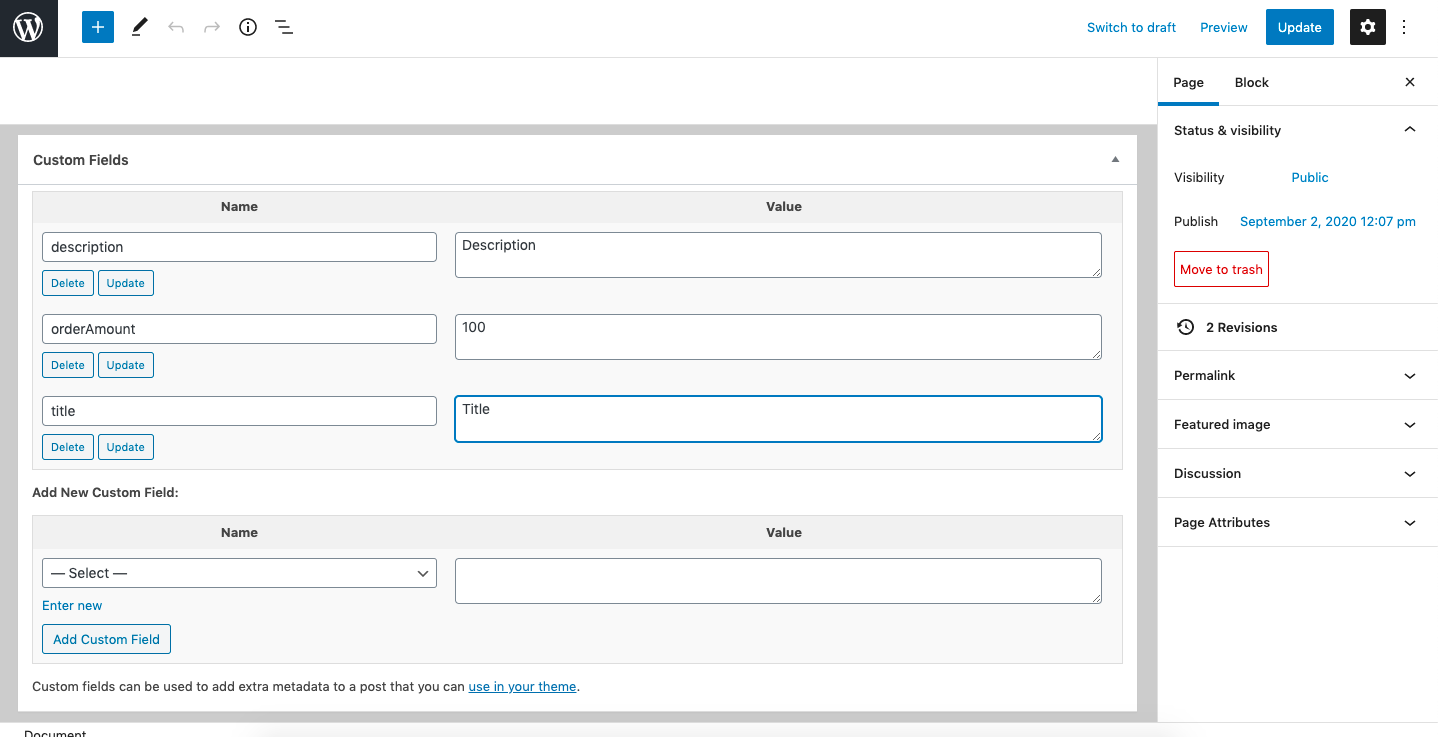
 4. Scroll down the page till you see the Custom fields section, and add the following three custom fields as metadata:
* **description**: include product description
* **orderAmount**: specify the order amount in INR
* **title**: specify the product name
4. Scroll down the page till you see the Custom fields section, and add the following three custom fields as metadata:
* **description**: include product description
* **orderAmount**: specify the order amount in INR
* **title**: specify the product name
 5. Write `[CFPB]` in the content section where you want to display the `Pay With Cashfree` button.
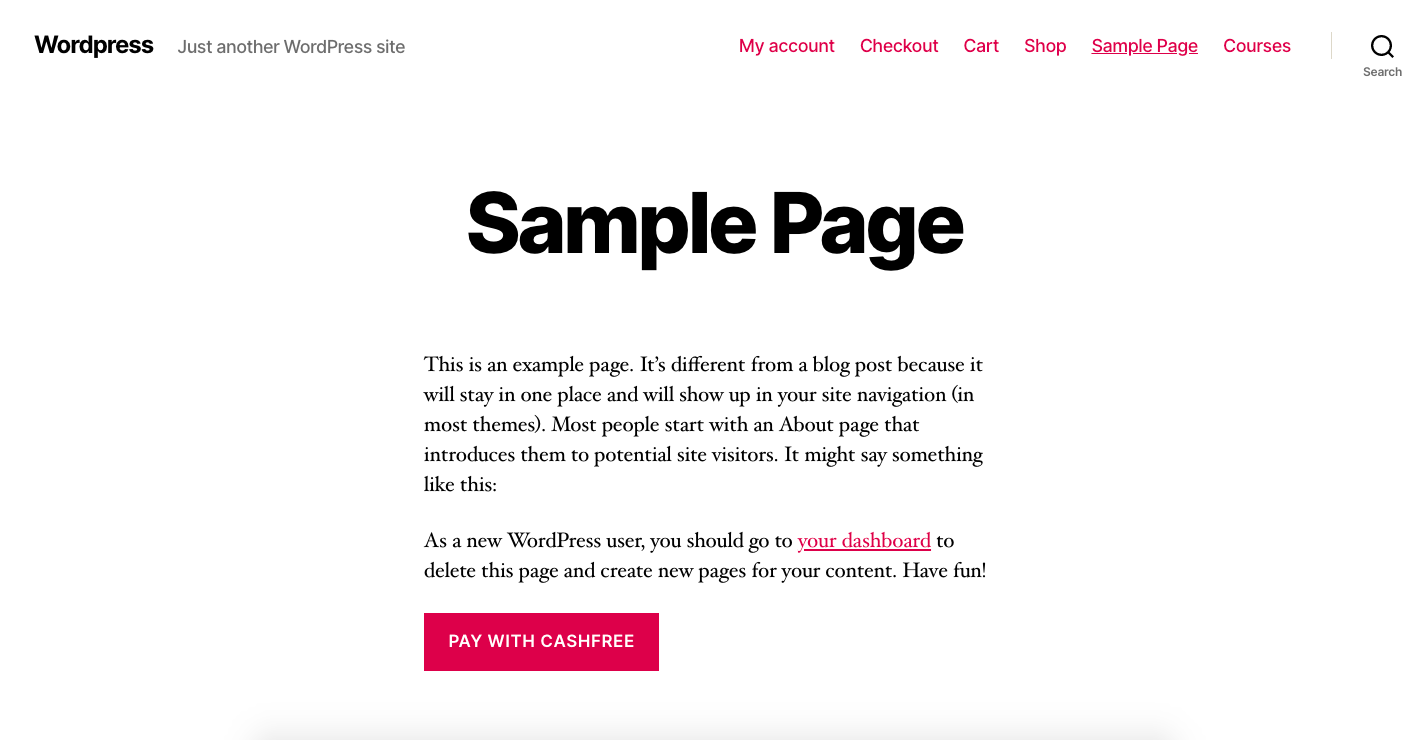
 6. Publish the page to see the **Pay with Cashfree** button. Customers can complete the payment by clicking the button on the page.
 Read about [whitelisting your store url](/payments/online/go-live/whitelist)
before you can accept payments on your store.
Read about [whitelisting your store url](/payments/online/go-live/whitelist)
before you can accept payments on your store.