> ## Documentation Index
> Fetch the complete documentation index at: https://www.cashfree.com/docs/llms.txt
> Use this file to discover all available pages before exploring further.
# Risky Transactions
> View Cashfree RiskShield flagged and blocked transactions in one place and drill into smart-rule and recommended-rule decisions for suspicious payments.
## View flagged transactions
You can view the suspicious transactions detected by Shield Pro and transactions that fall under the activated smart rules and recommended rules here. [For the transactions under the recommended rule(s), you chose to flag appear here](/payments/risk-shield/smart-rules#update-smart-rule-action). Follow the instructions below to view the flagged transactions:
1. Log in to the **[Merchant Dashboard](https://merchant.cashfree.com/auth/login)**.
2. Go to **Payment Gateway** > **Riskshield** > **Risky Transactions** > **Flagged Transactions**.
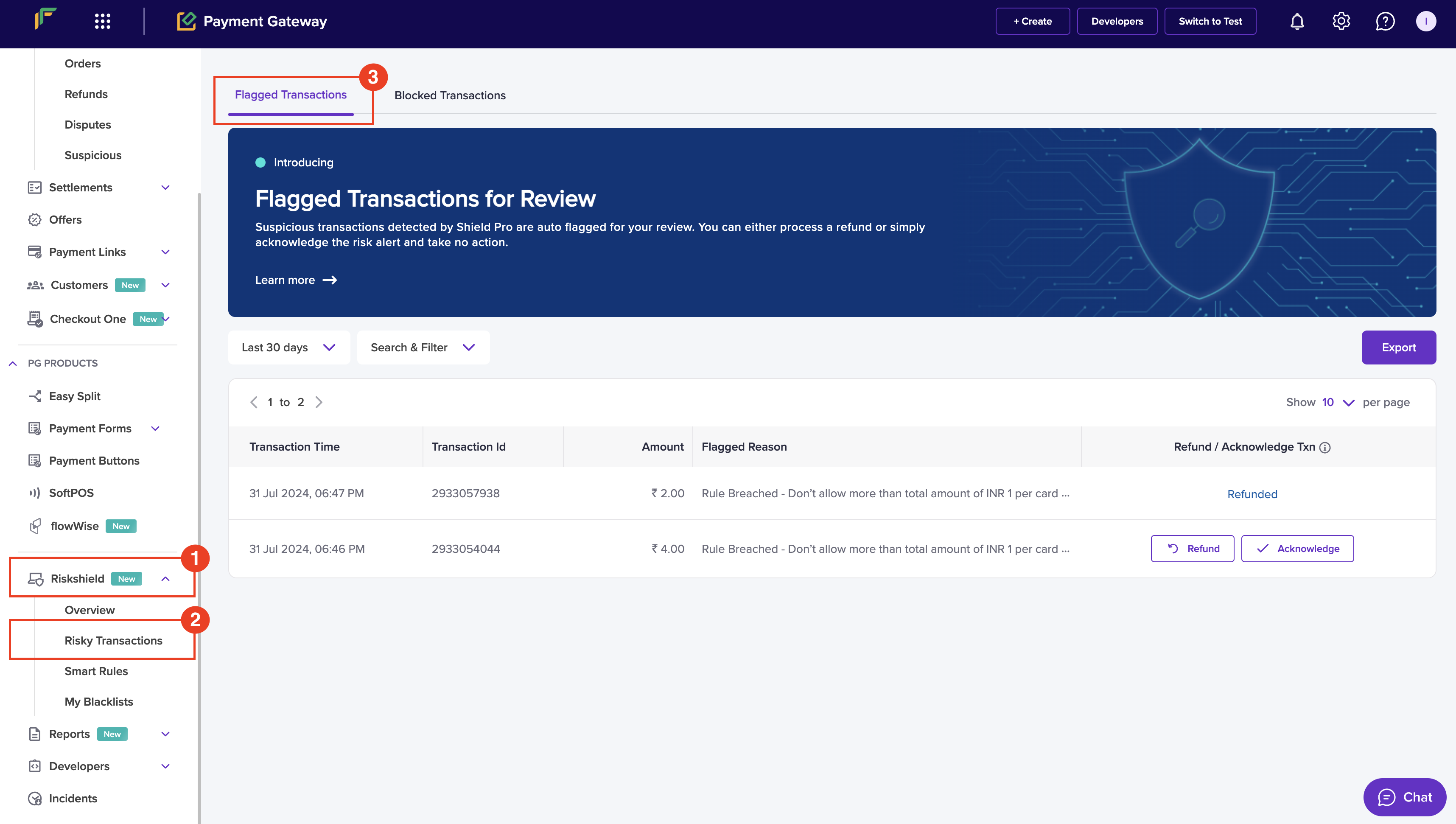 1. **Last 30 Days**: Use the dropdown menu to select the time period of the flagged transactions that you wish to view. You can select **Custom Data Range** to select a custom date range.
2. **Search & Filter**: Use the available filter options to retrieve the data and click **Apply**.
3. **Export**: Select this option to export the data.
1. **Last 30 Days**: Use the dropdown menu to select the time period of the flagged transactions that you wish to view. You can select **Custom Data Range** to select a custom date range.
2. **Search & Filter**: Use the available filter options to retrieve the data and click **Apply**.
3. **Export**: Select this option to export the data.
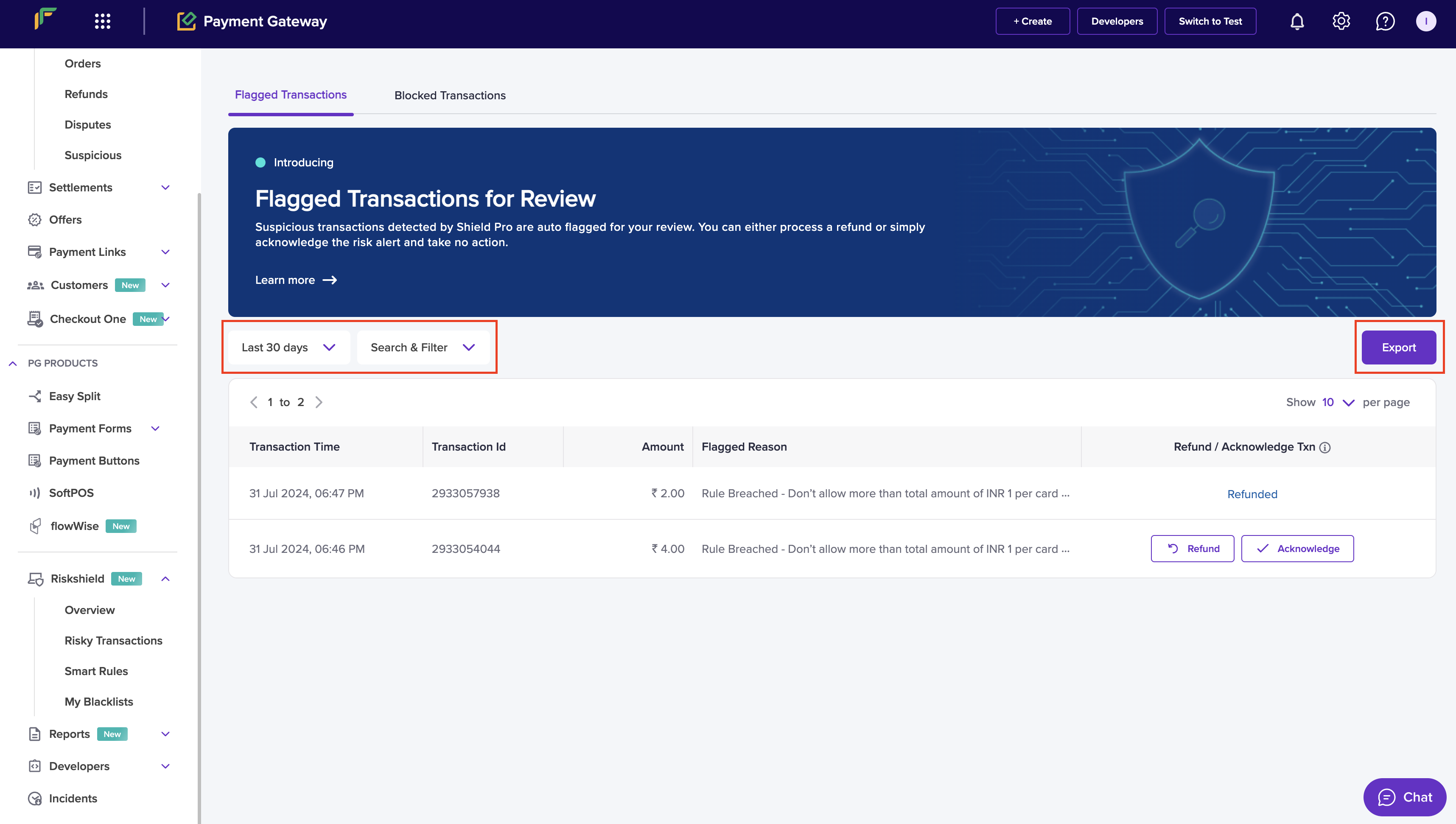 6. You can view the following data in the form of cards:
* **Transaction Time**: It displays the number of transactions scanned.
* **Transaction Id**: It displays the number of transactions.
* **Amount**: It displays the amount protected because of blocking the transactions.
* **Flagged Reason** - It displays the reason for flagging the transaction for review.
* **Refund / Acknowledge Txn**
* **Refund**: Select this option to refund the flagged transaction.
* **Acknowledge**: Select this option to acknowledge the flagged transaction.
6. You can view the following data in the form of cards:
* **Transaction Time**: It displays the number of transactions scanned.
* **Transaction Id**: It displays the number of transactions.
* **Amount**: It displays the amount protected because of blocking the transactions.
* **Flagged Reason** - It displays the reason for flagging the transaction for review.
* **Refund / Acknowledge Txn**
* **Refund**: Select this option to refund the flagged transaction.
* **Acknowledge**: Select this option to acknowledge the flagged transaction.
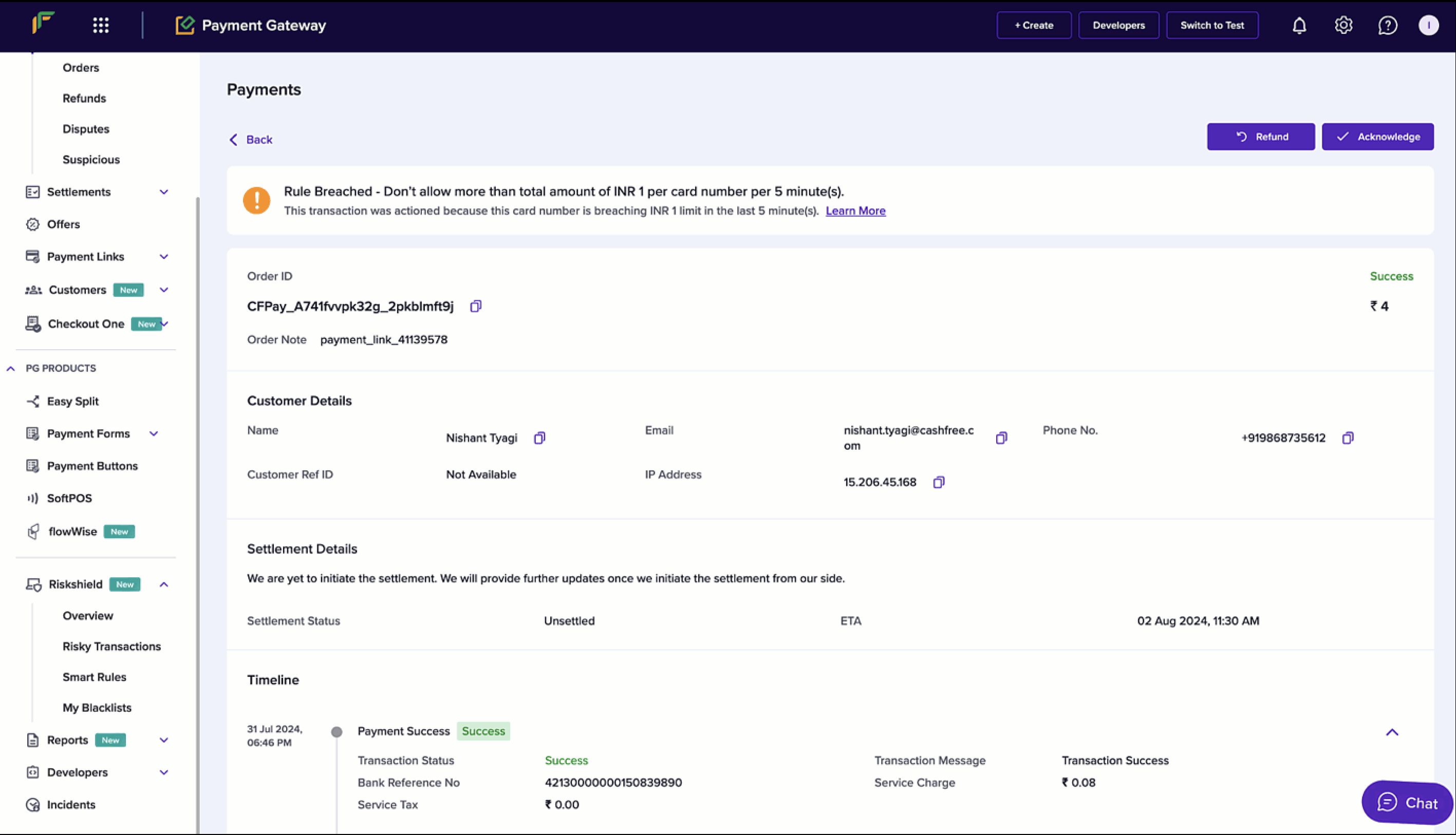
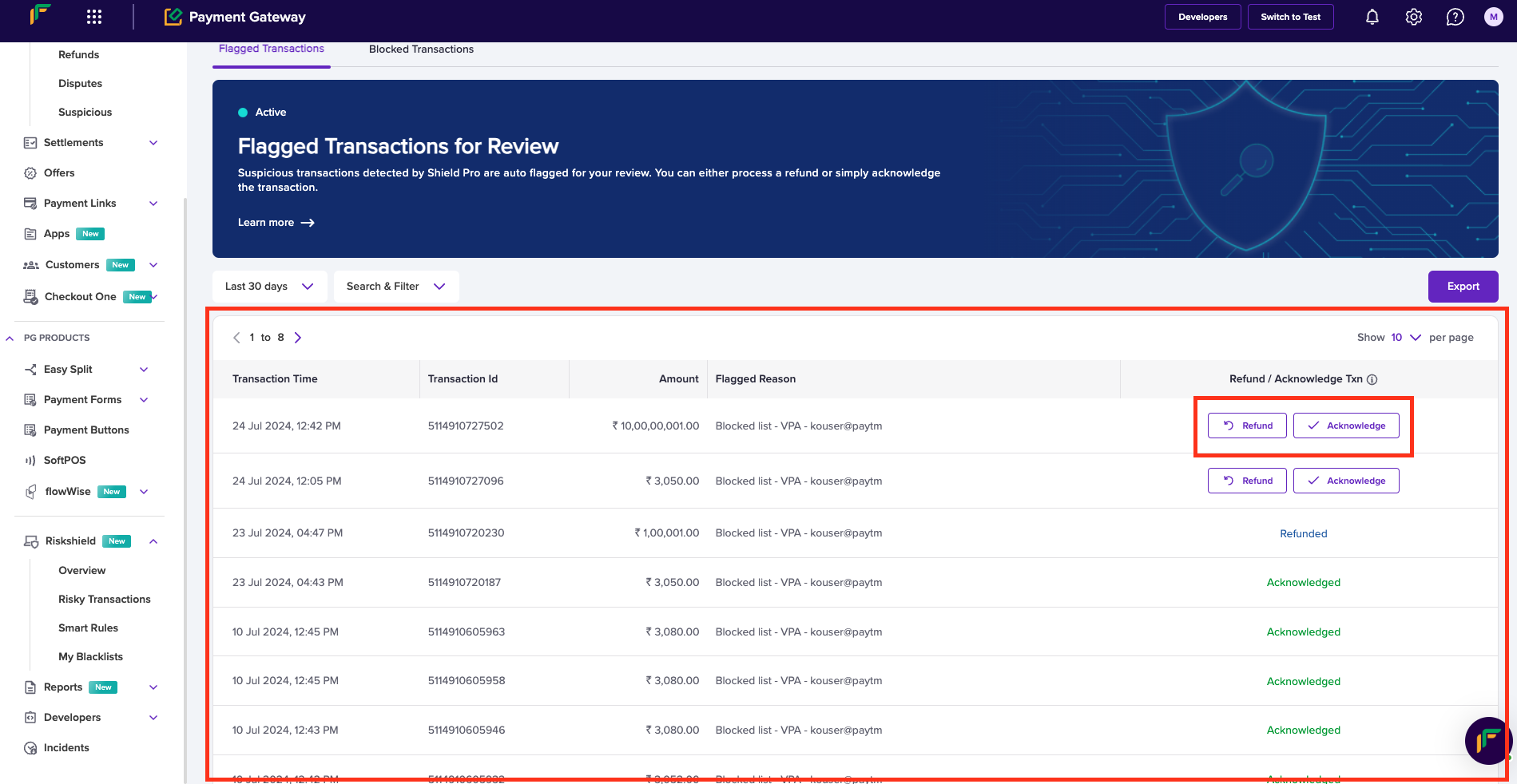 You can click a flagged transaction to view it in detail.
 ***
### Refund flagged transaction
You can choose to refund the flagged transactions by following the instructions below:
1. From the *Flagged Transactions* screen, you can click **Refund** to proceed with the process or select the flagged transaction to view it in detail.
2. Click **Refund**.
3. In the *Initiate Refund* popup, enter the refund amount in the respective field and proceed.
***
### Refund flagged transaction
You can choose to refund the flagged transactions by following the instructions below:
1. From the *Flagged Transactions* screen, you can click **Refund** to proceed with the process or select the flagged transaction to view it in detail.
2. Click **Refund**.
3. In the *Initiate Refund* popup, enter the refund amount in the respective field and proceed.
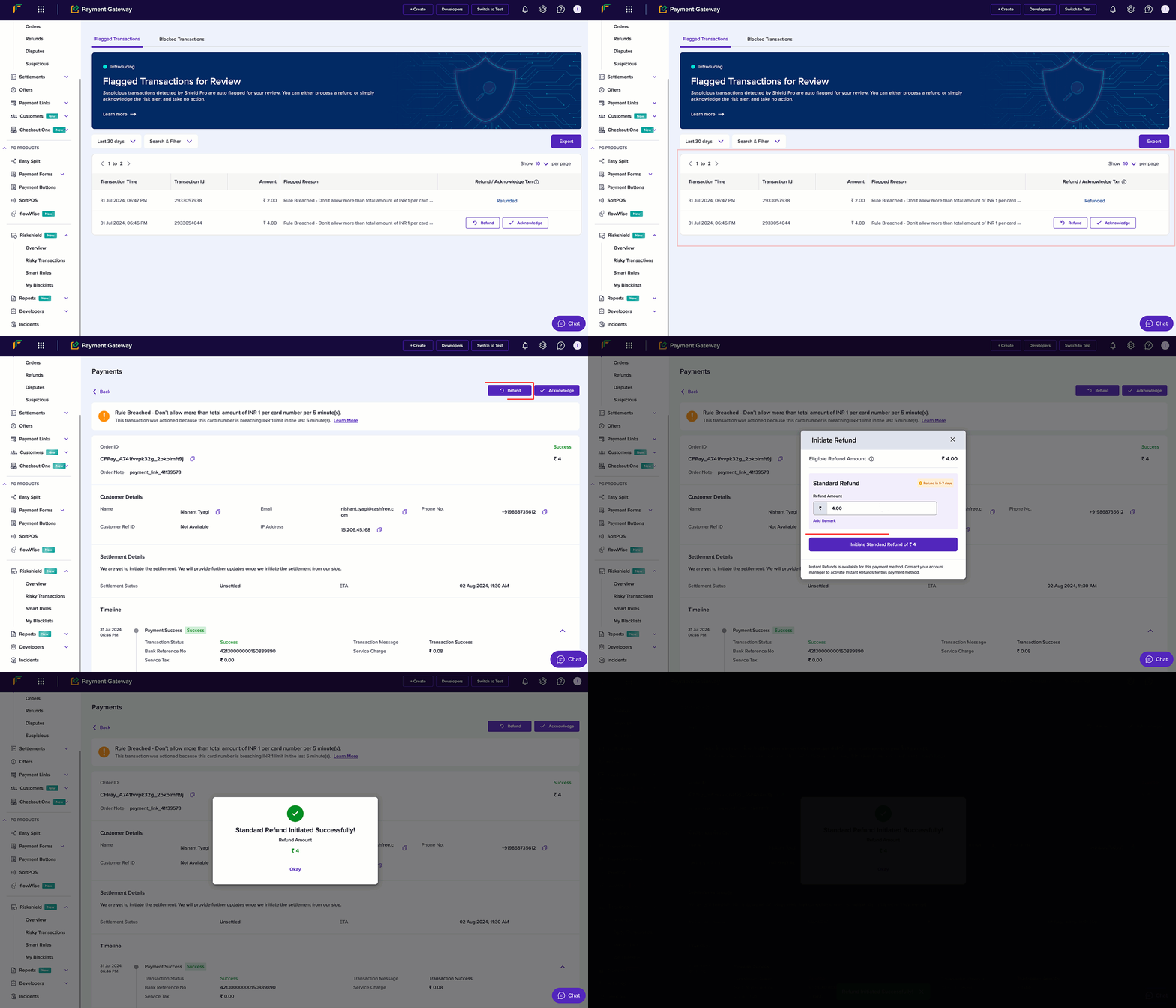 You have successfully initiated a refund for the flagged transactions.
***
### Acknowledge flagged transaction
You can choose to acknowledge the flagged transactions by following the instructions below:
1. From the *Flagged Transactions* screen, you can click **Acknowledge** to proceed with the process or select the flagged transaction to view it in detail.
2. Click **Acknowledge**.
3. In the *Confirm Acknowledgment* popup, click **Acknowledge**.
You have successfully initiated a refund for the flagged transactions.
***
### Acknowledge flagged transaction
You can choose to acknowledge the flagged transactions by following the instructions below:
1. From the *Flagged Transactions* screen, you can click **Acknowledge** to proceed with the process or select the flagged transaction to view it in detail.
2. Click **Acknowledge**.
3. In the *Confirm Acknowledgment* popup, click **Acknowledge**.
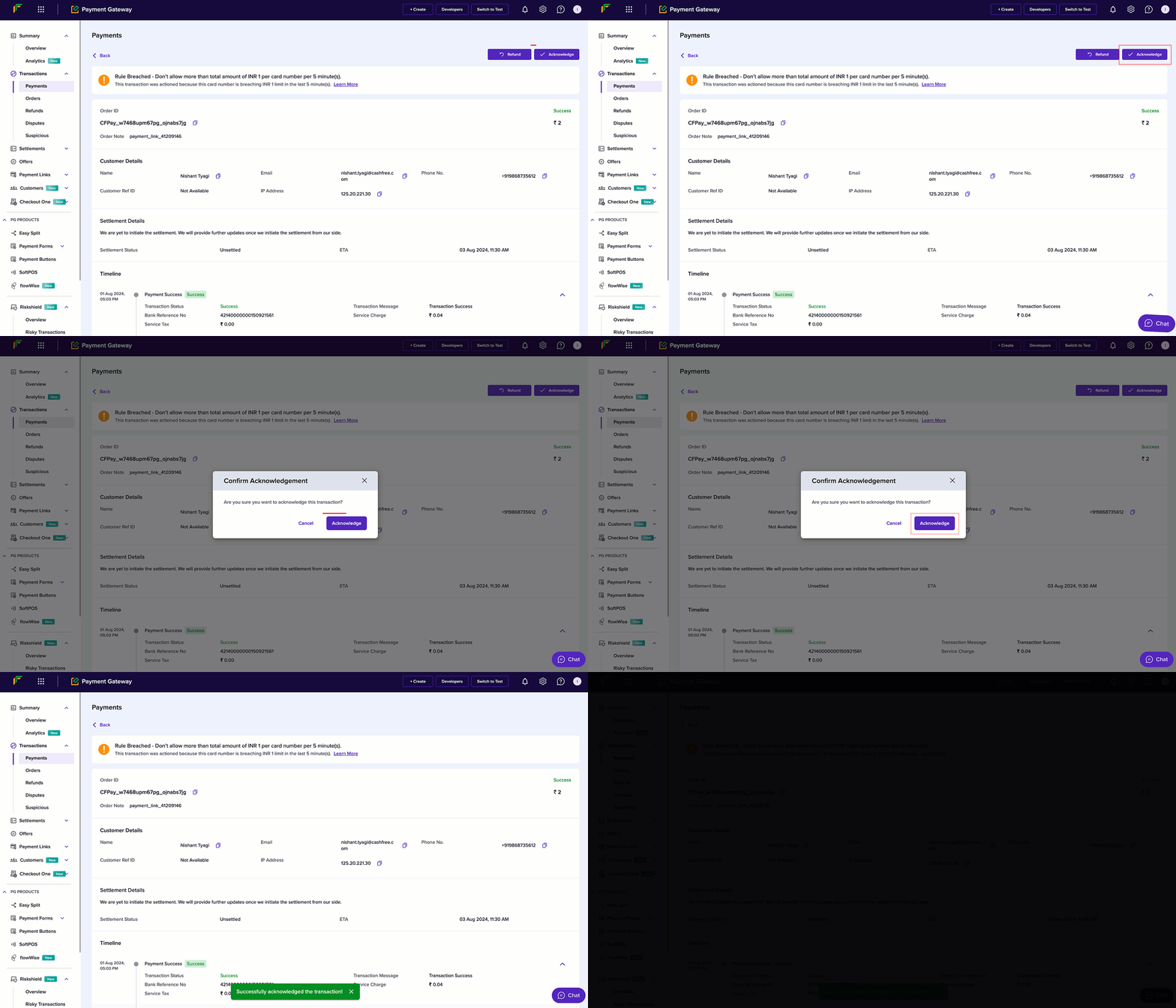 You have successfully acknowledged a flagged transaction.
***
## View blocked transactions
You can view the transactions that we prevent or restrict from being processed. [For the transactions under the recommended rule(s), you chose to block appear here](/payments/risk-shield/smart-rules#update-smart-rule-action). Follow the instructions below to view the blocked transactions:
1. Navigate to **Riskshield** > **Risky Transactions** > **Blocked Transactions**.
You have successfully acknowledged a flagged transaction.
***
## View blocked transactions
You can view the transactions that we prevent or restrict from being processed. [For the transactions under the recommended rule(s), you chose to block appear here](/payments/risk-shield/smart-rules#update-smart-rule-action). Follow the instructions below to view the blocked transactions:
1. Navigate to **Riskshield** > **Risky Transactions** > **Blocked Transactions**.
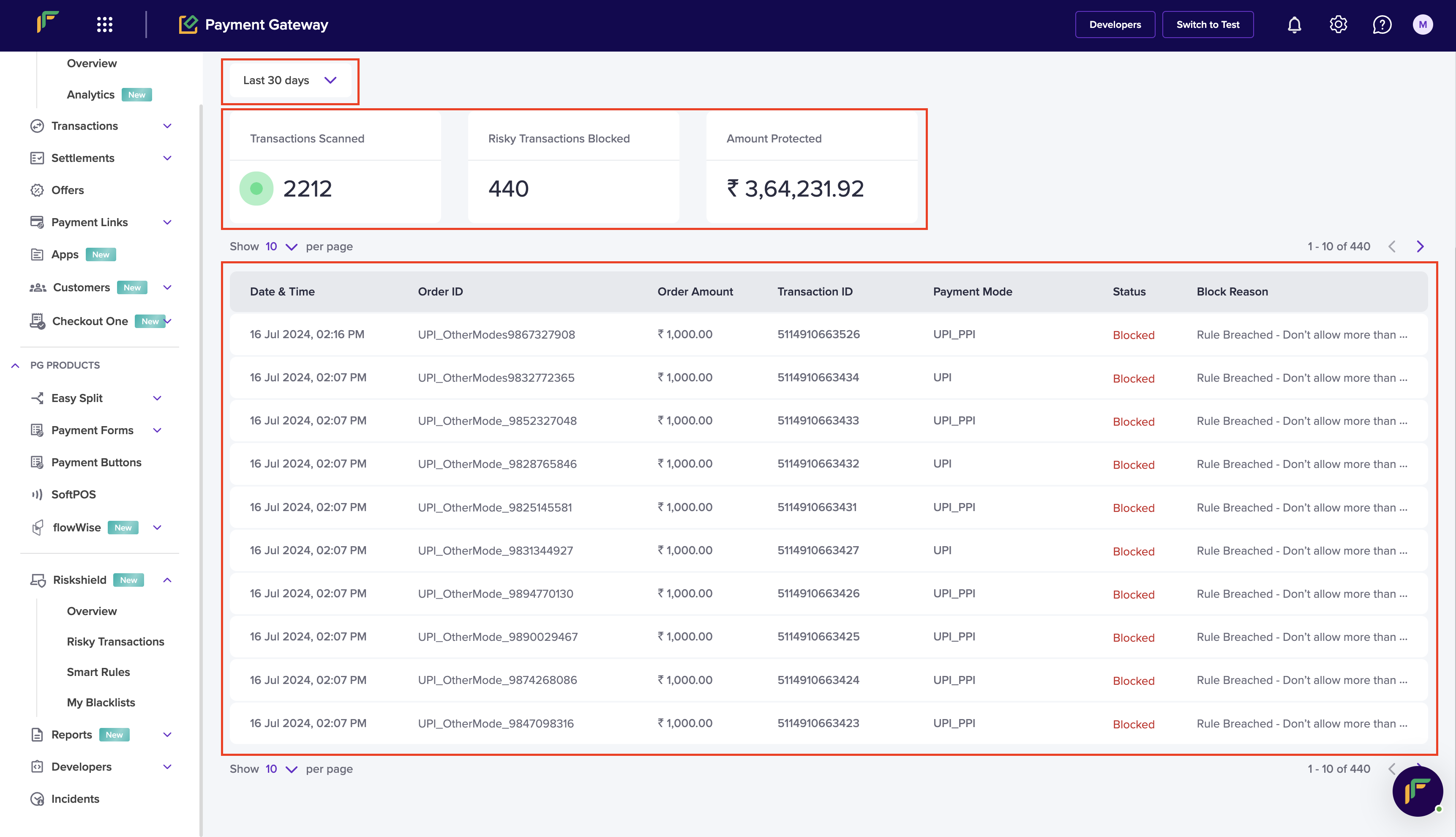
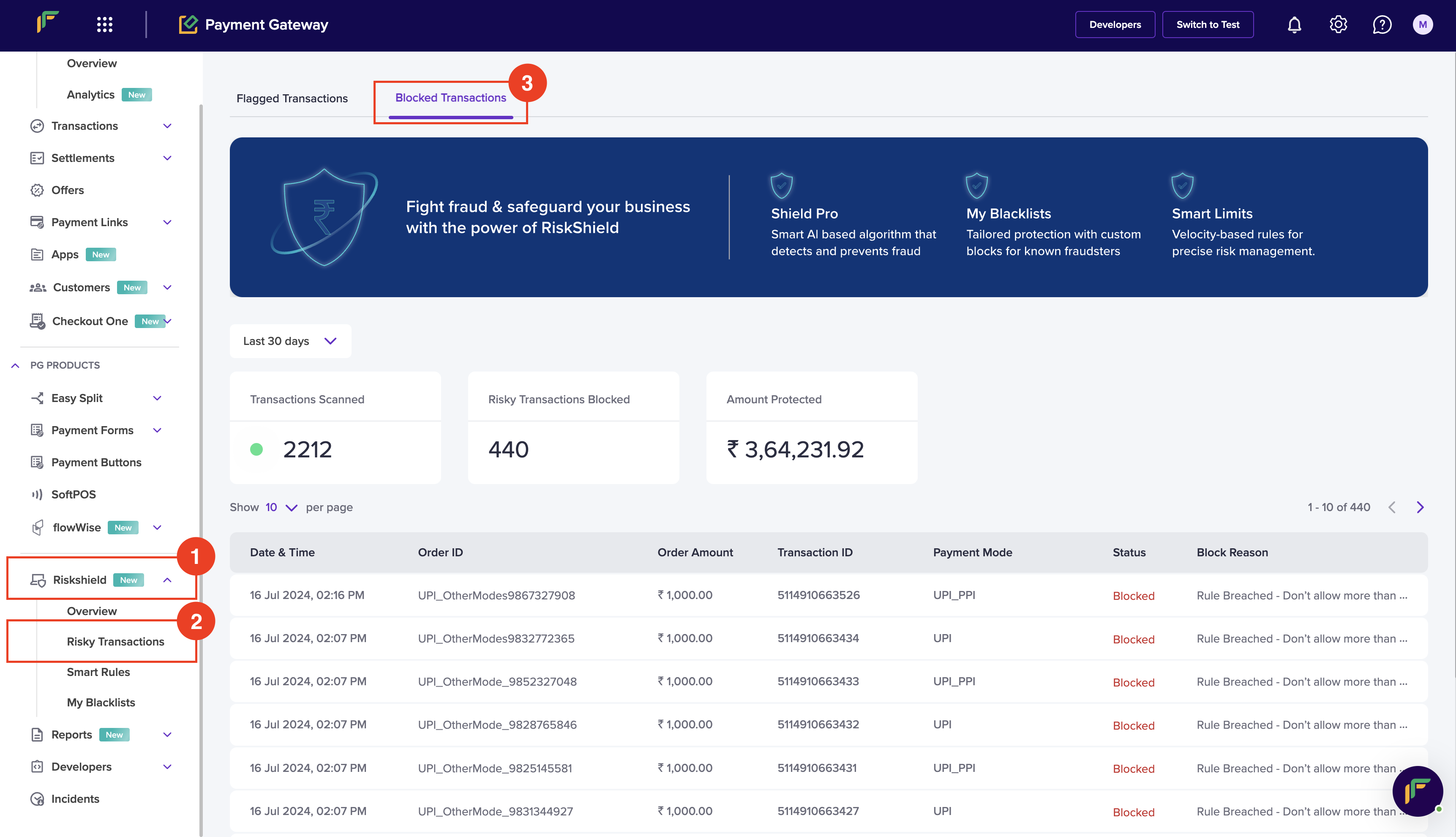 2. **Last 7 Days**: Use the dropdown menu to select the time period of the blocked transactions that you wish to view. You can select **Custom Data Range** to select a custom date range.
3. You can view the following data in the form of cards:
* **Transactions Scanned**: It displays the number of transactions scanned.
* **Risky Transactions Blocked**: It displays the number of transactions.
* **Amount Protected**: It displays the amount protected because of blocking the transactions.
4. You can view the following information of a blocked transactions:
* **Date and Time**: It displays the date and time of the transactions.
* **Order ID**: It displays the unique identifier of the order.
* **Order Amount**: It displays the amount of the order.
* **Transaction ID**: It displays the unique identifier of the transaction.
* **Payment Mode**: It displays the mode of payment used for the transaction.
* **Status**: It displays the status of the transaction.
* **Block Reason**: It displays the reason for blocking the transactions.
2. **Last 7 Days**: Use the dropdown menu to select the time period of the blocked transactions that you wish to view. You can select **Custom Data Range** to select a custom date range.
3. You can view the following data in the form of cards:
* **Transactions Scanned**: It displays the number of transactions scanned.
* **Risky Transactions Blocked**: It displays the number of transactions.
* **Amount Protected**: It displays the amount protected because of blocking the transactions.
4. You can view the following information of a blocked transactions:
* **Date and Time**: It displays the date and time of the transactions.
* **Order ID**: It displays the unique identifier of the order.
* **Order Amount**: It displays the amount of the order.
* **Transaction ID**: It displays the unique identifier of the transaction.
* **Payment Mode**: It displays the mode of payment used for the transaction.
* **Status**: It displays the status of the transaction.
* **Block Reason**: It displays the reason for blocking the transactions.