> ## Documentation Index
> Fetch the complete documentation index at: https://www.cashfree.com/docs/llms.txt
> Use this file to discover all available pages before exploring further.
# Smart Rules
> In this article, you will learn to configure a smart rules to block any transactions that exceed the set amount or number of transactions.
When perpetrators gain access to cards and OTP or UPI details, they attempt to execute numerous transactions rapidly. Smart Rules offers a solution by allowing you to set restrictions on email address, mobile number, card details, and UPI within a defined time frame, thereby mitigating sudden increases in fraudulent activities. You can create a smart rule to block any transactions that exceed the set:
* Transaction limit
* Amount limit
## Create a smart rule
Follow the instructions below to create a smart rule based on transactions:
1. Log in to the **[Merchant Dashboard](https://merchant.cashfree.com/auth/login)**.
2. Go to **Payment Gateway** > Click **Riskshield** > **Smart Rules** from the navigation pane on the left.
3. From the *Smart Limits* screen, click **+ Create a Smart Rule**.
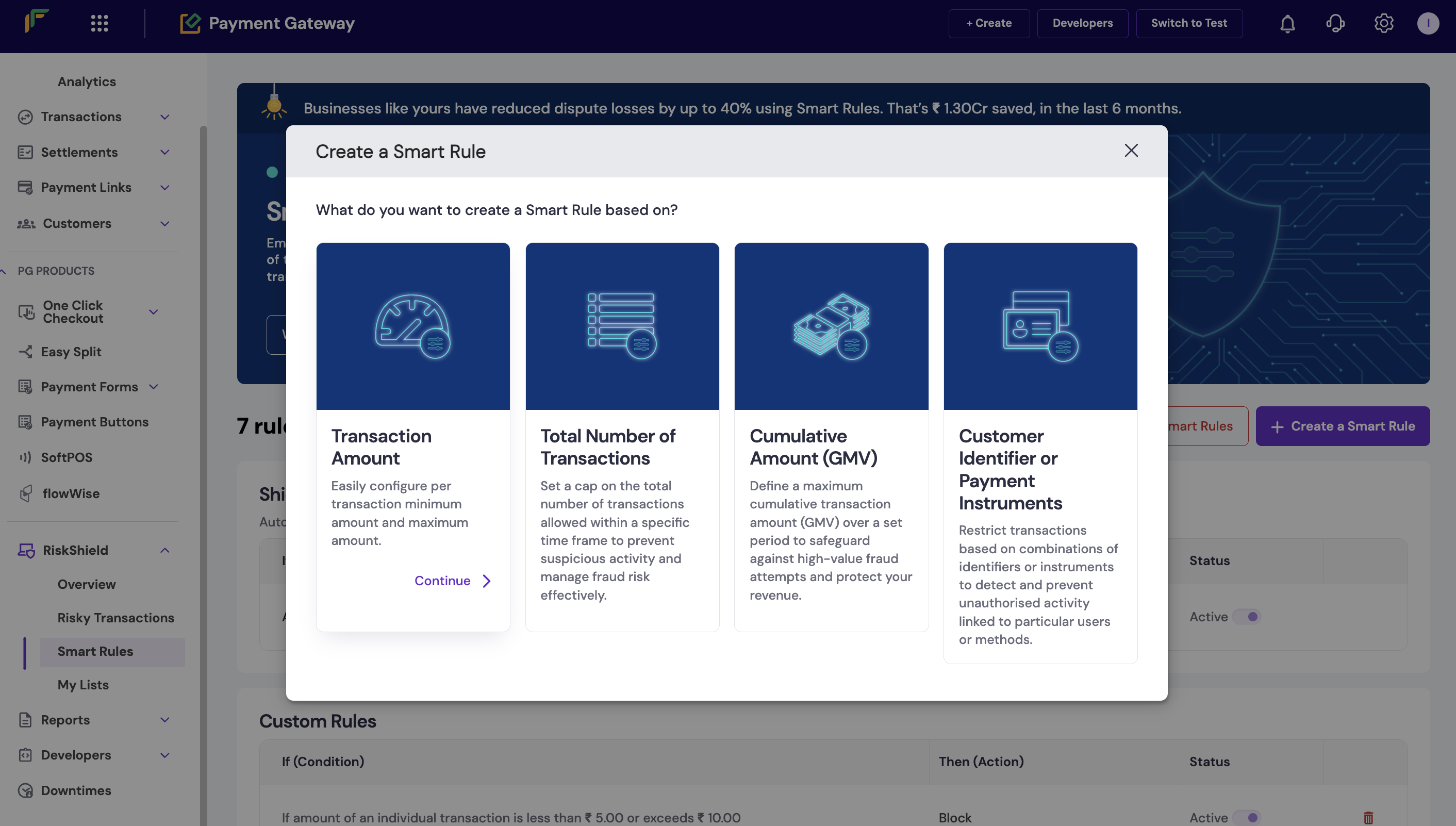
4. You can choose to create a smart rule based on the total number of transactions, cumulative amount, or the customer identifier.
 ### Transaction amount
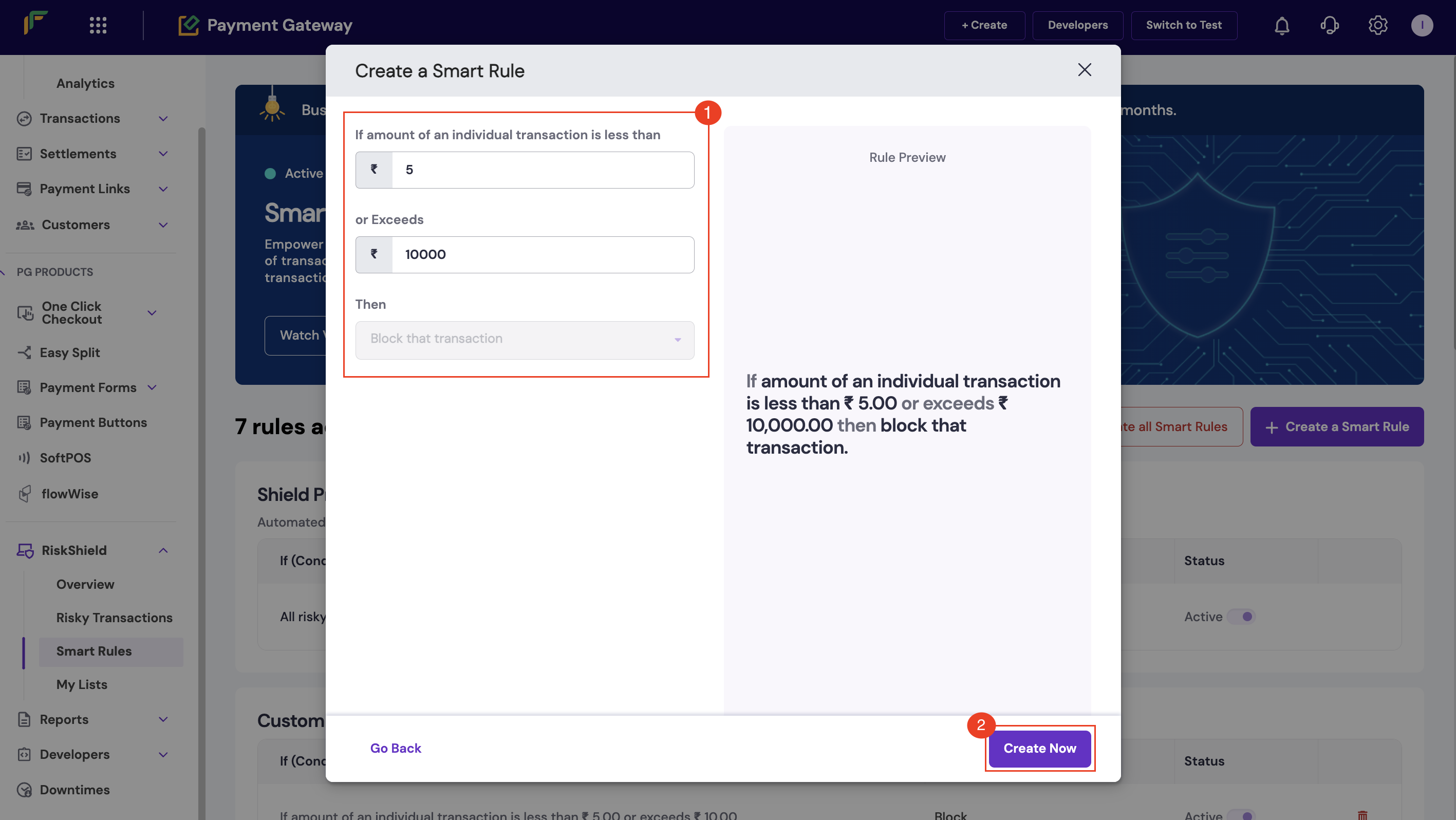
Follow the instructions below to create a smart rule to restrict transactions based on their amount:
1. In the *Create a Smart Rule* popup, enter the following information:
* **If amount of an individual transaction is less than**: Enter the minimum transaction amount.
* **or Exceeds**: Enter the maximum transaction amount.
* **Then**: Use this dropdown to choose whether to block or flag the transaction.
2. Click **Analyse this Rule** to view the preview of the set rule.
3. Click **Create Now**.
### Transaction amount
Follow the instructions below to create a smart rule to restrict transactions based on their amount:
1. In the *Create a Smart Rule* popup, enter the following information:
* **If amount of an individual transaction is less than**: Enter the minimum transaction amount.
* **or Exceeds**: Enter the maximum transaction amount.
* **Then**: Use this dropdown to choose whether to block or flag the transaction.
2. Click **Analyse this Rule** to view the preview of the set rule.
3. Click **Create Now**.
 ### Total number of transactions
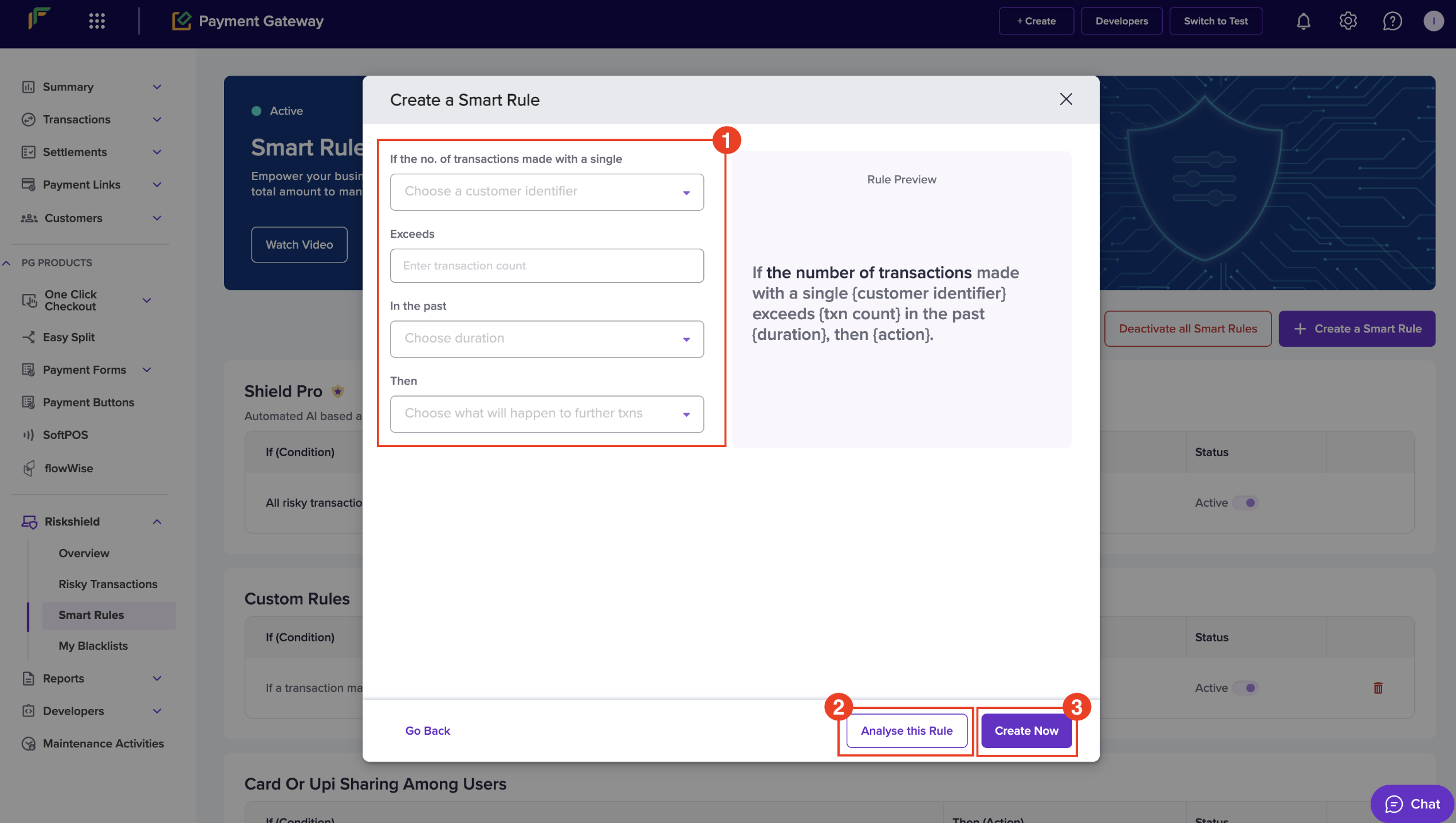
Follow the instructions below to create a smart rule based on the total number of transactions to prevent fraudulent activities:
1. In the *Create a Smart Rule* popup, enter the following information:
* **If the no. of transactions made with a single**: Use this dropdown to select a unique identifier.
* **Add minimum amount per txn**: Click this button to enter the minimum amount allowed per transaction. This is an optional field.
* **Exceeds**: Enter the transaction count in this field.
* **In the past**: Use this dropdown to choose a duration.
* **Then**: Use this dropdown to choose whether to block or flag the transactions.
2. Click **Analyse this Rule** to view the preview of the set rule.
3. Click **Create Now**.
### Total number of transactions
Follow the instructions below to create a smart rule based on the total number of transactions to prevent fraudulent activities:
1. In the *Create a Smart Rule* popup, enter the following information:
* **If the no. of transactions made with a single**: Use this dropdown to select a unique identifier.
* **Add minimum amount per txn**: Click this button to enter the minimum amount allowed per transaction. This is an optional field.
* **Exceeds**: Enter the transaction count in this field.
* **In the past**: Use this dropdown to choose a duration.
* **Then**: Use this dropdown to choose whether to block or flag the transactions.
2. Click **Analyse this Rule** to view the preview of the set rule.
3. Click **Create Now**.
 ### Cumulative amount
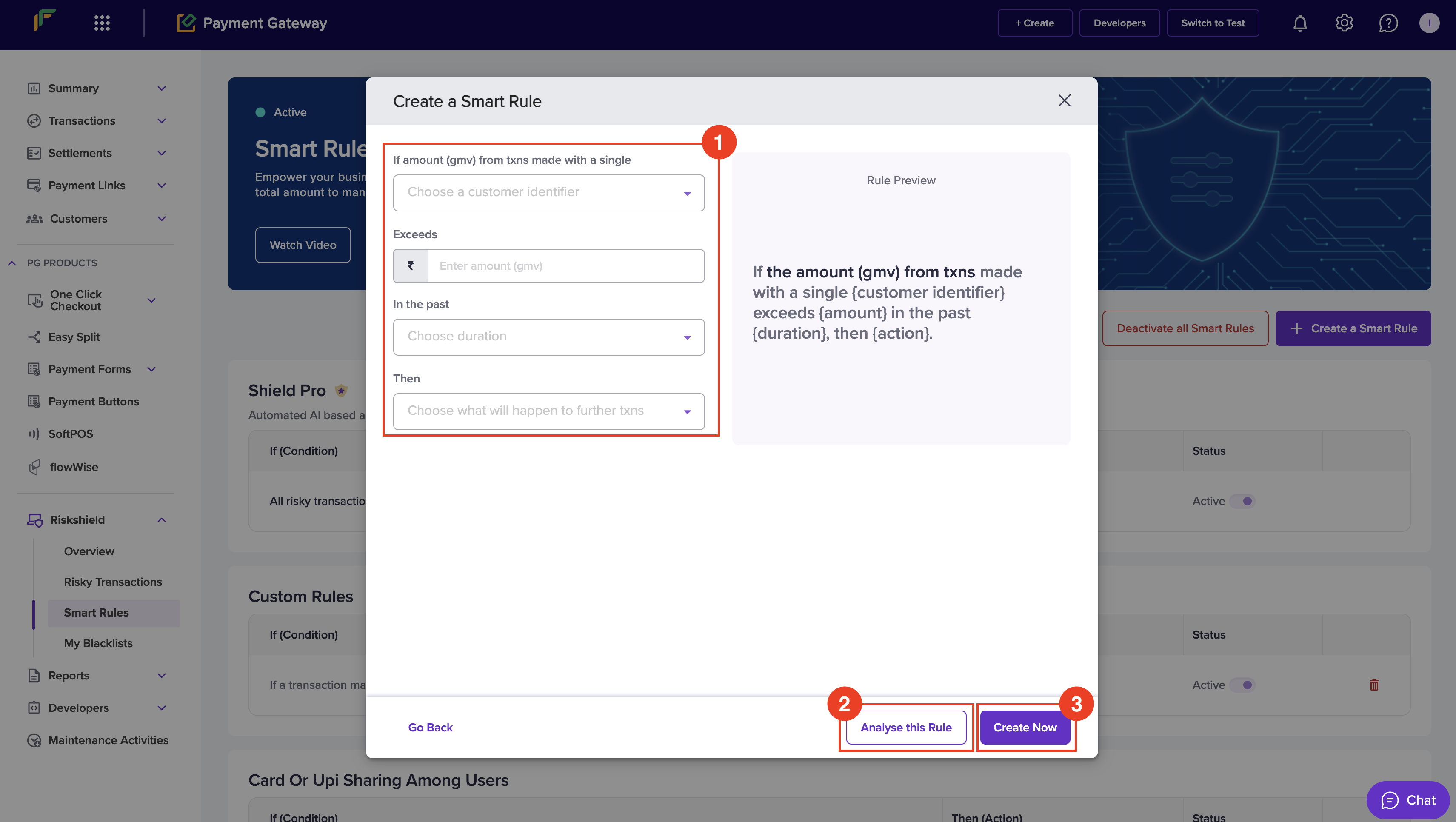
Defining a maximum cumulative transaction amount (Gross Merchandise Value, GMV) over a set period is an effective strategy to mitigate high-value fraud attempts.
1. In the *Create a Smart Rule* popup, enter the following information:
* **If amount (gmv) from txns made with a single**: Use this dropdown to select a unique identifier.
* **Add minimum amount per txn**: Click this button to enter the minimum amount allowed per transaction. This is an optional field.
* **Exceeds**: Enter the amount in this field.
* **In the past**: Use this dropdown to choose a duration.
* **Then**: Use this dropdown to choose whether to block or flag the transactions.
2. Click **Analyse this Rule** to view the preview of the set rule.
3. Click **Create Now**.
### Cumulative amount
Defining a maximum cumulative transaction amount (Gross Merchandise Value, GMV) over a set period is an effective strategy to mitigate high-value fraud attempts.
1. In the *Create a Smart Rule* popup, enter the following information:
* **If amount (gmv) from txns made with a single**: Use this dropdown to select a unique identifier.
* **Add minimum amount per txn**: Click this button to enter the minimum amount allowed per transaction. This is an optional field.
* **Exceeds**: Enter the amount in this field.
* **In the past**: Use this dropdown to choose a duration.
* **Then**: Use this dropdown to choose whether to block or flag the transactions.
2. Click **Analyse this Rule** to view the preview of the set rule.
3. Click **Create Now**.
 ### Customer identifier or payment instruments
Restricting transactions based on combinations of identifiers or instruments is an effective way to enhance security and prevent unauthorised activities.
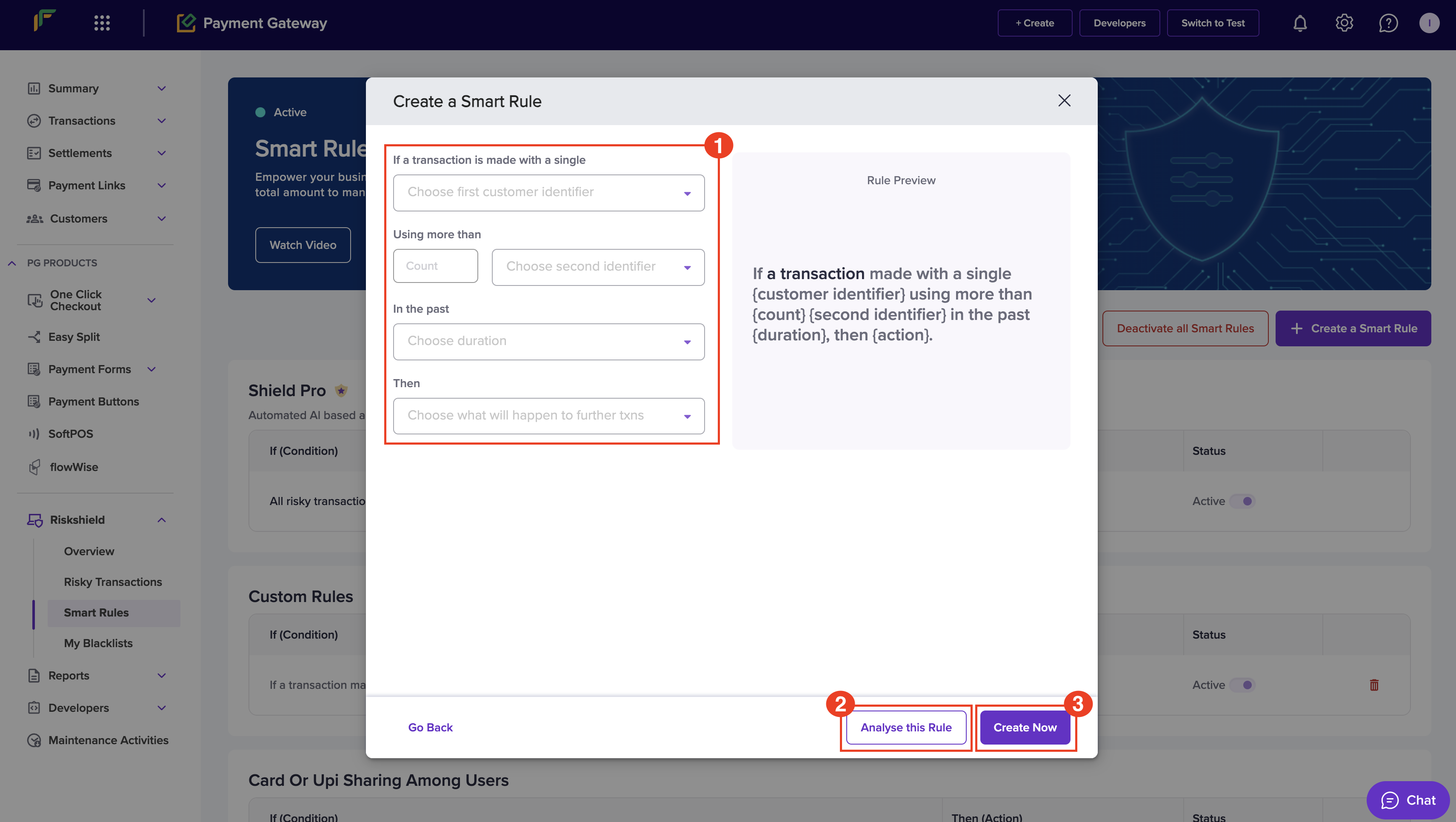
1. In the *Create a Smart Rule* popup, enter the following information:
* **If a transaction is made with a single**: Use this dropdown to select a unique identifier.
* **Add minimum amount per txn**: Click this button to enter the minimum amount allowed per transaction. This is an optional field.
* **Using more than**: Enter the count in the **Count** field, and use the dropdown to select a second identifier.
* **In the past**: Use this dropdown to choose a duration.
* **Then**: Use this dropdown to choose whether to block or flag the transactions.
2. Click **Analyse this Rule** to view the preview of the set rule.
3. Click **Create Now**.
### Customer identifier or payment instruments
Restricting transactions based on combinations of identifiers or instruments is an effective way to enhance security and prevent unauthorised activities.
1. In the *Create a Smart Rule* popup, enter the following information:
* **If a transaction is made with a single**: Use this dropdown to select a unique identifier.
* **Add minimum amount per txn**: Click this button to enter the minimum amount allowed per transaction. This is an optional field.
* **Using more than**: Enter the count in the **Count** field, and use the dropdown to select a second identifier.
* **In the past**: Use this dropdown to choose a duration.
* **Then**: Use this dropdown to choose whether to block or flag the transactions.
2. Click **Analyse this Rule** to view the preview of the set rule.
3. Click **Create Now**.
 ## Duration definition
When you configure a rule, you can choose how long the system should monitor and aggregate data. The table below explains what each duration means.
| Duration | Meaning |
| ---------------- | -------------------------------------------------------------------------------------------------------------------------------- |
| Per 5 Minutes | Looks at data for the last five minutes, with the window moving forward every hour to continuously analyse the most recent data. |
| Per Hour | Looks at data for the last hour, with the window moving forward every hour to continuously analyse the most recent data. |
| Per Day | Counts transactions up to 11:59 PM of the current day. |
| For Last 7 Days | Counts transactions from the last 6 days plus today until 11:59 PM. |
| For Last 15 Days | Counts transactions from the last 14 days plus today until 11:59 PM. |
| For Last 30 Days | Counts transactions from the last 29 days plus today until 11:59 PM. |
The system starts aggregating or accounting data from the moment you set up the rule. It doesn't include any data from the previous 30 days or before you enabled the rule.
**Example:** For the transaction limit rule, if you set a limit of 5 transactions for 30 days, the system starts counting from the day you enable the rule and continues for the next 30 days. It ignores any transactions made before you enabled the rule.
## Recommended rules
Recommended rules help you apply industry-standard fraud checks instantly. These rules detect suspicious activity, such as repeated high-value transactions, details linked to past disputes, or temporary email addresses used to hide identity.
The system includes the following recommended rules by default:
* **Multiple high-value transactions from the same card**
Detects repeated high-value transactions on the same card within five minutes to help block misuse of stolen card details.
* **Multiple high-value transactions from the same UPI handle**
Flags repeated high-value payments made with the same UPI ID within five minutes to prevent misuse of compromised UPI credentials.
* **Transactions linked to past disputes**
Flags transactions using details (such as cards, emails, or phone numbers) that were previously involved in disputes or chargebacks.
* **Transactions from temporary email domains**
Flags transactions that use disposable or temporary email addresses often used to hide identity or create fake accounts.
Use recommended rules with your custom smart rules for layered protection. The system updates recommendations based on your dispute trends.
### Activate and deactivate a recommended rule
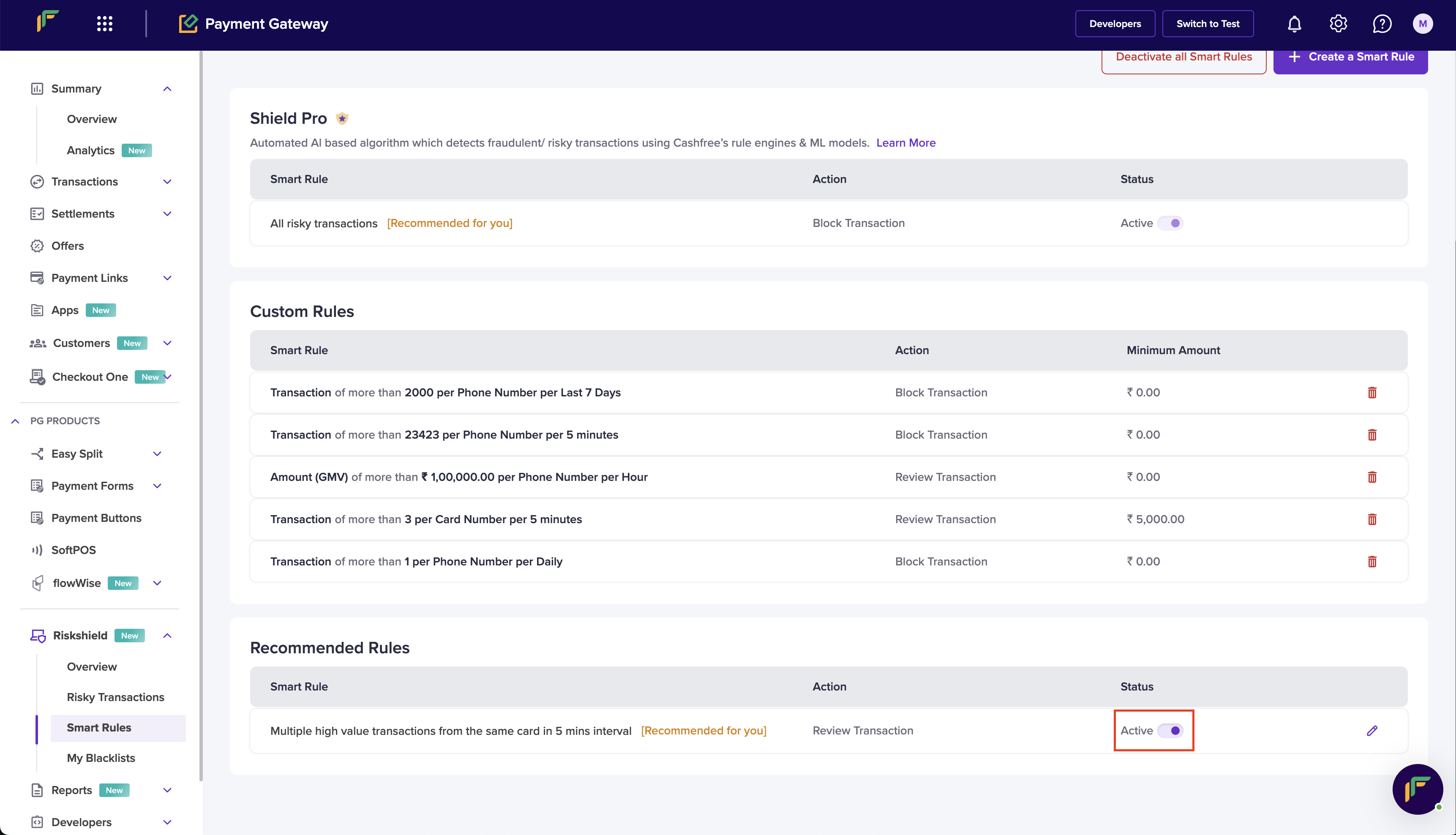
1. On the Smart Rules window, go to Recommended Rules.
2. Use the toggle under Status to activate or deactivate a rule.
When active, the rule monitors transactions immediately.
## Duration definition
When you configure a rule, you can choose how long the system should monitor and aggregate data. The table below explains what each duration means.
| Duration | Meaning |
| ---------------- | -------------------------------------------------------------------------------------------------------------------------------- |
| Per 5 Minutes | Looks at data for the last five minutes, with the window moving forward every hour to continuously analyse the most recent data. |
| Per Hour | Looks at data for the last hour, with the window moving forward every hour to continuously analyse the most recent data. |
| Per Day | Counts transactions up to 11:59 PM of the current day. |
| For Last 7 Days | Counts transactions from the last 6 days plus today until 11:59 PM. |
| For Last 15 Days | Counts transactions from the last 14 days plus today until 11:59 PM. |
| For Last 30 Days | Counts transactions from the last 29 days plus today until 11:59 PM. |
The system starts aggregating or accounting data from the moment you set up the rule. It doesn't include any data from the previous 30 days or before you enabled the rule.
**Example:** For the transaction limit rule, if you set a limit of 5 transactions for 30 days, the system starts counting from the day you enable the rule and continues for the next 30 days. It ignores any transactions made before you enabled the rule.
## Recommended rules
Recommended rules help you apply industry-standard fraud checks instantly. These rules detect suspicious activity, such as repeated high-value transactions, details linked to past disputes, or temporary email addresses used to hide identity.
The system includes the following recommended rules by default:
* **Multiple high-value transactions from the same card**
Detects repeated high-value transactions on the same card within five minutes to help block misuse of stolen card details.
* **Multiple high-value transactions from the same UPI handle**
Flags repeated high-value payments made with the same UPI ID within five minutes to prevent misuse of compromised UPI credentials.
* **Transactions linked to past disputes**
Flags transactions using details (such as cards, emails, or phone numbers) that were previously involved in disputes or chargebacks.
* **Transactions from temporary email domains**
Flags transactions that use disposable or temporary email addresses often used to hide identity or create fake accounts.
Use recommended rules with your custom smart rules for layered protection. The system updates recommendations based on your dispute trends.
### Activate and deactivate a recommended rule
1. On the Smart Rules window, go to Recommended Rules.
2. Use the toggle under Status to activate or deactivate a rule.
When active, the rule monitors transactions immediately.
 ### Update smart rule action
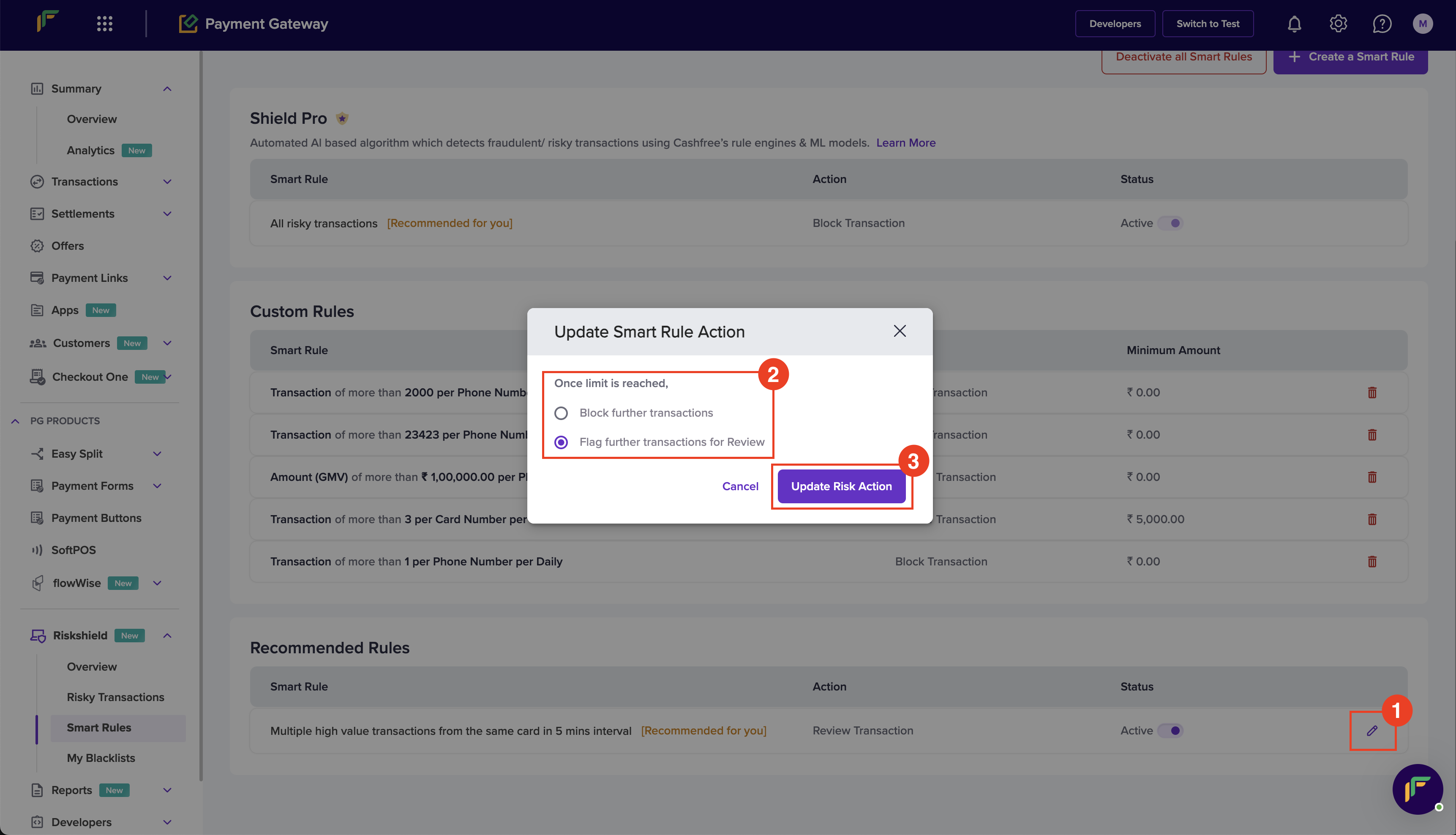
You can choose to block or flag the transactions for review that fall under the recommended rules.
1. From the *Smart Rules* screen, click the **Edit** icon under *Recommended Rules* for the rule you want to update.
2. The *Update Smart Rule Action* popup displays. Use the radio button to choose the following action:
* **Block further transactions**: Select this option to block the transactions.
* **Flag further transactions for Review**: Select this option to flag the transactions for review.
3. Click **Update Risk Action**.
**Flag transactions from past disputes**
This recommended rule is based on the analysis of your past transactions that ended up in disputes and are suspicious.
### Update smart rule action
You can choose to block or flag the transactions for review that fall under the recommended rules.
1. From the *Smart Rules* screen, click the **Edit** icon under *Recommended Rules* for the rule you want to update.
2. The *Update Smart Rule Action* popup displays. Use the radio button to choose the following action:
* **Block further transactions**: Select this option to block the transactions.
* **Flag further transactions for Review**: Select this option to flag the transactions for review.
3. Click **Update Risk Action**.
**Flag transactions from past disputes**
This recommended rule is based on the analysis of your past transactions that ended up in disputes and are suspicious.
 ***
## Manage smart rules
Easily modify and delete smart rules ensuring flexible and effective fraud prevention management.
### Activate and deactivate all smart rules
Follow the instructions below to activate or deactivate all smart rules:
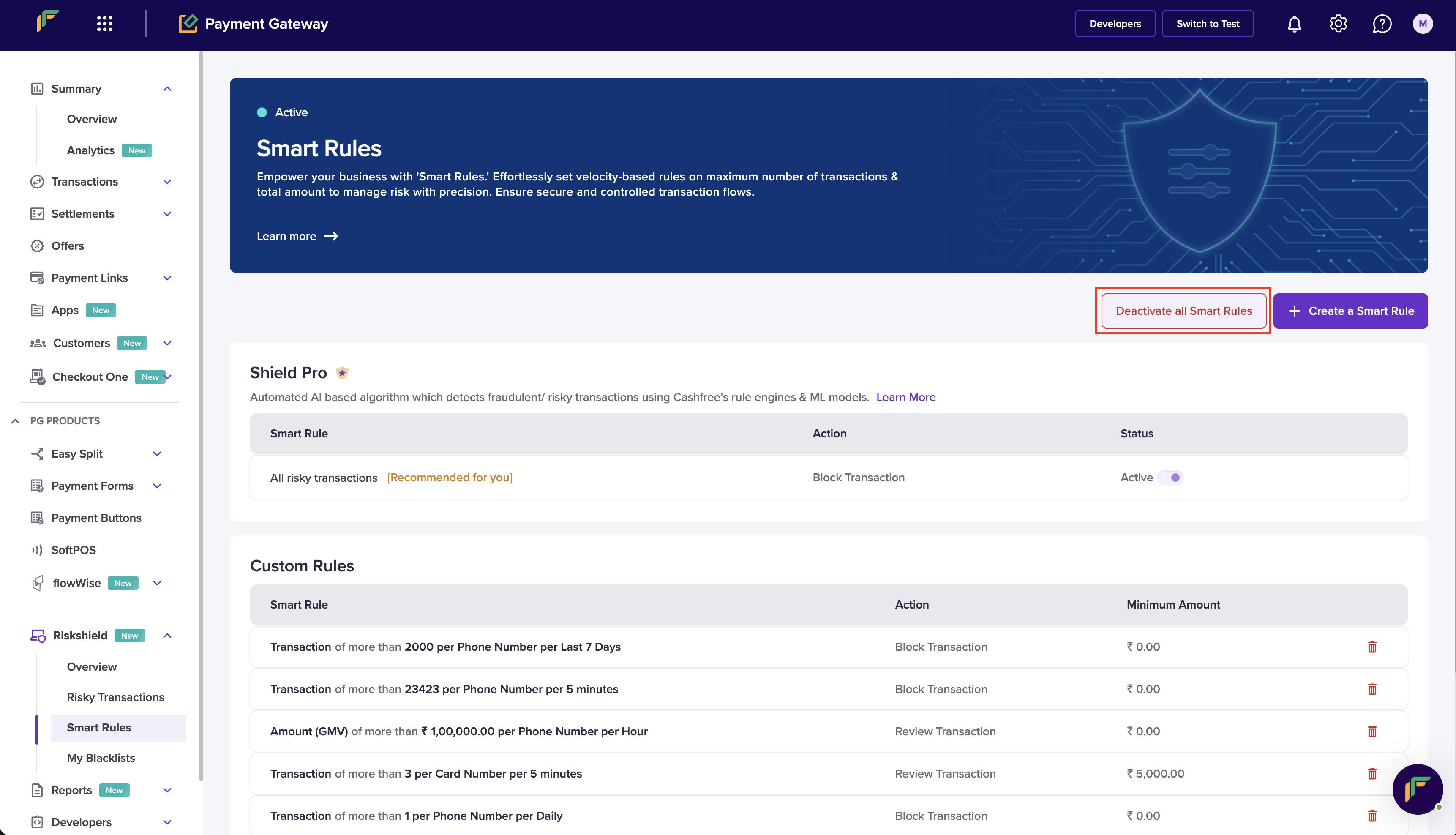
1. From the *Smart Rules* screen, click **Activate all Smart Rules** or **Deactivate all Smart Rules**.
All the smart rules including the recommended rules get activated or deactivated accordingly.
***
## Manage smart rules
Easily modify and delete smart rules ensuring flexible and effective fraud prevention management.
### Activate and deactivate all smart rules
Follow the instructions below to activate or deactivate all smart rules:
1. From the *Smart Rules* screen, click **Activate all Smart Rules** or **Deactivate all Smart Rules**.
All the smart rules including the recommended rules get activated or deactivated accordingly.
 **Shield Pro**
Note that you cannot deactivate Shield Pro. It continues to detect fraudulent or risky transactions using the ML model.
**Shield Pro**
Note that you cannot deactivate Shield Pro. It continues to detect fraudulent or risky transactions using the ML model.