> ## Documentation Index
> Fetch the complete documentation index at: https://www.cashfree.com/docs/llms.txt
> Use this file to discover all available pages before exploring further.

# Collection Point Setup

> Add and verify Storefront, Agent, and Customer VPA collection points in the Cashfree Merchant Dashboard before accepting Offline Payments through softPOS apps.

To ensure secure transactions, each collection point must go through a verification process before it can be used to collect payments. The specific requirements vary depending on the collection model you have chosen.

This page covers the following topics:

* [Storefront setup](#storefront-setup)
* [Agent setup](#agent-setup)
* [Customer VPA setup](#customer-vpa-setup)

## Storefront setup

To add and verify a storefront collection point, complete the following steps:

1. Log in to the [Merchant Dashboard](https://merchant.cashfree.com/auth/login).

2. Navigate to **PG PRODUCTS** > **Offline Payments** > **Collection Point Management**.

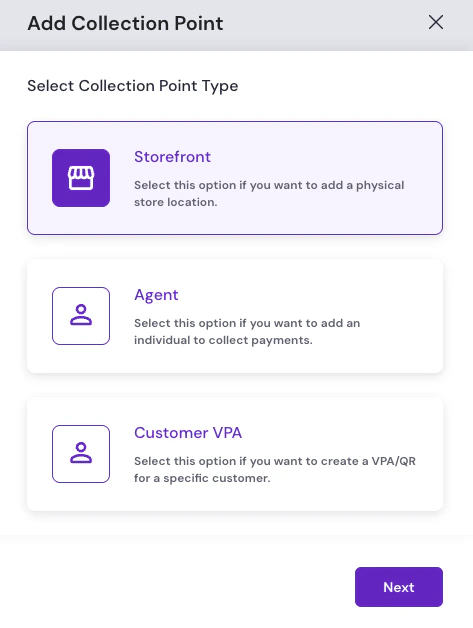
3. Click **Add Collection Point**, then select the **Storefront** collection type.

   <img src="https://mintcdn.com/cashfreepayments-d00050e9/hRBKYVXwLLPmOn9X/static/images/pg/softpos/kyc-verification/select-storefront-collection-type.png?fit=max&auto=format&n=hRBKYVXwLLPmOn9X&q=85&s=9878a4a4478e1e0b719957793d3fb2a0" width="400" alt="Add Collection Point modal on the Select Collection Point Type step with Storefront selected among Storefront, Agent, and Customer VPA options" data-path="static/images/pg/softpos/kyc-verification/select-storefront-collection-type.png" />

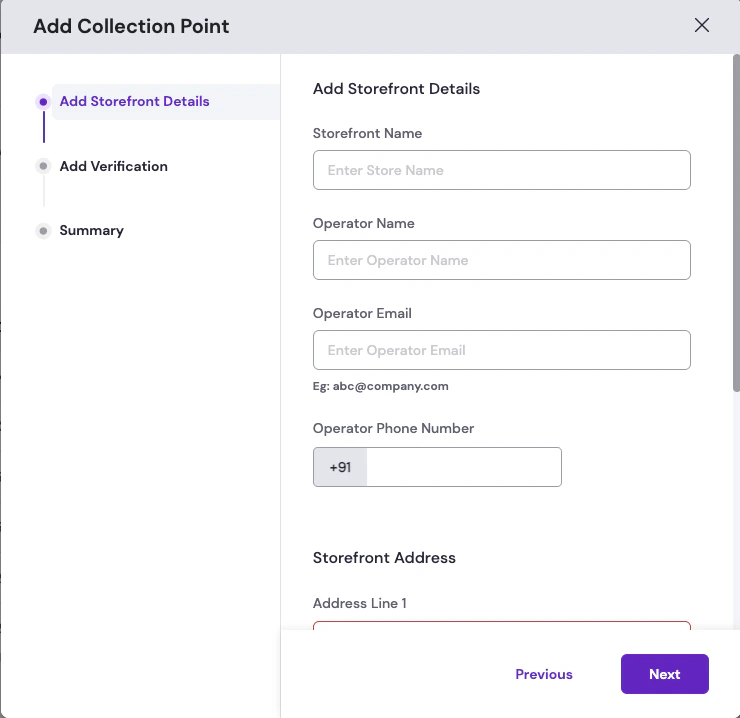
4. Provide the following details for the storefront:

   * **Storefront Name**: The name of the physical store location.
   * **Operator Name**: The name of the person operating the store.
   * **Operator Email**: The operator's email address.
   * **Operator Phone Number**: The operator's registered mobile number.
   * **Storefront Address**: Full address including pin code and state.
   <Frame caption="">
     <img src="https://mintcdn.com/cashfreepayments-d00050e9/qgLZb4Yha5cJ3Rmd/static/images/pg/softpos/kyc-verification/add-storefront-details-form.png?fit=max&auto=format&n=qgLZb4Yha5cJ3Rmd&q=85&s=3f44f12ababf54c1d341295624afd1ad" width="500" alt="Add Collection Point modal showing storefront name, operator name, email, phone, and storefront address fields" data-path="static/images/pg/softpos/kyc-verification/add-storefront-details-form.png" />
   </Frame>

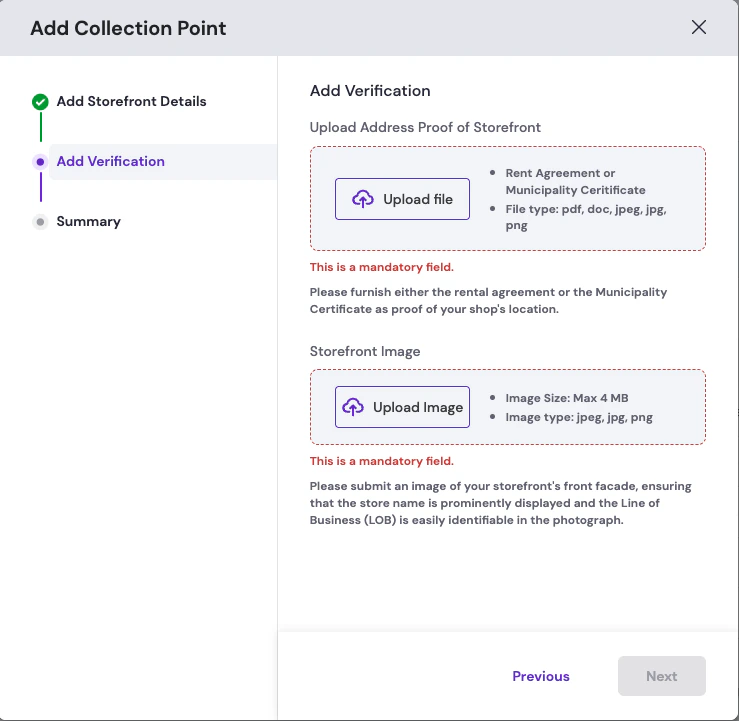
5. **Add verification documents**: Upload the following mandatory documents to complete the KYC.

   | Document                                                                            | Accepted formats          |
   | ----------------------------------------------------------------------------------- | ------------------------- |
   | **Address proof of storefront**: Rent agreement or municipality certificate         | PDF, DOC, JPEG, JPG, PNG  |
   | **Storefront image**: Front facade of the store with the store name clearly visible | JPEG, JPG, PNG (max 4 MB) |
   <Frame caption="">
     <img src="https://mintcdn.com/cashfreepayments-d00050e9/qgLZb4Yha5cJ3Rmd/static/images/pg/softpos/kyc-verification/add-verification-documents.png?fit=max&auto=format&n=qgLZb4Yha5cJ3Rmd&q=85&s=61853288bda5ba924dc2fb0c7b610d50" width="500" alt="Add Collection Point modal on the Add Verification step with upload controls for address proof and storefront image and validation messages for mandatory fields" data-path="static/images/pg/softpos/kyc-verification/add-verification-documents.png" />
   </Frame>

<Warning>
  Both documents are mandatory. The storefront status will remain **Provisionally Active** until Cashfree verifies the submitted documents. Upon successful verification, the status moves to **Active**.
</Warning>

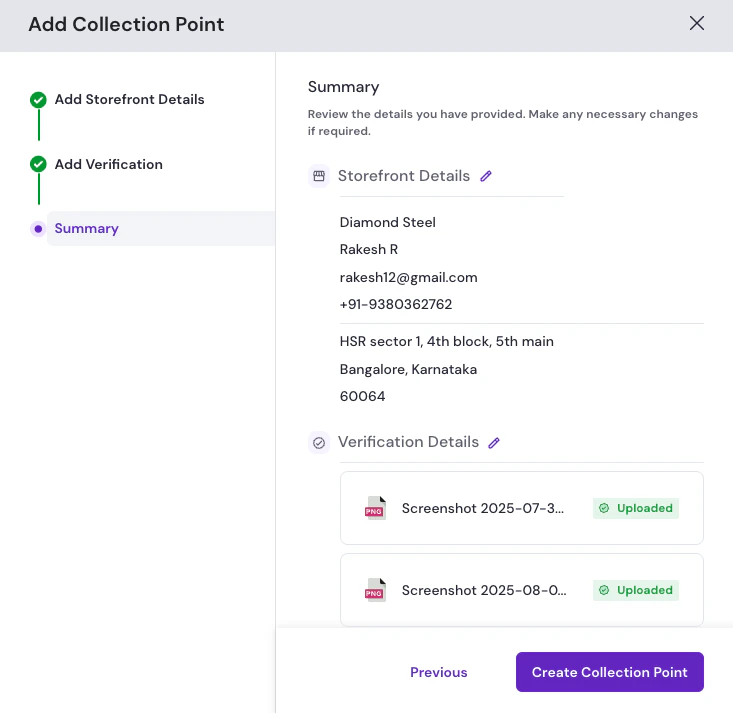
6. **Summary**: Review the storefront and verification details you have provided. Make any necessary changes to the storefront or verification details if required by selecting the edit icon next to the details. Click the **Create Collection Point** button to submit the details.

   <Frame caption="">
     <img src="https://mintcdn.com/cashfreepayments-d00050e9/aQdW18rxocV8n578/static/images/pg/softpos/kyc-verification/summary-storefront.png?fit=max&auto=format&n=aQdW18rxocV8n578&q=85&s=733d01dd897aace4eae25338f6d65070" width="500" alt="Add Collection Point modal on the Summary step with storefront details, verification uploads, and Create Collection Point" data-path="static/images/pg/softpos/kyc-verification/summary-storefront.png" />
   </Frame>

## Agent setup

To add and verify an agent through KYC and onboard several agents at once using a batch file, complete the following steps:
<Tabs>
  <Tab title="Single agent">
    To perform single-agent verification, complete the following steps:

    1. Log in to the [Merchant Dashboard](https://merchant.cashfree.com/auth/login).

    2. Navigate to **PG PRODUCTS** > **Offline Payments** > **Collection Point Management**.

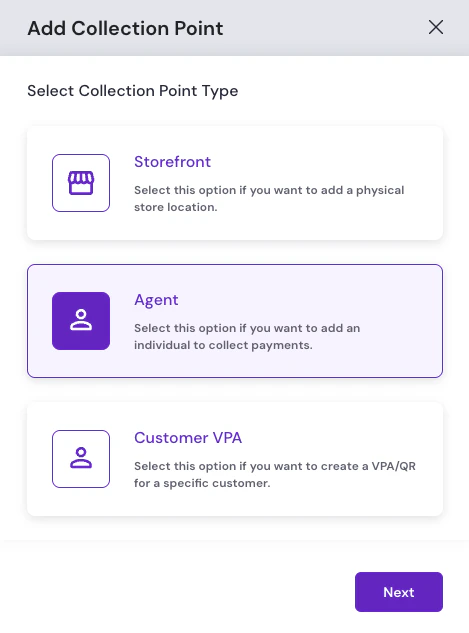
    3. Click **Add Collection Point**, then select the **Agent** collection type.

           <img src="https://mintcdn.com/cashfreepayments-d00050e9/hRBKYVXwLLPmOn9X/static/images/pg/softpos/kyc-verification/select-agent-collection-type.png?fit=max&auto=format&n=hRBKYVXwLLPmOn9X&q=85&s=877669a0f0e72b94cded2e433fb3e7e7" width="400" alt="Add Collection Point modal on the Select Collection Point Type step with Agent selected among Storefront, Agent, and Customer VPA options" data-path="static/images/pg/softpos/kyc-verification/select-agent-collection-type.png" />

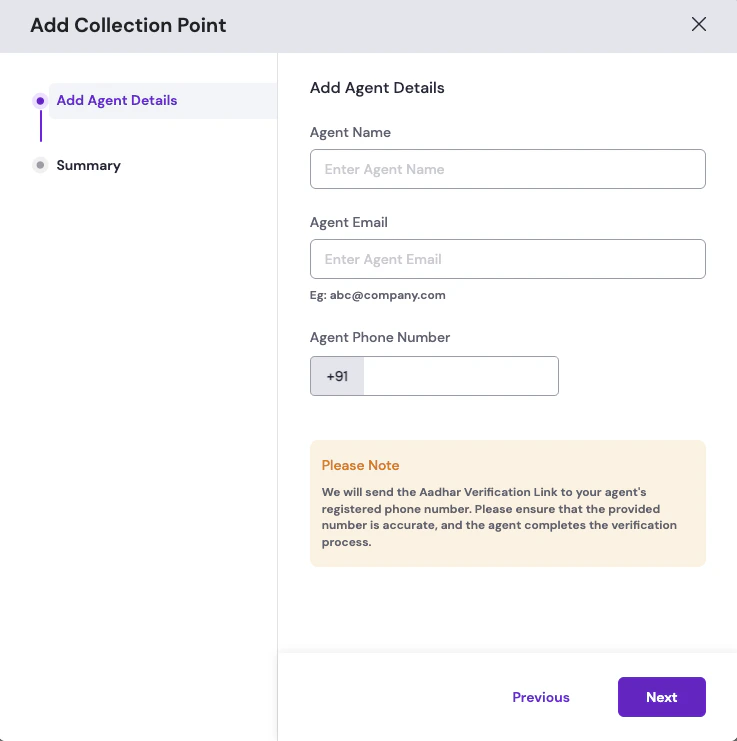
    4. Provide the following mandatory agent details to initiate the verification:

       * **Agent Name**: Full name of the agent as it should appear in the Merchant Dashboard and on KYC records.
       * **Agent Email**: Valid email address that Cashfree uses for verification related communications with the agent.
       * **Agent Phone Number**: Cashfree sends the Aadhaar verification link to this number. If this number is incorrect, the agent cannot complete verification until you correct it and resend the KYC SMS.
           <Frame caption="">
             <img src="https://mintcdn.com/cashfreepayments-d00050e9/qgLZb4Yha5cJ3Rmd/static/images/pg/softpos/kyc-verification/add-agent-details.png?fit=max&auto=format&n=qgLZb4Yha5cJ3Rmd&q=85&s=aaa931a5f4eecf5aa1cfbdf8754b06a6" width="500" alt="Add Collection Point modal on the Add Agent Details step with fields for agent name, email, and phone number plus a note about the Aadhaar verification link sent to the registered phone" data-path="static/images/pg/softpos/kyc-verification/add-agent-details.png" />
           </Frame>

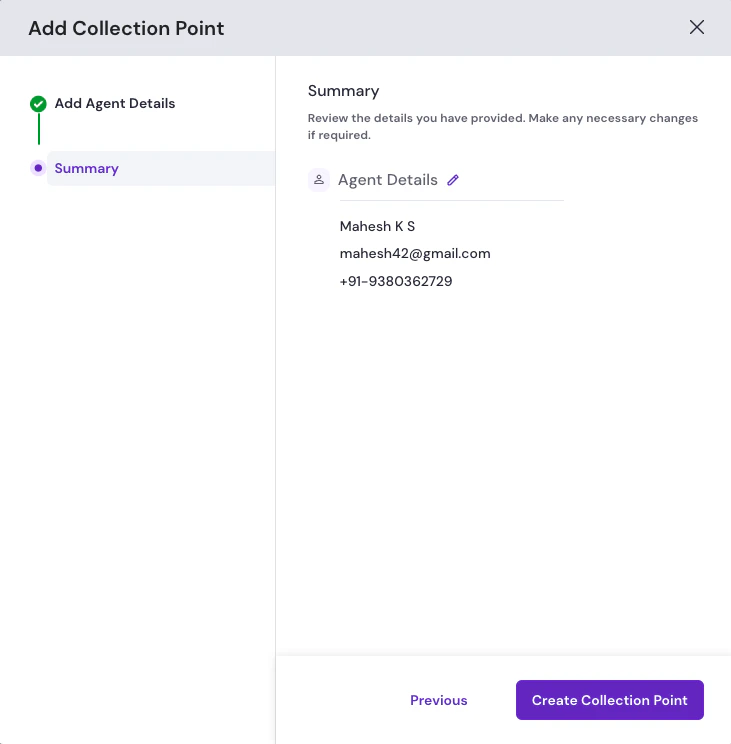
    5. **Summary**: Review the agent details you have provided. Make any necessary changes to the agent details if required by selecting the edit icon next to the details. Click the **Create Collection Point** button to submit the details.
           <Frame caption="">
             <img src="https://mintcdn.com/cashfreepayments-d00050e9/aQdW18rxocV8n578/static/images/pg/softpos/kyc-verification/summary-agent.png?fit=max&auto=format&n=aQdW18rxocV8n578&q=85&s=3b881362c9e0831a827d581a57a4d861" width="500" alt="Add Collection Point modal on the Summary step with agent details and Create Collection Point" data-path="static/images/pg/softpos/kyc-verification/summary-agent.png" />
           </Frame>
  </Tab>

  <Tab title="Batch agents">
    <div>
      To perform batch agent onboarding, complete the following steps:

      1. Log in to the [Merchant Dashboard](https://merchant.cashfree.com/auth/login).
      2. Navigate to **PG PRODUCTS** > **Offline Payments** > **Collection Point Management**.
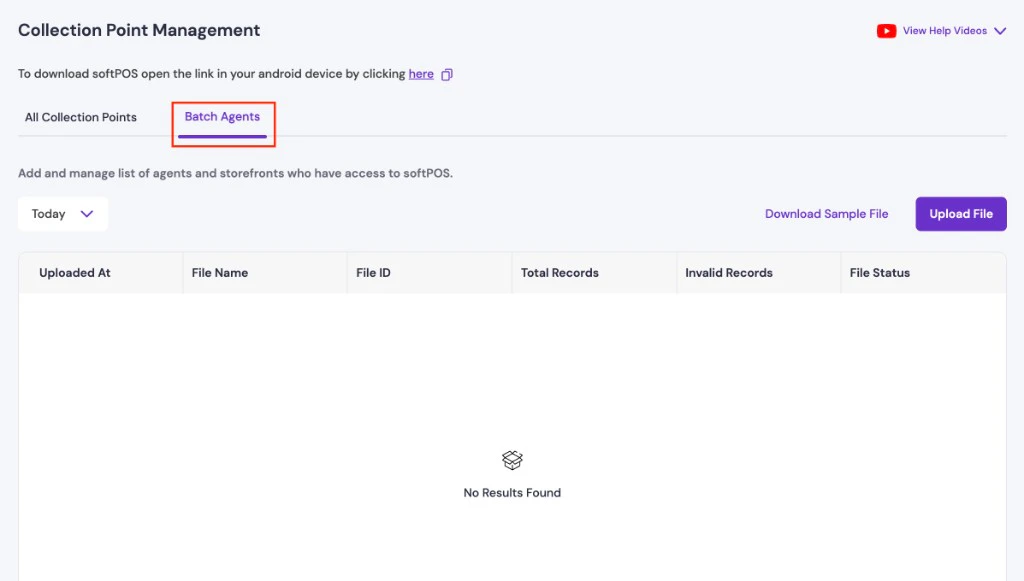
      3. Open the **Batch Agents** tab.
      4. **Download the sample file**: Select **Download Sample File** to get the template.
      5. **Fill in the required details**: Enter the agent details in the downloaded template as specified.
      6. **Upload the file**: Select **Upload File** to submit the batch.

      After you upload the file, the [Merchant Dashboard](https://merchant.cashfree.com/auth/login) displays the upload status, file ID, total records, and invalid records for each submission.
      <img
        src="https://mintcdn.com/cashfreepayments-d00050e9/-j16r9rm-CVzxxOR/static/images/pg/softpos/upload-batch-agents.png?fit=max&auto=format&n=-j16r9rm-CVzxxOR&q=85&s=305eccdd31f627c78aebd0bb4e0d0bbf"
        alt="Collection Point Management with Batch Agents tab selected, Today date filter, Download Sample File and Upload File actions, and an empty upload history table with columns for uploaded time, file name, file ID, total records, invalid records, and file status"
        style={{
width: '100%',
maxWidth: 'min(100%, 960px)',
height: 'auto',
objectFit: 'contain',
display: 'block',
marginLeft: 'auto',
marginRight: 'auto',
}}
        width="1024"
        height="581"
        data-path="static/images/pg/softpos/upload-batch-agents.png"
      />
    </div>
  </Tab>
</Tabs>

### Agent KYC verification

After you submit the agent's details, Cashfree runs the following verification steps:

<Steps>
  <Step title="Cashfree sends the KYC verification link">
    An SMS containing a KYC verification link is sent to the agent's registered mobile number. The link is valid for seven days from the date the agent is added. The SMS reads:

    *"\[Company name] has sent an identity verification request for KYC purposes. Click on the \[link] to complete the online KYC. The link is valid till \[date] - Powered by Cashfree."*
  </Step>

  <Step title="Agent completes Aadhaar OTP authentication">
    The link redirects the agent to an Aadhaar OTP authentication page. Once authentication is complete, the agent's status moves to **Provisionally Active**.
  </Step>

  <Step title="Cashfree completes KYC review">
    Once Cashfree reviews and approves the submission, the agent's status moves to **Active**. The agent can then download and log in to the softPOS application.
  </Step>
</Steps>

### Agent statuses

The following statuses indicate where each agent is in the verification process:

| Status                   | Description                                                                                                  |
| ------------------------ | ------------------------------------------------------------------------------------------------------------ |
| **Active**               | Cashfree has approved KYC; the agent can download and log in to the softPOS application.                     |
| **Blocked**              | The agent cannot collect payments until Cashfree resolves a compliance or risk hold.                         |
| **Doc Awaited**          | Required documents or details are still missing or incomplete.                                               |
| **Inactive**             | The agent is not enabled to collect payments (for example, deactivated or not yet usable).                   |
| **Provisionally Active** | Aadhaar OTP authentication is complete; Cashfree is still reviewing the submission.                          |
| **Rejected**             | Verification did not pass; review the details in the Merchant Dashboard and correct or resubmit as prompted. |
| **Under Review**         | Cashfree is reviewing the submitted information or documents.                                                |

<Note>
  If an agent has not received or has misplaced the KYC SMS, you can resend it directly from the [Merchant Dashboard](https://merchant.cashfree.com/auth/login).
</Note>

## Customer VPA setup

<Note>
  Customer VPA is not enabled by default. Contact your Cashfree account manager to request activation before proceeding with the steps below.
</Note>

To add and verify a Customer VPA collection point, complete the following steps:

1. Log in to the [Merchant Dashboard](https://merchant.cashfree.com/auth/login).

2. Navigate to **PG PRODUCTS** > **Offline Payments** > **Collection Point Management**.

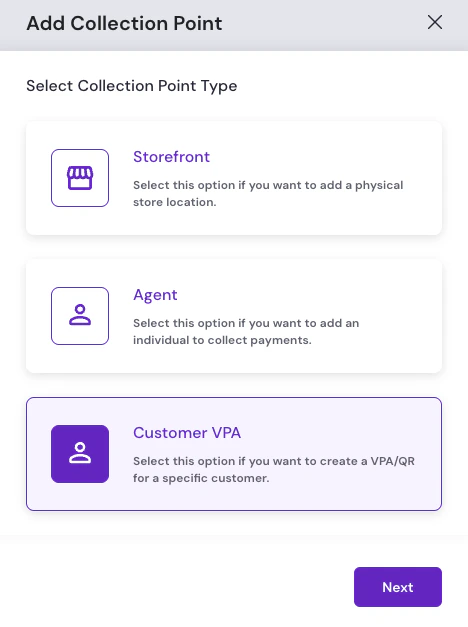
3. Click **Add Collection Point**, then select the **Customer VPA** collection type.

   <img src="https://mintcdn.com/cashfreepayments-d00050e9/hRBKYVXwLLPmOn9X/static/images/pg/softpos/kyc-verification/select-customer-vpa-collection-type.png?fit=max&auto=format&n=hRBKYVXwLLPmOn9X&q=85&s=f3222056ee3167049b1bb15a0f573aa6" width="400" alt="Add Collection Point modal on the Select Collection Point Type step with Customer VPA selected among Storefront, Agent, and Customer VPA options" data-path="static/images/pg/softpos/kyc-verification/select-customer-vpa-collection-type.png" />

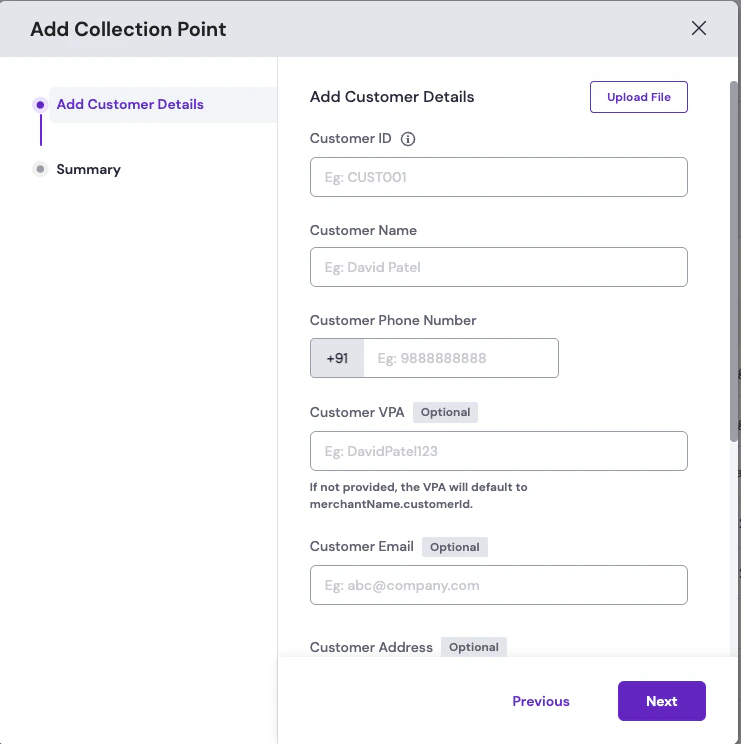
4. Provide the following mandatory customer details for verification:

   * **Customer ID**: A unique identifier for the customer (for example, CUST001).
   * **Customer Name**: The customer's name for this customer ID.
   * **Customer Phone Number**: The customer's mobile number.

   You can also provide the following optional details:

   * **Customer VPA**: If not provided, the VPA defaults to `merchantName.customerId`.
   * **Customer Email**: The customer's email address.
   * **Customer Address**: Street, city, state, and pin code for the customer.
   <Note>
     Use **Upload File** on the **Add Customer Details** screen in the [Merchant Dashboard](https://merchant.cashfree.com/auth/login) to upload a batch file and create customer VPAs or QR codes for multiple customers at once.
   </Note>

   <Frame caption="">
     <img src="https://mintcdn.com/cashfreepayments-d00050e9/qgLZb4Yha5cJ3Rmd/static/images/pg/softpos/kyc-verification/add-customer-details-form.png?fit=max&auto=format&n=qgLZb4Yha5cJ3Rmd&q=85&s=b8c62b2c8f04f37e43cb25abf1e19196" width="480" alt="Add Collection Point modal on the Add Customer Details step with Customer ID, name, phone, optional VPA and email fields, and an Upload File button for batch customer onboarding" data-path="static/images/pg/softpos/kyc-verification/add-customer-details-form.png" />
   </Frame>

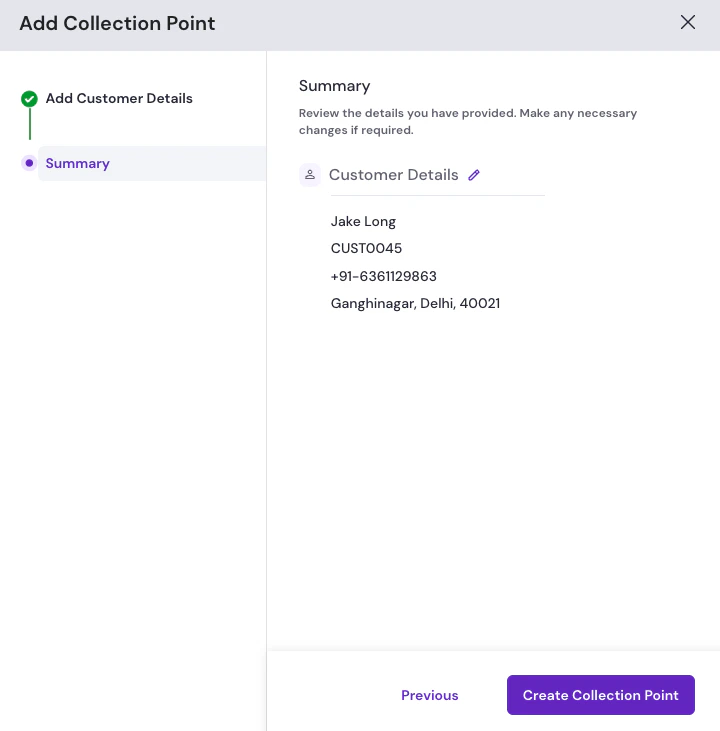
5. **Summary**: Review the customer VPA details you have provided. Make any necessary changes to the customer details if required by selecting the edit icon next to the details. Click the **Create Collection Point** button to submit the details.
   <Frame caption="">
     <img src="https://mintcdn.com/cashfreepayments-d00050e9/aQdW18rxocV8n578/static/images/pg/softpos/kyc-verification/summary-customer-vpa.png?fit=max&auto=format&n=aQdW18rxocV8n578&q=85&s=dd291d7ad08d5f32cba7e2a8b95f9095" width="500" alt="Add Collection Point modal on the Summary step with customer details and Create Collection Point" data-path="static/images/pg/softpos/kyc-verification/summary-customer-vpa.png" />
   </Frame>

<div class="hidden" data-table-of-contents="bottom">
  <p class="mt-4 font-medium flex items-center gap-2 related-docs-heading">
    <svg width="16" height="16" viewBox="0 0 24 24" fill="none" stroke="currentColor" stroke-width="2" stroke-linecap="round" stroke-linejoin="round" aria-hidden="true" class="w-4 h-4">
      <path d="M3 4h7a2 2 0 0 1 2 2v13a2 2 0 0 0-2-2H3z" />

      <path d="M21 4h-7a2 2 0 0 0-2 2v13a2 2 0 0 1 2-2h7z" />
    </svg>

    <span>Related topics</span>
  </p>

  <ul>
    <li><a href="/docs/api-reference/payments/latest/softpos/upload-terminal-docs">Upload Terminal Documents API</a></li>
    <li><a href="/docs/api-reference/payments/latest/softpos/create-terminal">Create Terminal API</a></li>
    <li><a href="/docs/payments/manage/settlements">Manage settlements</a></li>
  </ul>
</div>
