> ## Documentation Index
> Fetch the complete documentation index at: https://www.cashfree.com/docs/llms.txt
> Use this file to discover all available pages before exploring further.

# Scenarios

> Explore common Cashfree Easy Split scenarios with sample order payloads showing how to split payments across vendors, commissions, and platform fees correctly.

## Scenario 1: Create split during order creation

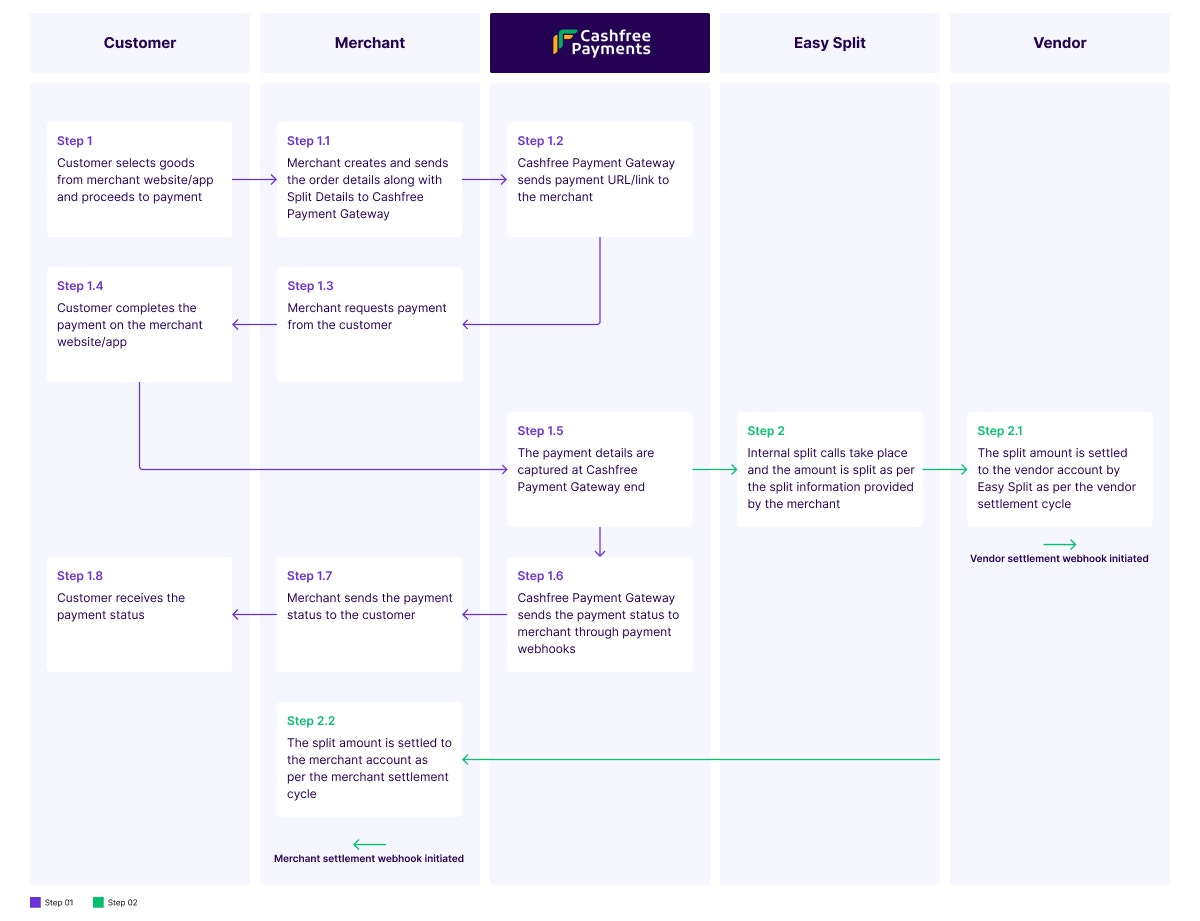
The flow diagram below shows how a split happens when an order is created. It is a two-step process.
<img src="https://mintcdn.com/cashfreepayments-d00050e9/Be1dqXuQamwUAEXO/static/payments/split/recipes/Split_during_order_creation_1.jpg?fit=max&auto=format&n=Be1dqXuQamwUAEXO&q=85&s=9eeb9522388974ec01ee550e93373389" alt="" width="1200" height="921" data-path="static/payments/split/recipes/Split_during_order_creation_1.jpg" />

<Warning>Split by amount is not supported for vendor-prepaid charges. If the vendor is billed, you can only split the order by percentage.</Warning>

**First Step: Customer completes the payment**

<Steps>
  <Step title="Step 1: The customer visits the merchant website or the application and adds goods from different vendors to the shopping cart. The customer proceeds to complete the payment.">
    <Steps>
      <Step title="Step 1.1: The merchant receives the payment request from the customer and creates an order. The order details contain information such as order ID, order amount, split details and customer name. The merchant creates an order along with splits in the Cashfree Payment Gateway system." />

      <Step title="Step 1.2: Cashfree Payment Gateway receives the order details and creates a payment link for that order. This payment link is sent to the merchant." />

      <Step title="Step 1.3: The merchant receives the payment link and sends it to the customer to complete the payment." />

      <Step title="Step 1.4: The customer clicks the link and completes the payment. The amount is received by Cashfree Payment Gateway." />

      <Step title="Step 1.5: The payment details are captured at Cashfree Payment Gateway end." />

      <Step title="Step 1.6: The payment details are stored in the Cashfree system and the payment status is sent to the merchant through payment webhooks." />

      <Step title="Step 1.7: The merchant sends the payment status to the customer." />

      <Step title="Step 1.8: The customer receives the payment status." />
    </Steps>
  </Step>
</Steps>

**Second Step: Easy Split processes the split internally**

<Steps>
  <Step title="Step 2: Once the payment is initiated, internal split calls take place. The amount is split based on the split information the merchant provides.">
    <Steps>
      <Step title="Step 2.1: Easy Split processes the vendor split amount first and settles the amount to the vendor bank account based on the vendor schedule option. The vendor settlement webhook is initiated." />

      <Step title="Step 2.2: Easy Split processes the merchant split amount and settles the amount to the merchant bank account based on the merchant schedule option. The merchant settlement webhook is initiated." />
    </Steps>
  </Step>
</Steps>

## Scenario 2: Create split after payment success

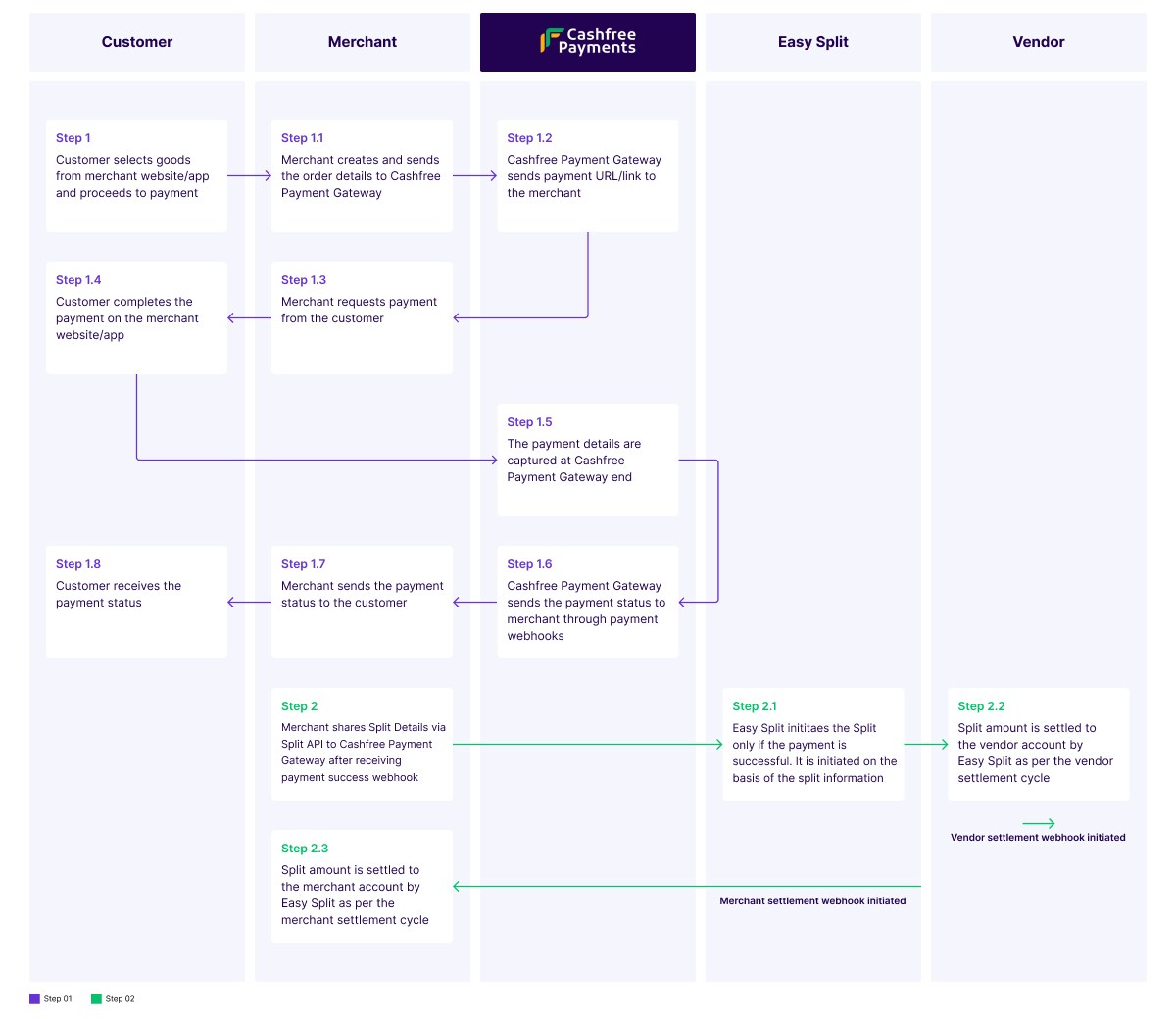
The flow diagram below shows how a split happens if the payment is successful. It is a two-step process.
<img src="https://mintcdn.com/cashfreepayments-d00050e9/Be1dqXuQamwUAEXO/static/payments/split/recipes/Split_After_Payment_Success_1.jpg?fit=max&auto=format&n=Be1dqXuQamwUAEXO&q=85&s=e9aba99158a9aa28231c34b6a6559a02" alt="" width="1200" height="1040" data-path="static/payments/split/recipes/Split_After_Payment_Success_1.jpg" />

**First Step: Customer completes the payment**

<Steps>
  <Step title="Step 1: The customer visits the merchant website or the application and adds goods from different vendors to the shopping cart. The customer proceeds to complete the payment.">
    <Steps>
      <Step title="Step 1.1: The merchant receives the payment request from the customer and creates an order. The order details contain information such as order ID, order amount, and customer name. The merchant creates an order in the Cashfree Payment system." />

      <Step title="Step 1.2: Cashfree Payment Gateway receives the order details and creates a payment link for that order. This payment link is sent to the merchant." />

      <Step title="Step 1.3: The merchant receives the payment link and sends it to the customer to complete the payment." />

      <Step title="Step 1.4: The customer clicks the link and completes the payment. The amount is received by Cashfree Payment Gateway." />

      <Step title="Step 1.5: The payment details are captured at Cashfree Payment Gateway end." />

      <Step title="Step 1.6: The payment details are stored in the Cashfree system and the payment status is sent to the merchant through payment webhooks." />

      <Step title="Step 1.7: The merchant sends the payment status to the customer." />

      <Step title="Step 1.8: The customer receives the payment status." />
    </Steps>
  </Step>
</Steps>

**Second Step: Easy Split processes the split after payment success**

<Steps>
  <Step title="Step 2: Once the payment is successful, the payment success webhook is triggered. The merchant shares the split details that contain the split information via the Split API to Cashfree Payment Gateway.">
    <Steps>
      <Step title="Step 2.1: The split is created in the Cashfree system, and Easy Split processes the split based on the split information received from the merchant. The split information has details such as vendor ID, split type, and the amount or percentage to be split with the merchant and vendors." />

      <Step title="Step 2.2: Easy Split processes the vendor split amount first. The amount is settled to the vendor bank account based on the vendor schedule option. The vendor settlement webhook is initiated." />

      <Step title="Step 2.3: Easy Split processes the merchant split amount and settles the amount to the merchant bank account based on the merchant schedule option. The merchant settlement webhook is initiated." />
    </Steps>
  </Step>
</Steps>
