> ## Documentation Index
> Fetch the complete documentation index at: https://www.cashfree.com/docs/llms.txt
> Use this file to discover all available pages before exploring further.
# Vendor Dashboard
> Give vendors a dedicated Cashfree Vendor Dashboard to view their transactions, settlements, and reports once you grant them invitation-based portal access.
The **Vendor Dashboard** is a dedicated dashboard for vendors to view their transactions, settlements, and reports. Vendors receive an invitation and can access the dashboard only after you grant them access.
 ## Accessing the vendor dashboard
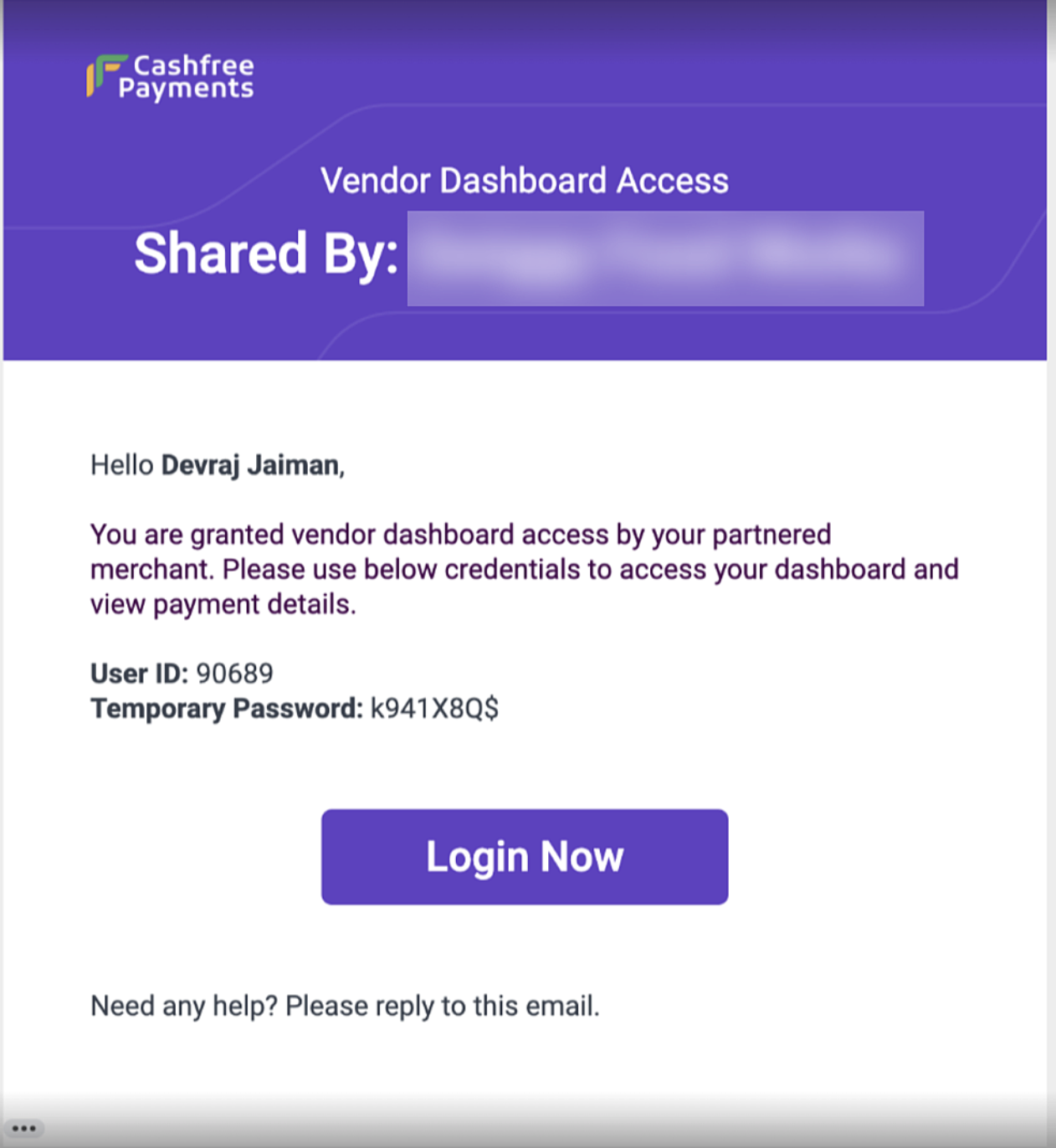
Below are the steps to access the vendor dashboard for the first time:
1. Activate the vendor dashboard feature by requesting your account manager.
2. Grant access to the required vendor through the [Merchant Dashboard](https://merchant.cashfree.com/auth/login) or APIs.
3. An automated email is sent to the vendor’s registered email ID.
4. The vendor can reset their password and log in using the new credentials.
## Summary
Once the vendor logs in to the vendor dashboard, they can view the **Summary** tab. This tab displays:
* Recent settlements
* Upcoming settlements
* Total transactions
* Total refunds
## Accessing the vendor dashboard
Below are the steps to access the vendor dashboard for the first time:
1. Activate the vendor dashboard feature by requesting your account manager.
2. Grant access to the required vendor through the [Merchant Dashboard](https://merchant.cashfree.com/auth/login) or APIs.
3. An automated email is sent to the vendor’s registered email ID.
4. The vendor can reset their password and log in using the new credentials.
## Summary
Once the vendor logs in to the vendor dashboard, they can view the **Summary** tab. This tab displays:
* Recent settlements
* Upcoming settlements
* Total transactions
* Total refunds
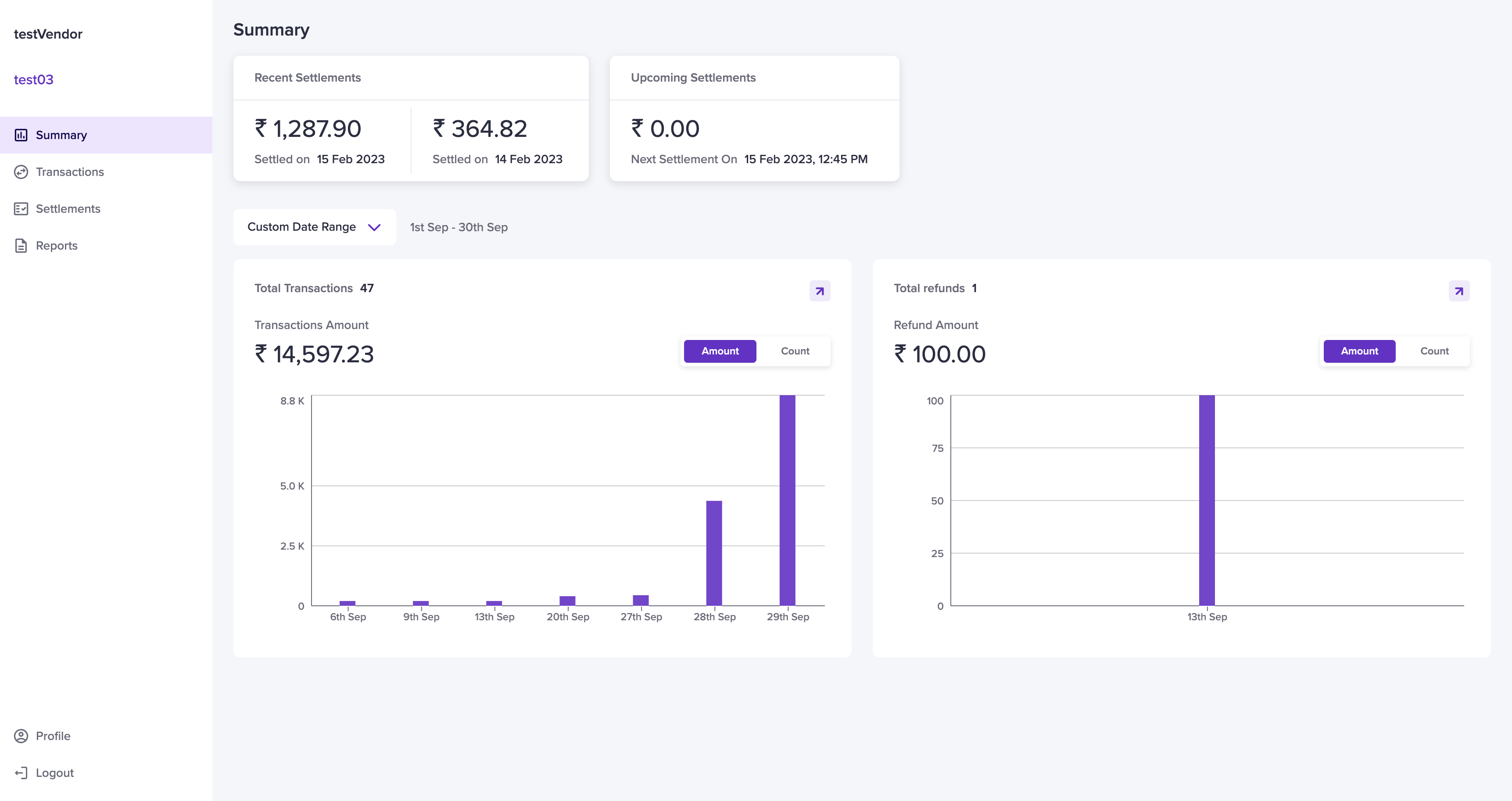 Select a date range from the drop-down menu. If you select **Custom Date Range**, specify the date range and click **Apply**. The transactions and refunds will be displayed based on the selected period.
### Total transactions
The **Total Transactions** section displays:
* The transaction count.
* The total transaction amount for the selected period.
Hover over the dates to view individual transaction amounts. Clicking the **arrow icon** redirects vendors to the **Transactions** page.
### Total refunds
The **Total Refunds** section displays:
* The refund count.
* The total refund amount for the selected period.
Hover over the dates to view individual refund amounts. Clicking the **arrow icon** redirects vendors to the **Refunds** page.
## Profile
The **Profile** section displays vendor details. To access it, navigate to **Vendor Dashboard** > **Profile**. The **Profile** section is divided into three categories:
* [Personal Details](/payments/split/vendor/dashboard/overview#personal-details)
* [Account Details](/payments/split/vendor/dashboard/overview#account-details)
* [Merchant Details](/payments/split/vendor/dashboard/overview#merchant-details)
Select a date range from the drop-down menu. If you select **Custom Date Range**, specify the date range and click **Apply**. The transactions and refunds will be displayed based on the selected period.
### Total transactions
The **Total Transactions** section displays:
* The transaction count.
* The total transaction amount for the selected period.
Hover over the dates to view individual transaction amounts. Clicking the **arrow icon** redirects vendors to the **Transactions** page.
### Total refunds
The **Total Refunds** section displays:
* The refund count.
* The total refund amount for the selected period.
Hover over the dates to view individual refund amounts. Clicking the **arrow icon** redirects vendors to the **Refunds** page.
## Profile
The **Profile** section displays vendor details. To access it, navigate to **Vendor Dashboard** > **Profile**. The **Profile** section is divided into three categories:
* [Personal Details](/payments/split/vendor/dashboard/overview#personal-details)
* [Account Details](/payments/split/vendor/dashboard/overview#account-details)
* [Merchant Details](/payments/split/vendor/dashboard/overview#merchant-details)
 ### Personal details
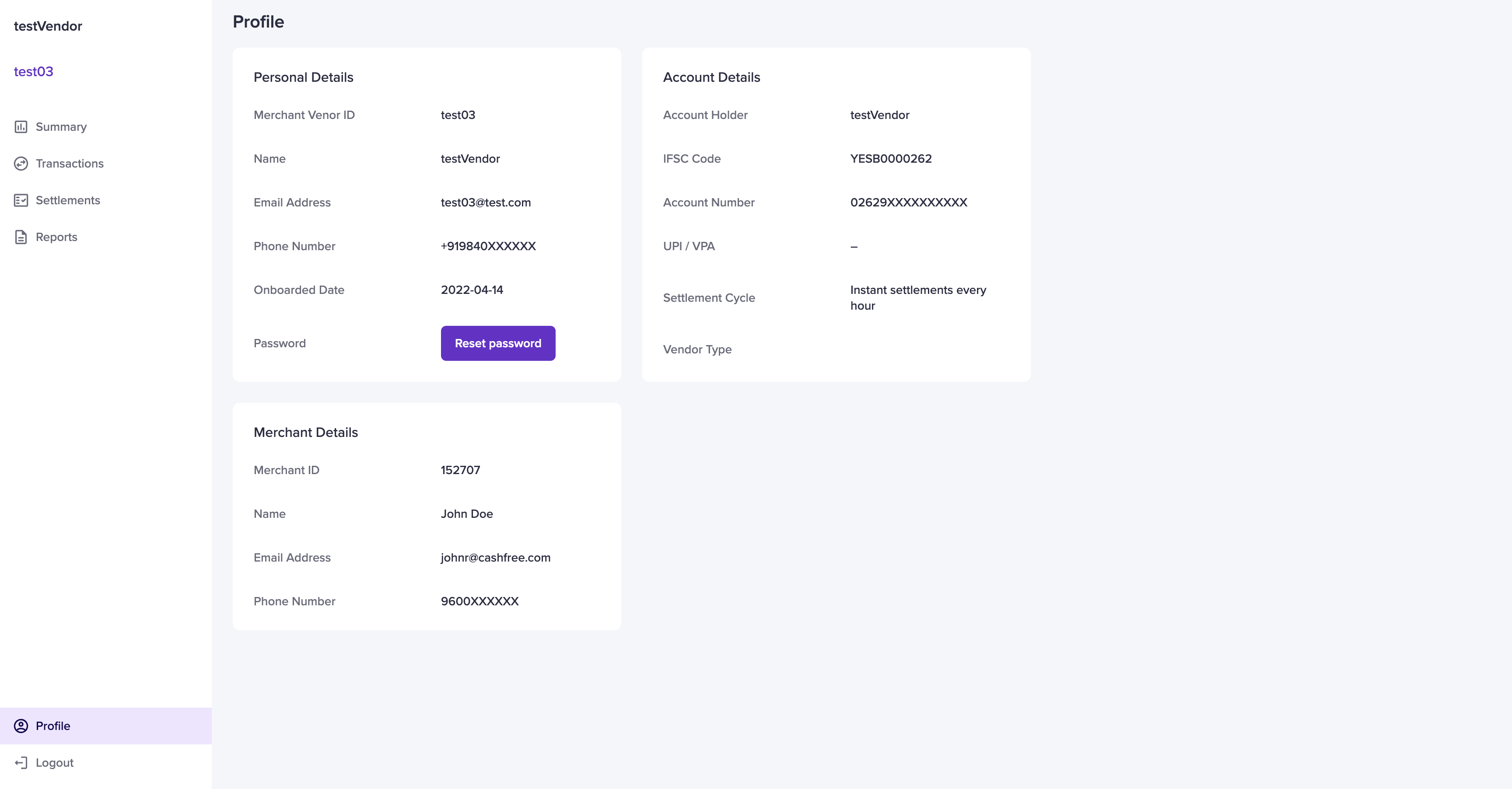
The **Personal Details** section includes:
* Merchant vendor ID: Unique vendor ID.
* Name: Vendor’s full name.
* Email address: Vendor’s registered email.
* Phone number: Vendor’s contact number.
* Onboarded date: Date the vendor was onboarded.
* Password: Vendor’s login password.
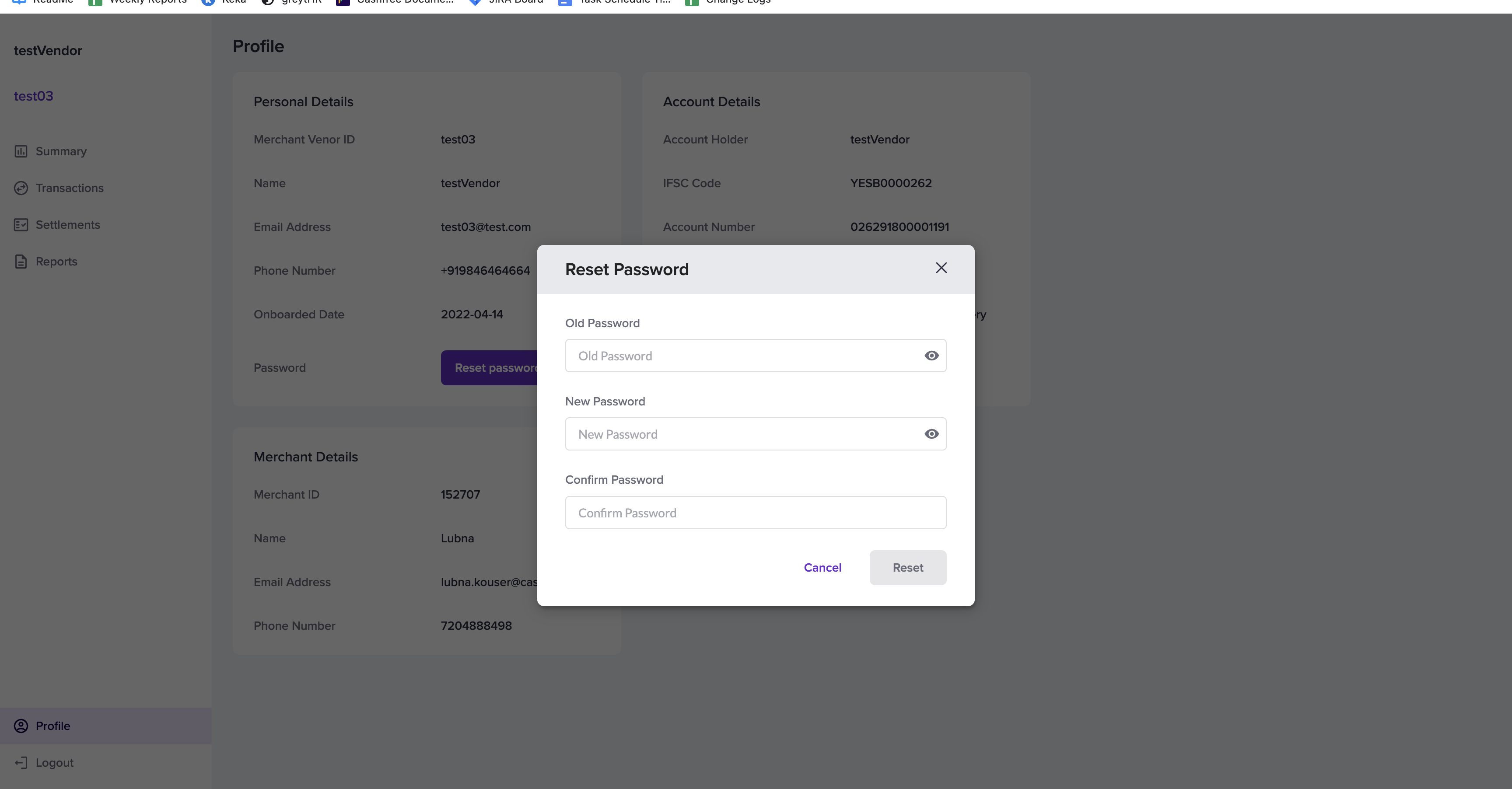
#### Resetting password
Vendors can reset their password by:
1. Clicking **Reset Password**.
2. Entering the old and new passwords.
3. Clicking **Reset**.
Alternatively, vendors can click **Forgot Password** and follow the instructions in the email sent to their registered email ID.
If the email is not received, please clear the cache and try again in incognito mode.
### Personal details
The **Personal Details** section includes:
* Merchant vendor ID: Unique vendor ID.
* Name: Vendor’s full name.
* Email address: Vendor’s registered email.
* Phone number: Vendor’s contact number.
* Onboarded date: Date the vendor was onboarded.
* Password: Vendor’s login password.
#### Resetting password
Vendors can reset their password by:
1. Clicking **Reset Password**.
2. Entering the old and new passwords.
3. Clicking **Reset**.
Alternatively, vendors can click **Forgot Password** and follow the instructions in the email sent to their registered email ID.
If the email is not received, please clear the cache and try again in incognito mode.
 ### Account details
The **Account Details** section includes:
* Account holder: Name of the account holder.
* IFSC code: Bank branch IFSC code.
* Account number: Vendor’s bank account number.
* UPI or VPA: Vendor’s UPI ID.
* Settlement cycle: Configured settlement schedule.
* Vendor type: Individual or Business.
### Merchant details
The **Merchant Details** section includes:
* Merchant ID
* Name: Merchant’s name.
* Email address: Merchant’s registered email ID.
* Phone number: Merchant’s contact number.
### Account details
The **Account Details** section includes:
* Account holder: Name of the account holder.
* IFSC code: Bank branch IFSC code.
* Account number: Vendor’s bank account number.
* UPI or VPA: Vendor’s UPI ID.
* Settlement cycle: Configured settlement schedule.
* Vendor type: Individual or Business.
### Merchant details
The **Merchant Details** section includes:
* Merchant ID
* Name: Merchant’s name.
* Email address: Merchant’s registered email ID.
* Phone number: Merchant’s contact number.