> ## Documentation Index
> Fetch the complete documentation index at: https://www.cashfree.com/docs/llms.txt
> Use this file to discover all available pages before exploring further.
# Reports
> Let vendors download Cashfree Vendor Dashboard reports for their transactions, settlements, refunds, and balances without exposing other marketplace data.
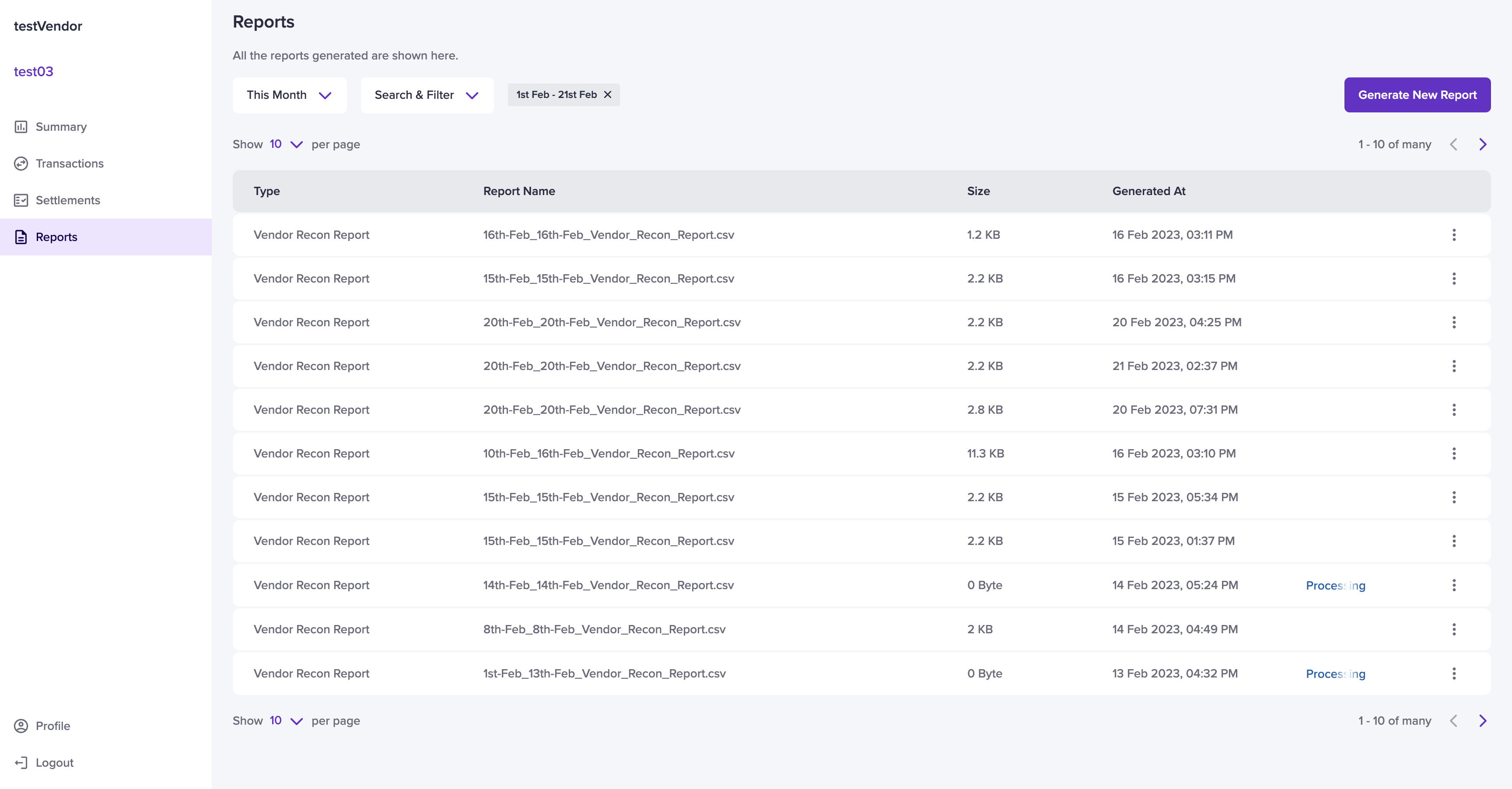
The reports section in the Vendor Dashboard allows vendors to view the vendor recon and settlement-specific report. The report section has details such as report name, report size, the report generated time, and generate a new report.
Select the date range from the drop-down menu. Use the **Search & Filter** option to view specific reports. The reports will be generated based on these selections. Vendors can configure two types of report filters:
* Vendor Reconciliation - vendors can view the reconciliation details of all vendors.
* Settlement Specific - vendors can view the reconciliation details that are specific to a settlement by specifying the settlement ID.
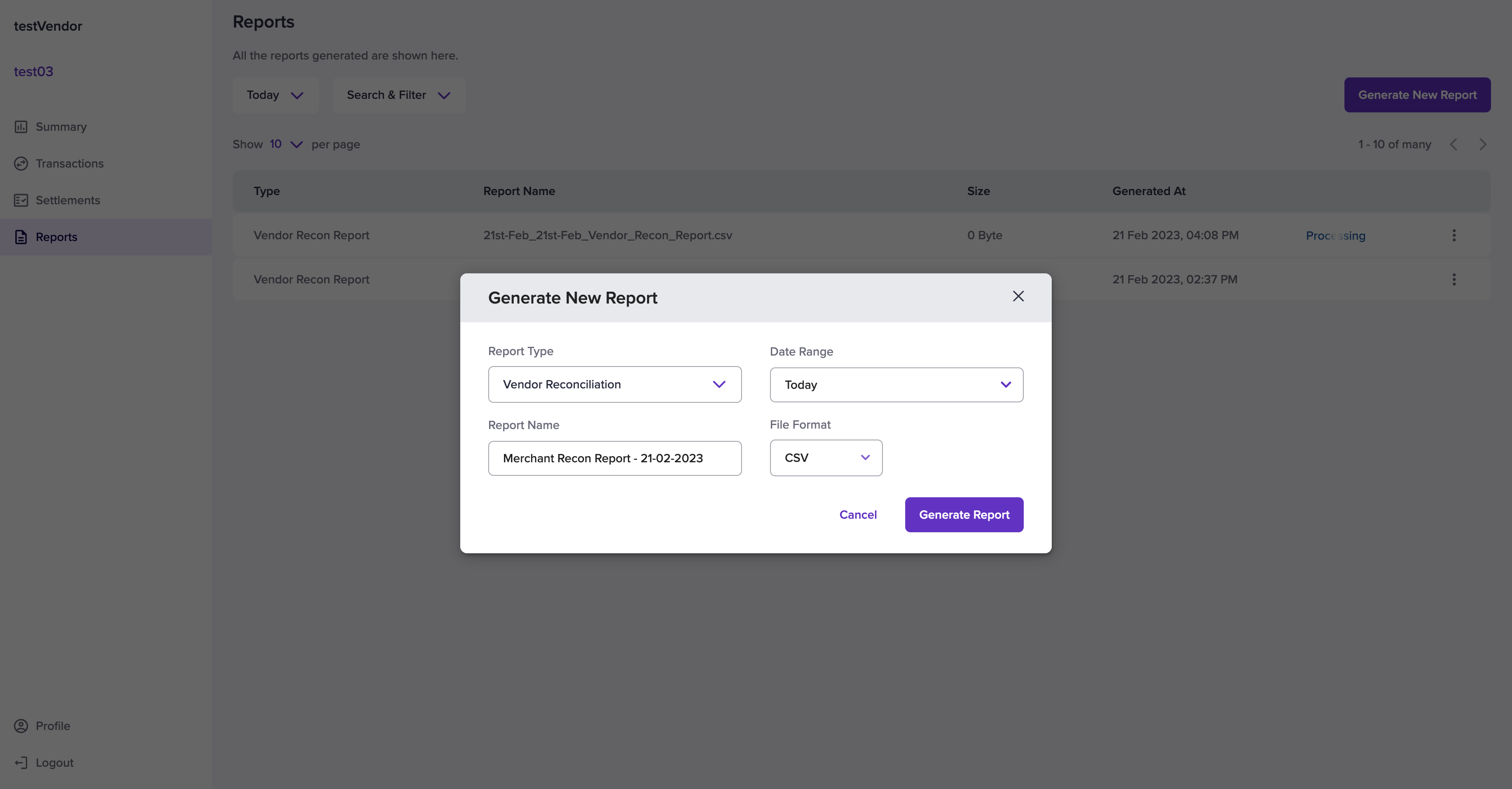
 To generate a new report,
1. Go to **Vendor Dashboard** > **Reports**.
2. In the Reports homepage, select the **Generate New Report** option.
3. Choose the **Report Type** and the **Date Range**. Provide a **Report Name** and select the **File Format**. Supported file formats are CSV and XLS.
4. If you are generating a settlement-specific report, provide the **settlement ID**.
5. Click **Generate Report**. The report is successfully generated and can be downloaded from the Report homepage.
To generate a new report,
1. Go to **Vendor Dashboard** > **Reports**.
2. In the Reports homepage, select the **Generate New Report** option.
3. Choose the **Report Type** and the **Date Range**. Provide a **Report Name** and select the **File Format**. Supported file formats are CSV and XLS.
4. If you are generating a settlement-specific report, provide the **settlement ID**.
5. Click **Generate Report**. The report is successfully generated and can be downloaded from the Report homepage.
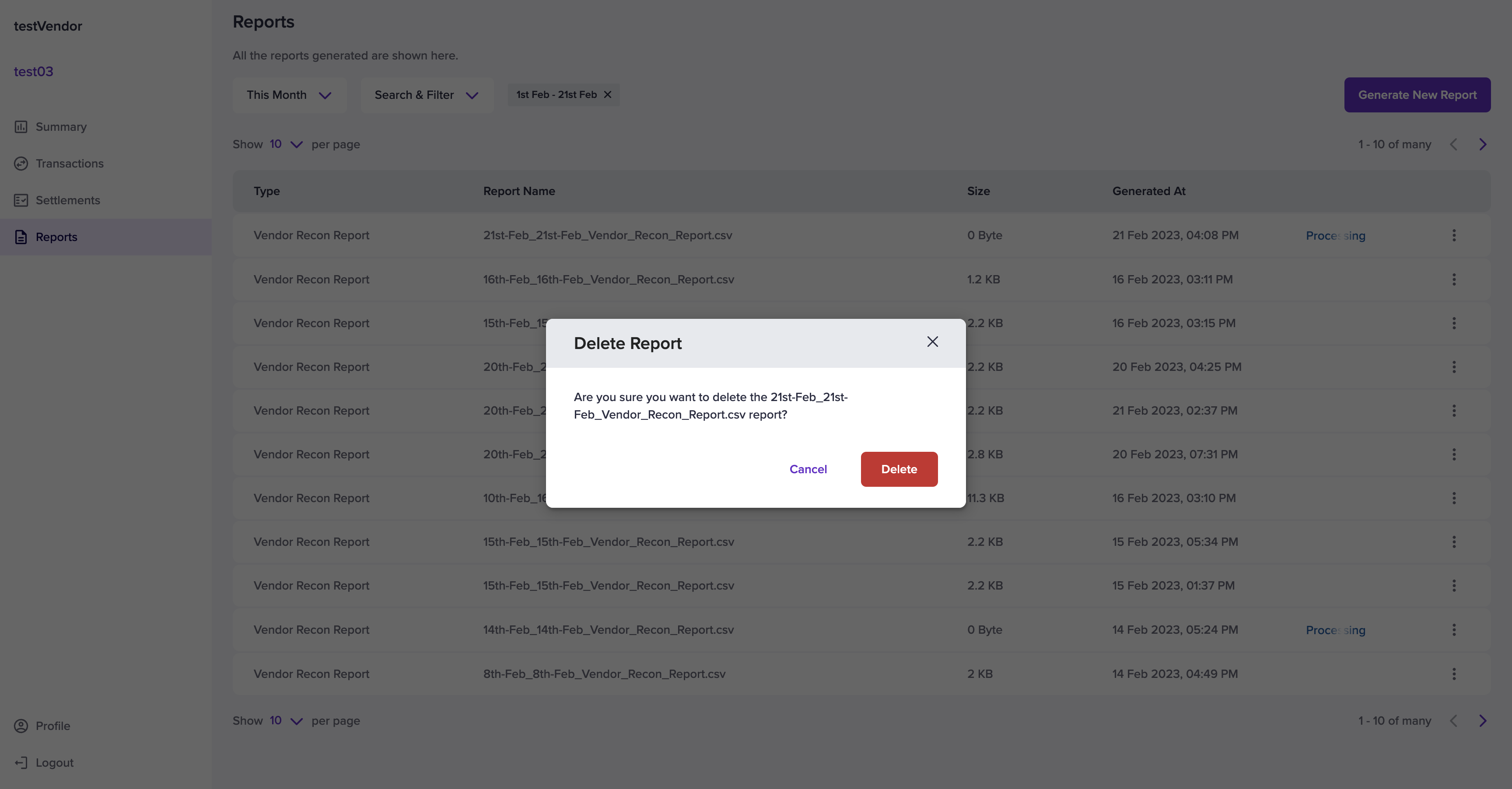
 You can delete a report by selecting the ellipsis icon on the report that should be deleted and select the **Delete** option. Click **Delete** from the Delete Report pop-up window.
 A sample report is available here.