> ## Documentation Index
> Fetch the complete documentation index at: https://www.cashfree.com/docs/llms.txt
> Use this file to discover all available pages before exploring further.
# Managing Virtual Bank Accounts
> Learn how to create Virtual Bank Accounts, set up notification groups, and view VBA payment details from the Cashfree Merchant Dashboard.
Virtual Bank Accounts (VBAs) let you collect payments through NEFT, RTGS, and IMPS transfers. Each VBA is a unique account number assigned to a customer or transaction, enabling automated reconciliation of incoming payments.
## Prerequisites
Ensure you complete the following before getting started:
* Have an active [Cashfree Payments account](https://merchant.cashfree.com/merchants/signup). See how to [create an account](/help/account/account-activation#create-an-account) for setup instructions if you have not created one yet.
* Ensure the **VBA** payment method is enabled on your account. Contact [Cashfree Support](https://www.cashfree.com/contact-us) to enable it.
## Creating a VBA
Use the following steps to create a VBA:
1. Log in to the [Merchant Dashboard](https://merchant.cashfree.com/auth/login).
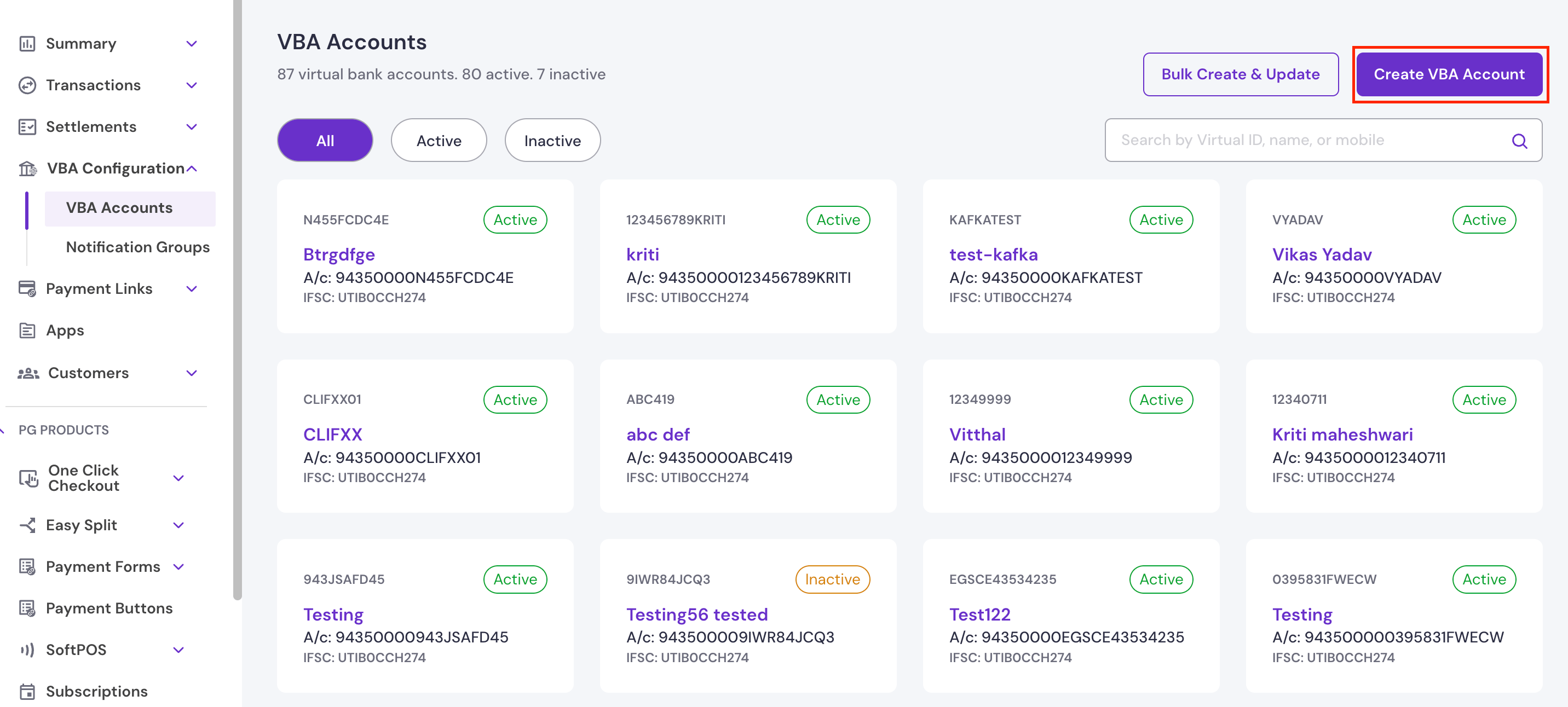
2. Navigate to **Payment Gateway** > **VBA Configuration** > **VBA Accounts**.
3. Click **Create VBA Account**.
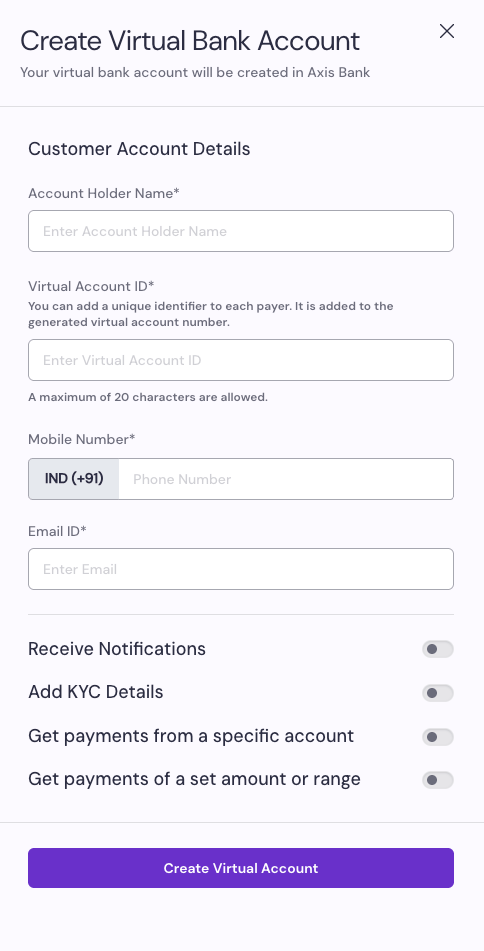
 4. In the **Create Virtual Bank Account** side panel, enter the following details:
* **Account Holder Name**: Enter the name of the account holder.
* **Virtual Account ID**: Enter a unique identifier for the payer. This is appended to the generated virtual account number. A maximum of 20 characters are allowed.
* **Mobile Number**: Enter the account holder's mobile number.
* **Email ID**: Enter the account holder's email address.
4. In the **Create Virtual Bank Account** side panel, enter the following details:
* **Account Holder Name**: Enter the name of the account holder.
* **Virtual Account ID**: Enter a unique identifier for the payer. This is appended to the generated virtual account number. A maximum of 20 characters are allowed.
* **Mobile Number**: Enter the account holder's mobile number.
* **Email ID**: Enter the account holder's email address.
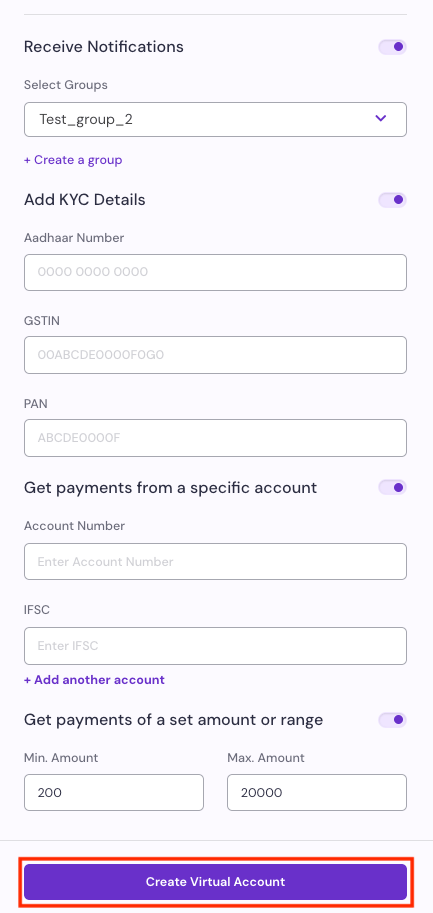
 5. Enable any of the following optional settings using the toggles:
* **Receive Notifications**: Notify the account holder when a payment is received. When enabled, select a notification group from the **Select Groups** dropdown, or click **+ Create a group** to set up a new one.
* **Add KYC Details**: Attach KYC information to this VBA. This is optional unless mandated by Cashfree Payments for your account. When enabled, enter the following details:
* **Aadhaar Number**: Enter the account holder's 12-digit Aadhaar number.
* **GSTIN**: Enter the GST Identification Number.
* **PAN**: Enter the account holder's PAN.
* **Get payments from a specific account**: Optionally restrict this VBA to accept payments only from specified source accounts. Payments from any other account are rejected. When enabled, enter the following details:
* **Account Number**: Enter the source account number.
* **IFSC**: Enter the IFSC code for the source account.
* Click **+ Add another account** to add multiple source accounts.
* **Get payments of a set amount or range**: Optionally set a limit on accepted payment amounts. When enabled, enter the following details:
* **Min. Amount**: Enter the minimum accepted payment amount.
* **Max. Amount**: Enter the maximum accepted payment amount.
6. Click **Create Virtual Account**.
5. Enable any of the following optional settings using the toggles:
* **Receive Notifications**: Notify the account holder when a payment is received. When enabled, select a notification group from the **Select Groups** dropdown, or click **+ Create a group** to set up a new one.
* **Add KYC Details**: Attach KYC information to this VBA. This is optional unless mandated by Cashfree Payments for your account. When enabled, enter the following details:
* **Aadhaar Number**: Enter the account holder's 12-digit Aadhaar number.
* **GSTIN**: Enter the GST Identification Number.
* **PAN**: Enter the account holder's PAN.
* **Get payments from a specific account**: Optionally restrict this VBA to accept payments only from specified source accounts. Payments from any other account are rejected. When enabled, enter the following details:
* **Account Number**: Enter the source account number.
* **IFSC**: Enter the IFSC code for the source account.
* Click **+ Add another account** to add multiple source accounts.
* **Get payments of a set amount or range**: Optionally set a limit on accepted payment amounts. When enabled, enter the following details:
* **Min. Amount**: Enter the minimum accepted payment amount.
* **Max. Amount**: Enter the maximum accepted payment amount.
6. Click **Create Virtual Account**.
 Create numeric-only virtual bank account numbers where possible. Some banking apps do not support alphabetic characters in account number fields, which can cause payment failures. Numeric account numbers reduce input errors and improve payment success rates.
After you save, the VBA appears on the **VBA Accounts** page. Use the **All**, **Active**, and **Inactive** filters at the top of the page to filter virtual bank accounts by status. For each VBA card, you can copy account details, or update the existing account details by clicking the **Edit Details** button.
## Bulk creating or deactivating VBAs
Use the following steps to create or deactivate multiple VBAs:
1. Log in to the [Merchant Dashboard](https://merchant.cashfree.com/auth/login).
2. Navigate to **Payment Gateway** > **VBA Configuration** > **VBA Accounts**.
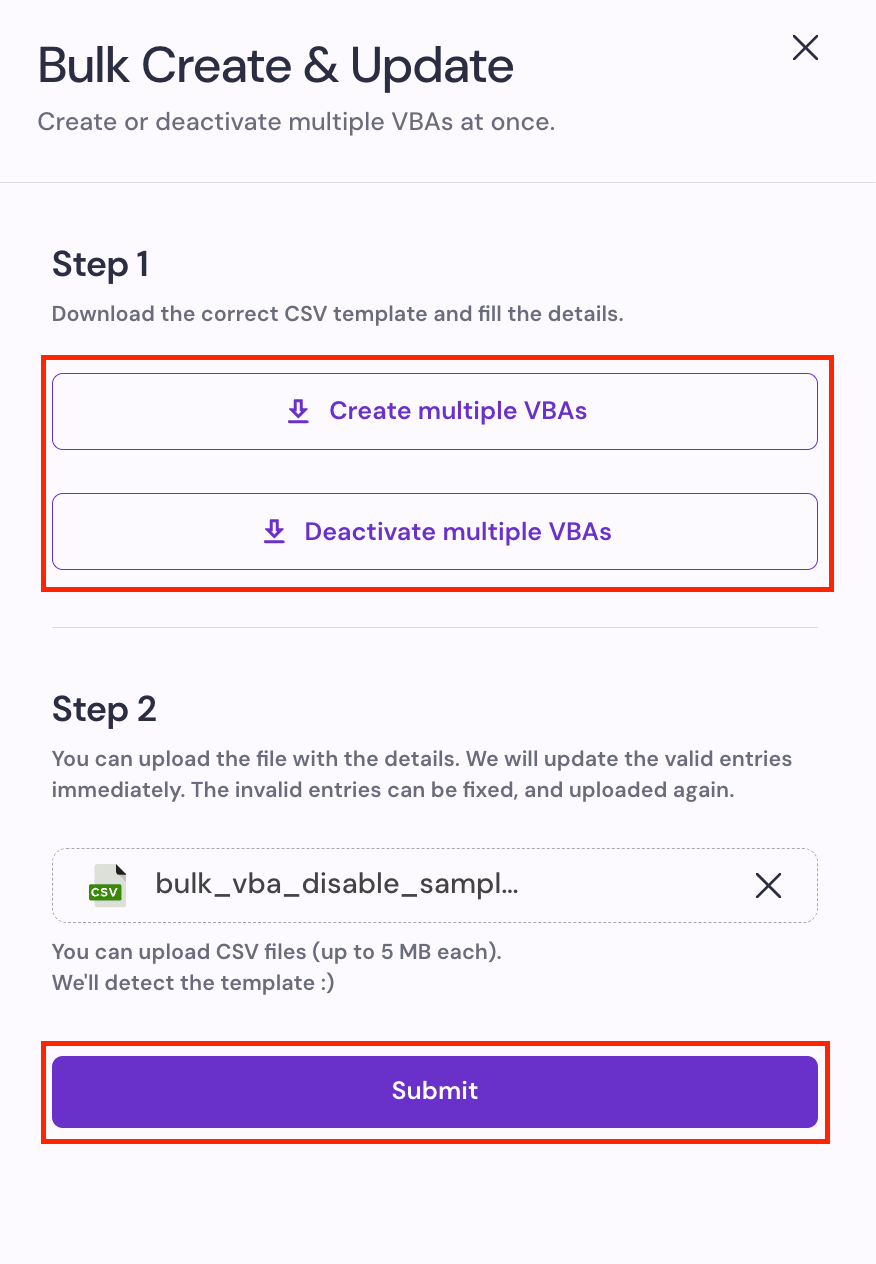
3. Click **Bulk Create & Update**.
4. Download the relevant CSV template:
* **Create multiple VBAs**: Downloads a template to fill in details for new VBAs.
* **Deactivate multiple VBAs**: Downloads a template to specify VBAs to deactivate.
5. Fill in the required details in the downloaded CSV file.
6. Click **Upload File** and select your completed CSV file. Files must be in CSV format and up to 5 MB each.
7. Click **Submit**. Valid entries are processed immediately. Invalid entries can be corrected and re-uploaded.
Create numeric-only virtual bank account numbers where possible. Some banking apps do not support alphabetic characters in account number fields, which can cause payment failures. Numeric account numbers reduce input errors and improve payment success rates.
After you save, the VBA appears on the **VBA Accounts** page. Use the **All**, **Active**, and **Inactive** filters at the top of the page to filter virtual bank accounts by status. For each VBA card, you can copy account details, or update the existing account details by clicking the **Edit Details** button.
## Bulk creating or deactivating VBAs
Use the following steps to create or deactivate multiple VBAs:
1. Log in to the [Merchant Dashboard](https://merchant.cashfree.com/auth/login).
2. Navigate to **Payment Gateway** > **VBA Configuration** > **VBA Accounts**.
3. Click **Bulk Create & Update**.
4. Download the relevant CSV template:
* **Create multiple VBAs**: Downloads a template to fill in details for new VBAs.
* **Deactivate multiple VBAs**: Downloads a template to specify VBAs to deactivate.
5. Fill in the required details in the downloaded CSV file.
6. Click **Upload File** and select your completed CSV file. Files must be in CSV format and up to 5 MB each.
7. Click **Submit**. Valid entries are processed immediately. Invalid entries can be corrected and re-uploaded.
 ## Viewing VBA payments
Use the following steps to view payments received through VBAs:
1. Log in to the [Merchant Dashboard](https://merchant.cashfree.com/auth/login).
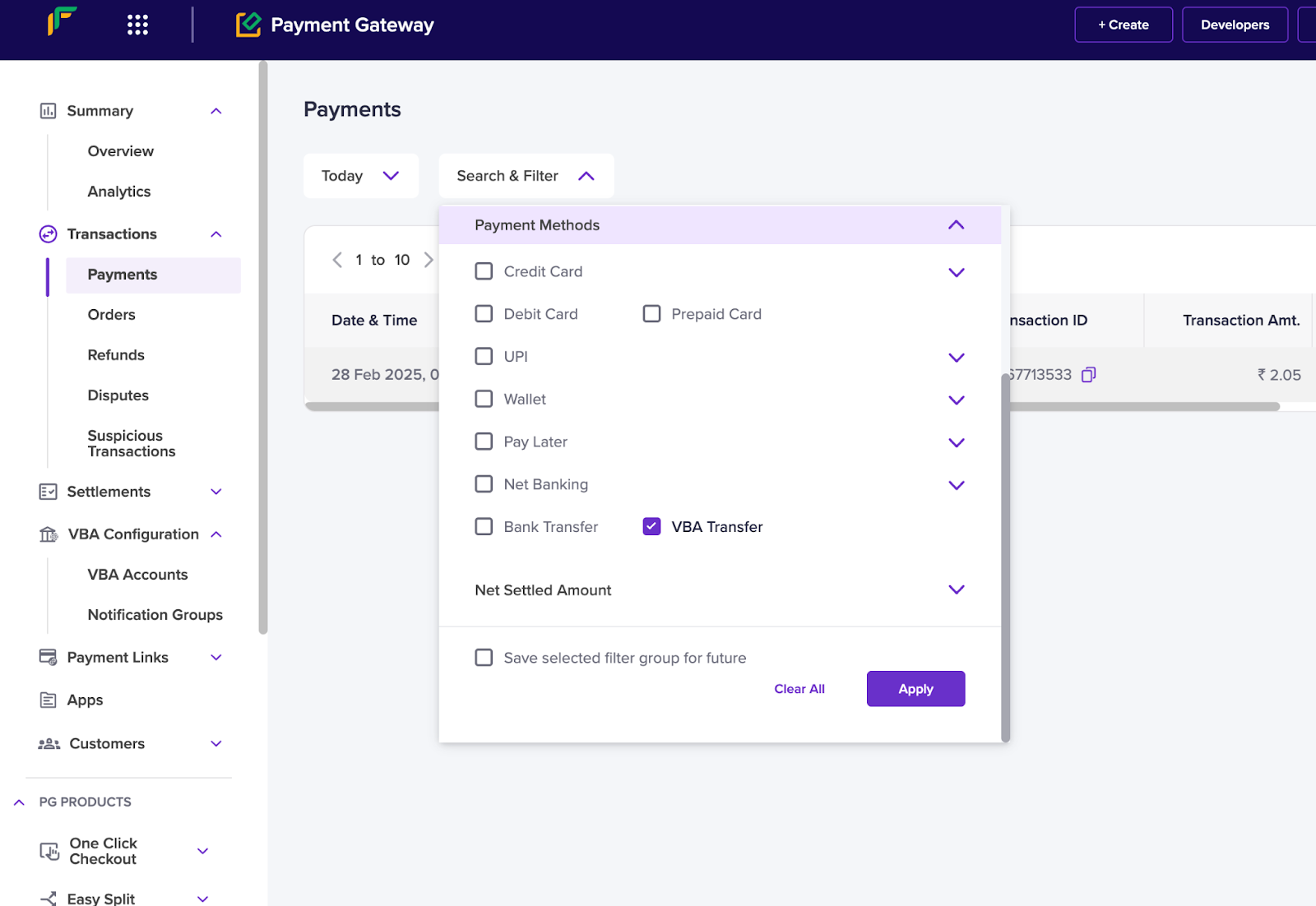
2. Navigate to **Payment Gateway** > **Transactions** > **Payments**.
3. Click the **Search & Filter** dropdown.
4. Under **Payment Methods**, select **VBA Transfer**.
The payments list updates to show only transactions processed through VBAs.
## Viewing VBA payments
Use the following steps to view payments received through VBAs:
1. Log in to the [Merchant Dashboard](https://merchant.cashfree.com/auth/login).
2. Navigate to **Payment Gateway** > **Transactions** > **Payments**.
3. Click the **Search & Filter** dropdown.
4. Under **Payment Methods**, select **VBA Transfer**.
The payments list updates to show only transactions processed through VBAs.
 ## Creating a notification group
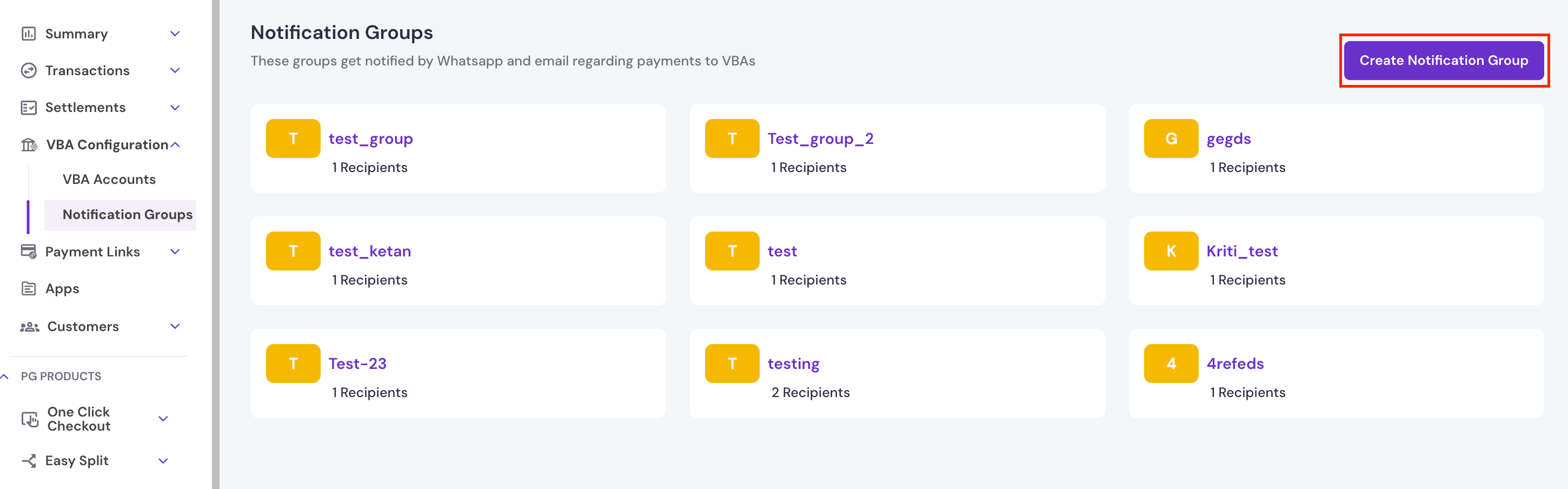
Notification groups receive WhatsApp and email alerts whenever a payment is made to a VBA. You can add multiple email addresses and mobile numbers to a single group.
Use the following steps to create a notification group for VBAs:
1. Log in to the [Merchant Dashboard](https://merchant.cashfree.com/auth/login).
2. Navigate to **Payment Gateway** > **VBA Configuration** > **Notification Groups**.
3. Click **Create Notification Group**.
## Creating a notification group
Notification groups receive WhatsApp and email alerts whenever a payment is made to a VBA. You can add multiple email addresses and mobile numbers to a single group.
Use the following steps to create a notification group for VBAs:
1. Log in to the [Merchant Dashboard](https://merchant.cashfree.com/auth/login).
2. Navigate to **Payment Gateway** > **VBA Configuration** > **Notification Groups**.
3. Click **Create Notification Group**.
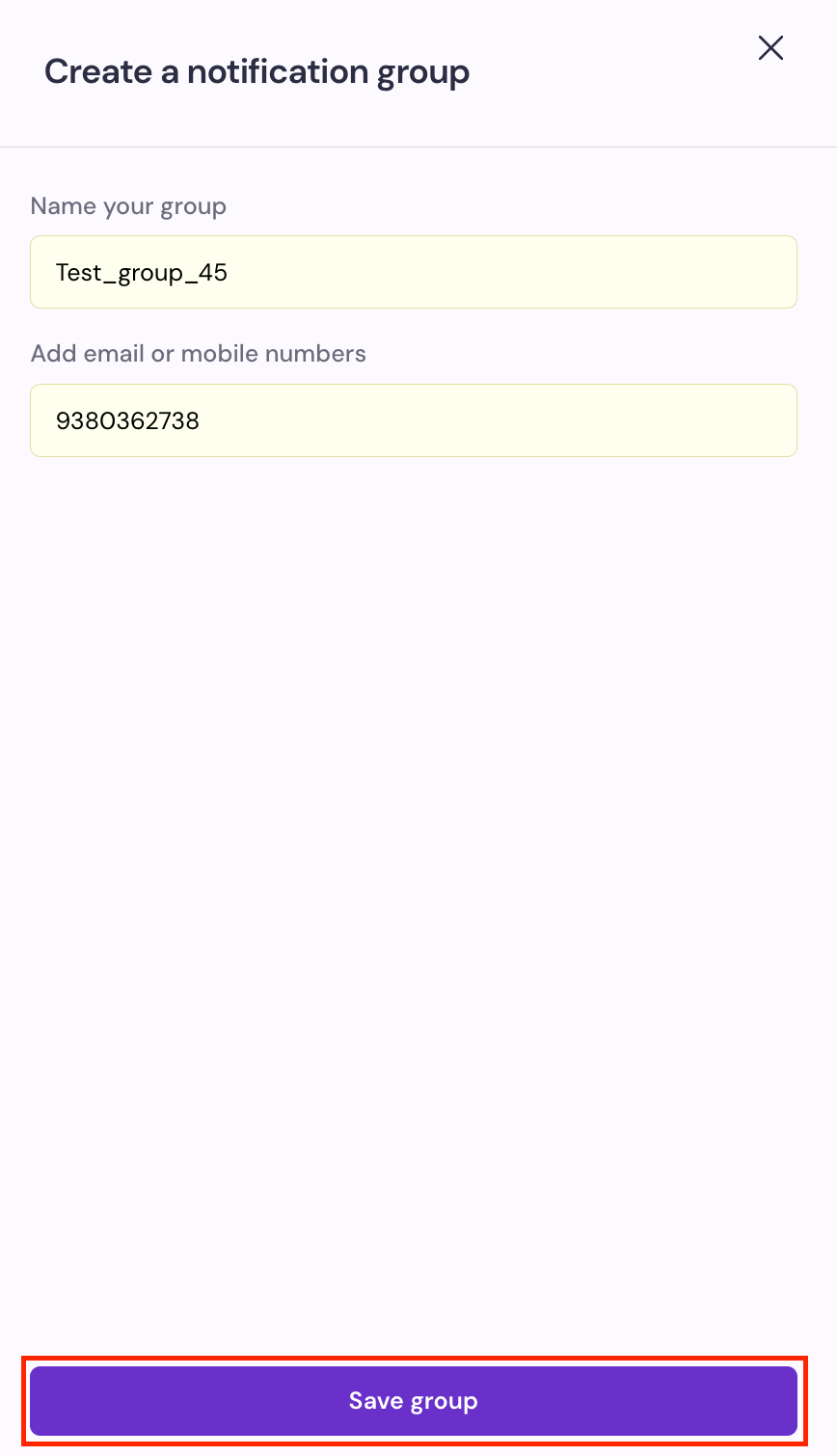
 4. In the **Create a notification group** panel, enter the following details:
* **Name your group**: Enter a name to identify this notification group.
* **Add email or mobile numbers**: Enter the email addresses or mobile numbers to include in the group.
5. Click **Save group**.
4. In the **Create a notification group** panel, enter the following details:
* **Name your group**: Enter a name to identify this notification group.
* **Add email or mobile numbers**: Enter the email addresses or mobile numbers to include in the group.
5. Click **Save group**.
 ## FAQs
The following questions cover common scenarios and limitations for Virtual Bank Accounts.
A Virtual Bank Account (VBA) is a unique bank account number assigned to a customer or transaction. It lets businesses collect payments through NEFT, RTGS, and IMPS and automatically reconcile incoming transfers.
No. NPCI regulations do not permit UPI payments to Virtual Bank Accounts. These transactions are classified as P2P (person-to-person) transfers, which are not supported by VBAs.
Yes. Transaction limits depend on the payment mode: IMPS, NEFT, or RTGS each have their own limits set by the banking network. You can also define a minimum and maximum limit when creating a VBA to control the accepted payment range.
## FAQs
The following questions cover common scenarios and limitations for Virtual Bank Accounts.
A Virtual Bank Account (VBA) is a unique bank account number assigned to a customer or transaction. It lets businesses collect payments through NEFT, RTGS, and IMPS and automatically reconcile incoming transfers.
No. NPCI regulations do not permit UPI payments to Virtual Bank Accounts. These transactions are classified as P2P (person-to-person) transfers, which are not supported by VBAs.
Yes. Transaction limits depend on the payment mode: IMPS, NEFT, or RTGS each have their own limits set by the banking network. You can also define a minimum and maximum limit when creating a VBA to control the accepted payment range.