> ## Documentation Index
> Fetch the complete documentation index at: https://www.cashfree.com/docs/llms.txt
> Use this file to discover all available pages before exploring further.
# Internal Fund Transfer
> Move funds between Cashfree OneEscrow virtual accounts using internal transfers, so you can rebalance allocations without touching the master escrow account.
You can transfer funds between virtual accounts (VAs) using internal transfers which allows you to manage their financial resources more effectively, responding to changing needs and optimising fund utilisation across different areas of their business.
## Transfer funds internally
Follow the instructions below to transfer funds between virtual accounts:
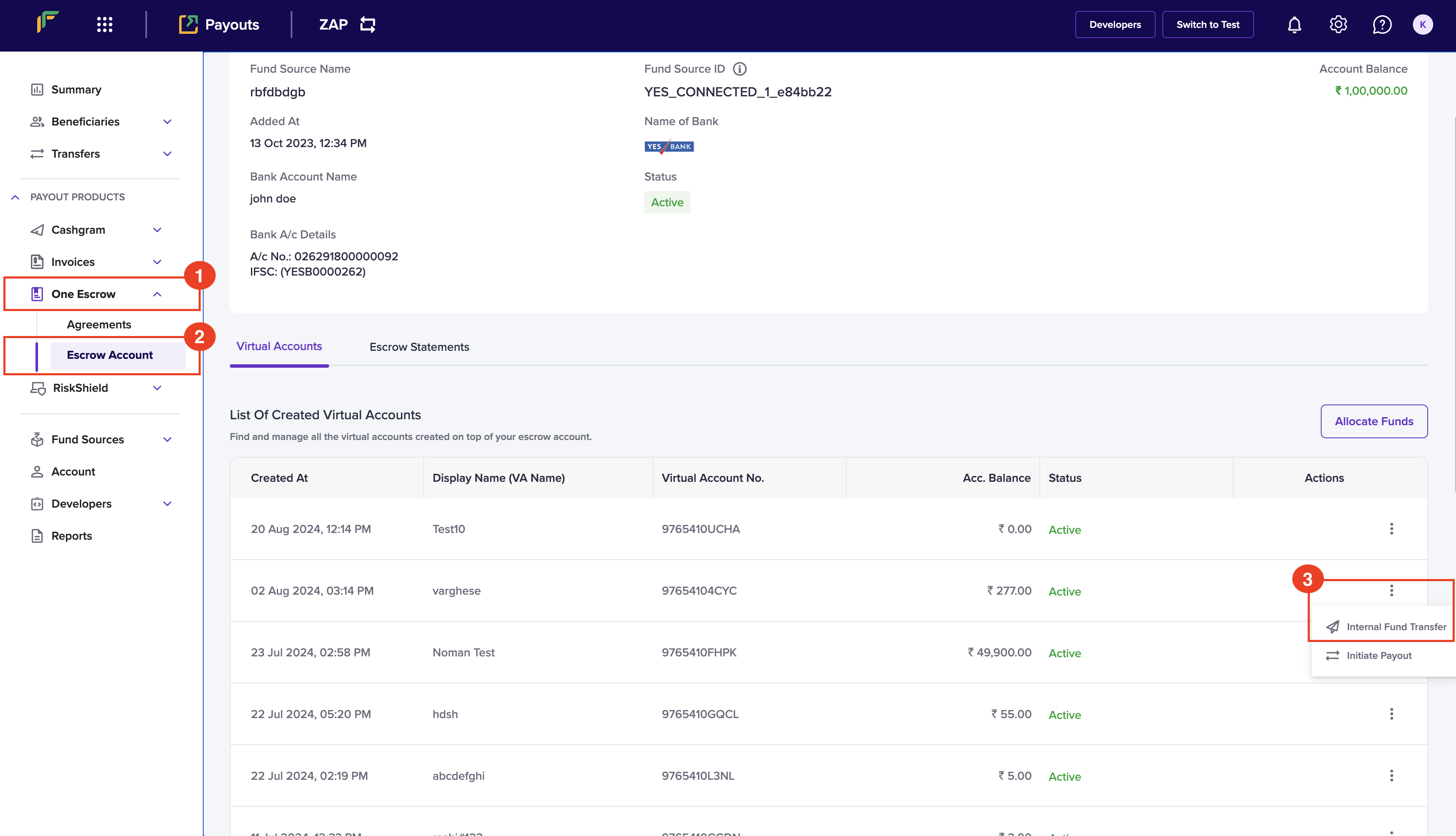
1. Log in to the [Merchant Dashboard](https://merchant.cashfree.com/auth/login).
2. Go to **Payouts Dashboard** > **One Escrow** > **Escrow Account**.
3. Click the ellipses icon from the list of created virtual accounts, and click **Internal Fund Transfer**.
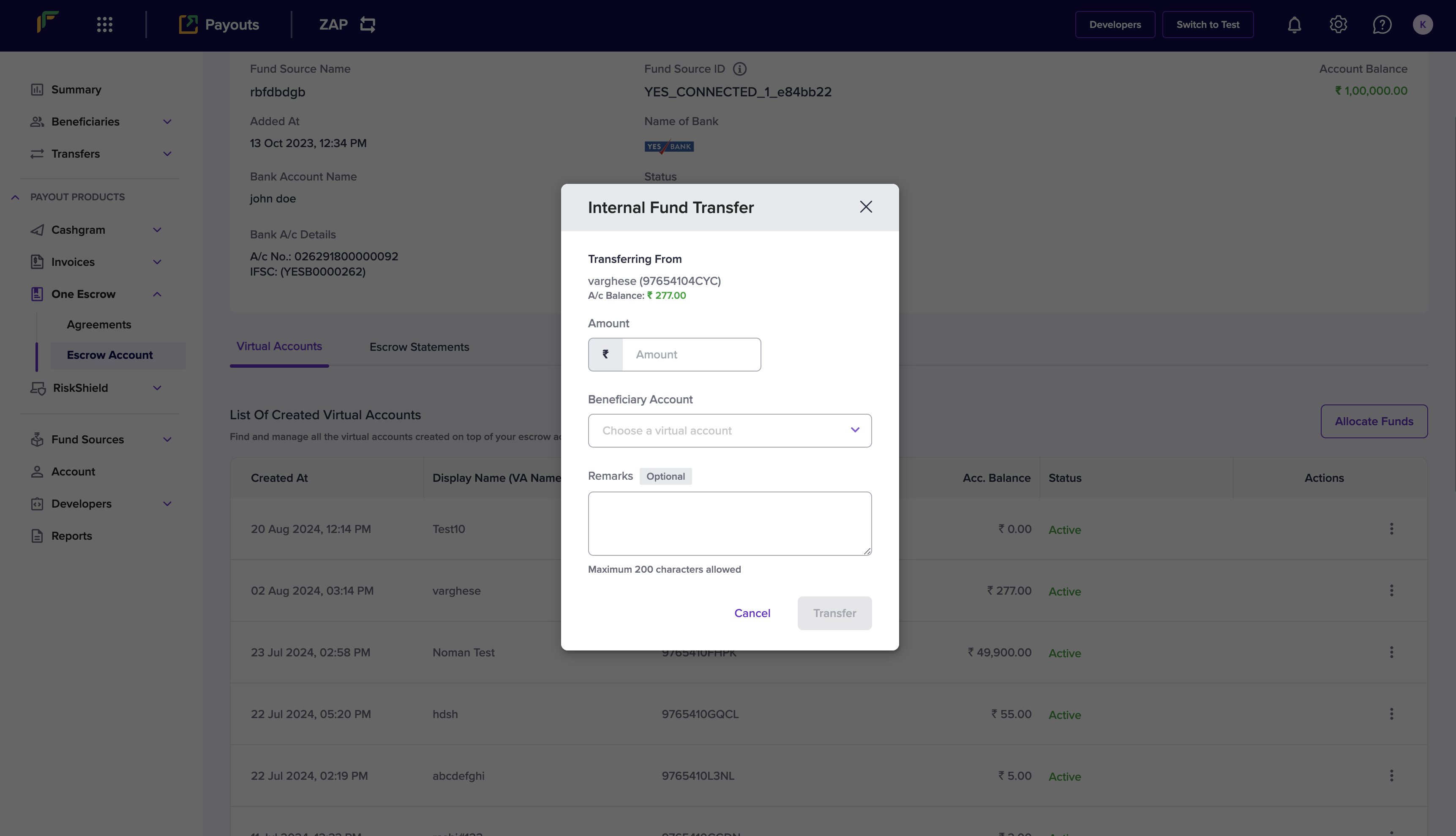
 4. Enter the following information in the *Internal Fund Transfer* popup:
* **Amount**: Enter the amount you want to transfer.
* **Beneficiary Account**: Choose the virtual account from this dropdown.
* **Remarks**: Enter any remarks. This is an optional field.
**Transferring From**
4. Enter the following information in the *Internal Fund Transfer* popup:
* **Amount**: Enter the amount you want to transfer.
* **Beneficiary Account**: Choose the virtual account from this dropdown.
* **Remarks**: Enter any remarks. This is an optional field.
**Transferring From**
The popup displays the information for the virtual account from which the amount will be transferred.
5. Click **Transfer**.
 You have successfully transferred funds between virtual accounts, and the popup will display the transfer information.