> ## Documentation Index
> Fetch the complete documentation index at: https://www.cashfree.com/docs/llms.txt
> Use this file to discover all available pages before exploring further.
# Manage Virtual Account
> Use the Cashfree OneEscrow dashboard to view virtual account details, update settings, monitor balances, and manage day-to-day fund movements with ease.
## View virtual account details
You can view the details of the virtual account (including the bank account and IFSC code) and share this information with sub-merchants or clients to facilitate the receipt of funds into the virtual account.
Follow the instructions below to view a virtual account:
1. Once you log in to the *Payouts* dashboard, navigate to **One Escrow** > **Escrow Account** > **Virtual Accounts**.
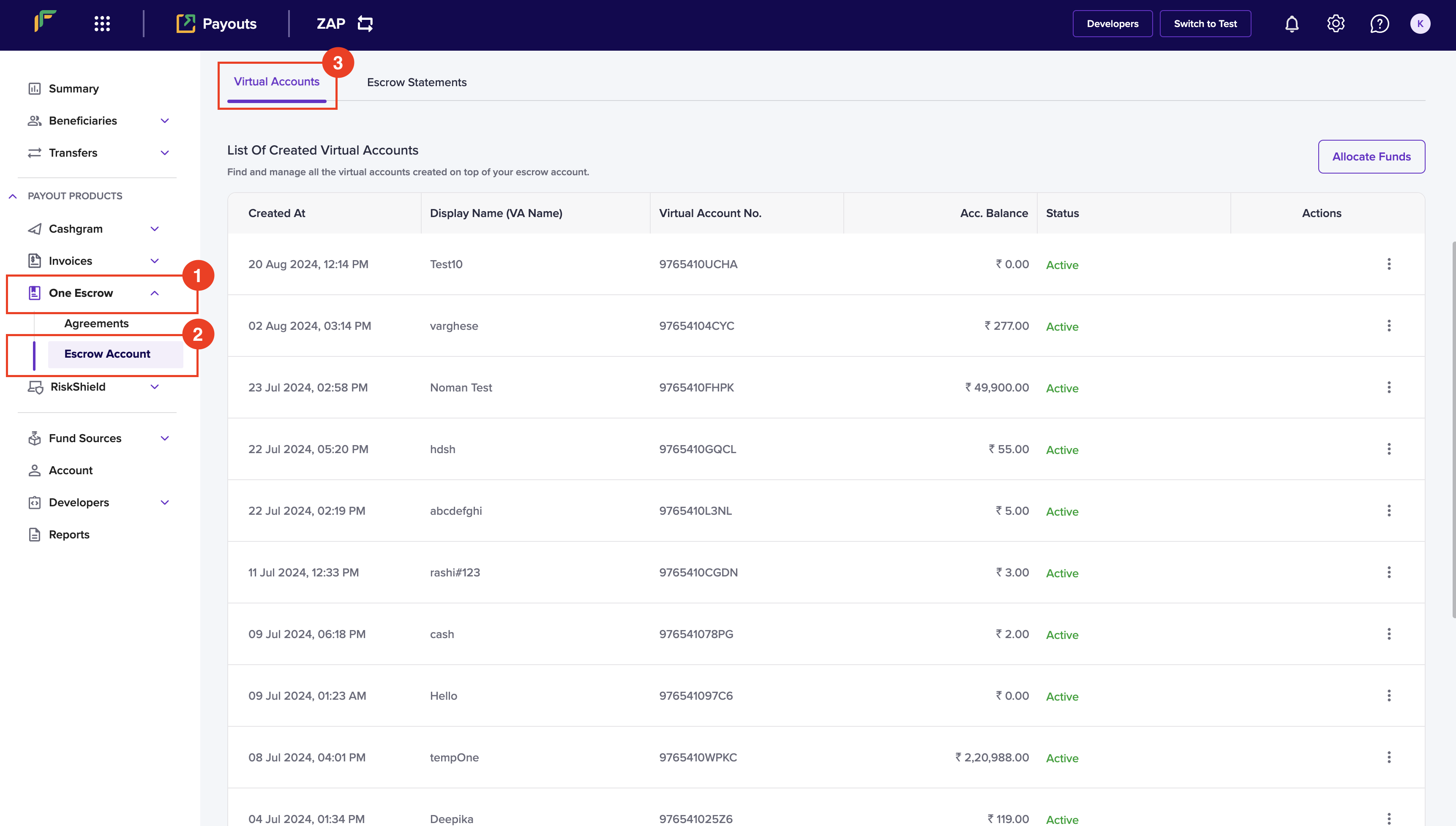 2. You can find the created virtual accounts under *List of Created Virtual Accounts*.
3. Click a virtual account from the table to view its information.
2. You can find the created virtual accounts under *List of Created Virtual Accounts*.
3. Click a virtual account from the table to view its information.
 ## Manage ledger details
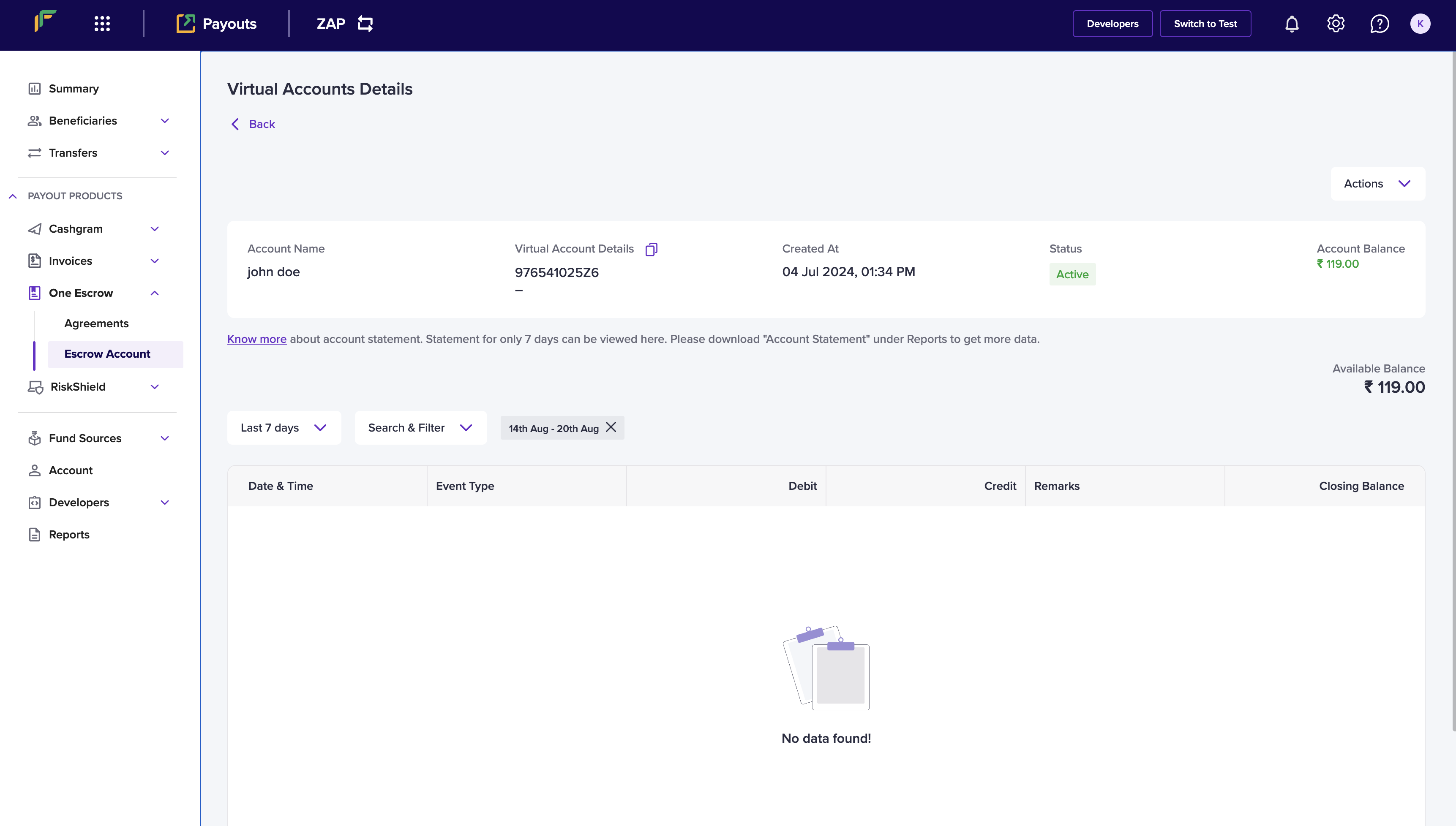
To ensure effective financial management and oversight, you can view a detailed account statement. This statement includes a comprehensive list of all credit and debit transactions associated with that virtual account. It allows you to track financial activity, reconcile accounts, and manage funds effectively.
1. Click a virtual account that you want to view the details from *List of Created Virtual Accounts*.
2. Use the following filters to sort the data:
* Last 7 Days - Use the dropdown to select the time period for the transaction information.
* Search & Filter - Use the checkbox(es) to select the event type and click **Apply.**
3. You can view the account statement in the table format.
## Manage ledger details
To ensure effective financial management and oversight, you can view a detailed account statement. This statement includes a comprehensive list of all credit and debit transactions associated with that virtual account. It allows you to track financial activity, reconcile accounts, and manage funds effectively.
1. Click a virtual account that you want to view the details from *List of Created Virtual Accounts*.
2. Use the following filters to sort the data:
* Last 7 Days - Use the dropdown to select the time period for the transaction information.
* Search & Filter - Use the checkbox(es) to select the event type and click **Apply.**
3. You can view the account statement in the table format.