> ## Documentation Index
> Fetch the complete documentation index at: https://www.cashfree.com/docs/llms.txt
> Use this file to discover all available pages before exploring further.
# Flagged Transfers
> Review Cashfree Payout Protect flagged transfers that were paused for manual verification, then approve or reject each transaction from the dashboard.
Flagged transfers are payout transactions identified as risky and held for manual verification to ensure security. Transfers are flagged based on two criteria:
* **Payout protect ML model**: Detection of suspicious patterns or anomalous behaviour.
* **Smart Rules**: Breach of velocity-based limits on transfer amount or count, or violation of downtime schedules configured by the merchant.
All flagged transfers are held in a pending state. Unless a flagged
transaction is manually approved, it will not proceed to the beneficiary.
## View flagged transfers
Follow these steps to review flagged transactions in the Merchant Dashboard:
1. Log in to the [Merchant Dashboard](https://merchant.cashfree.com/auth/login).
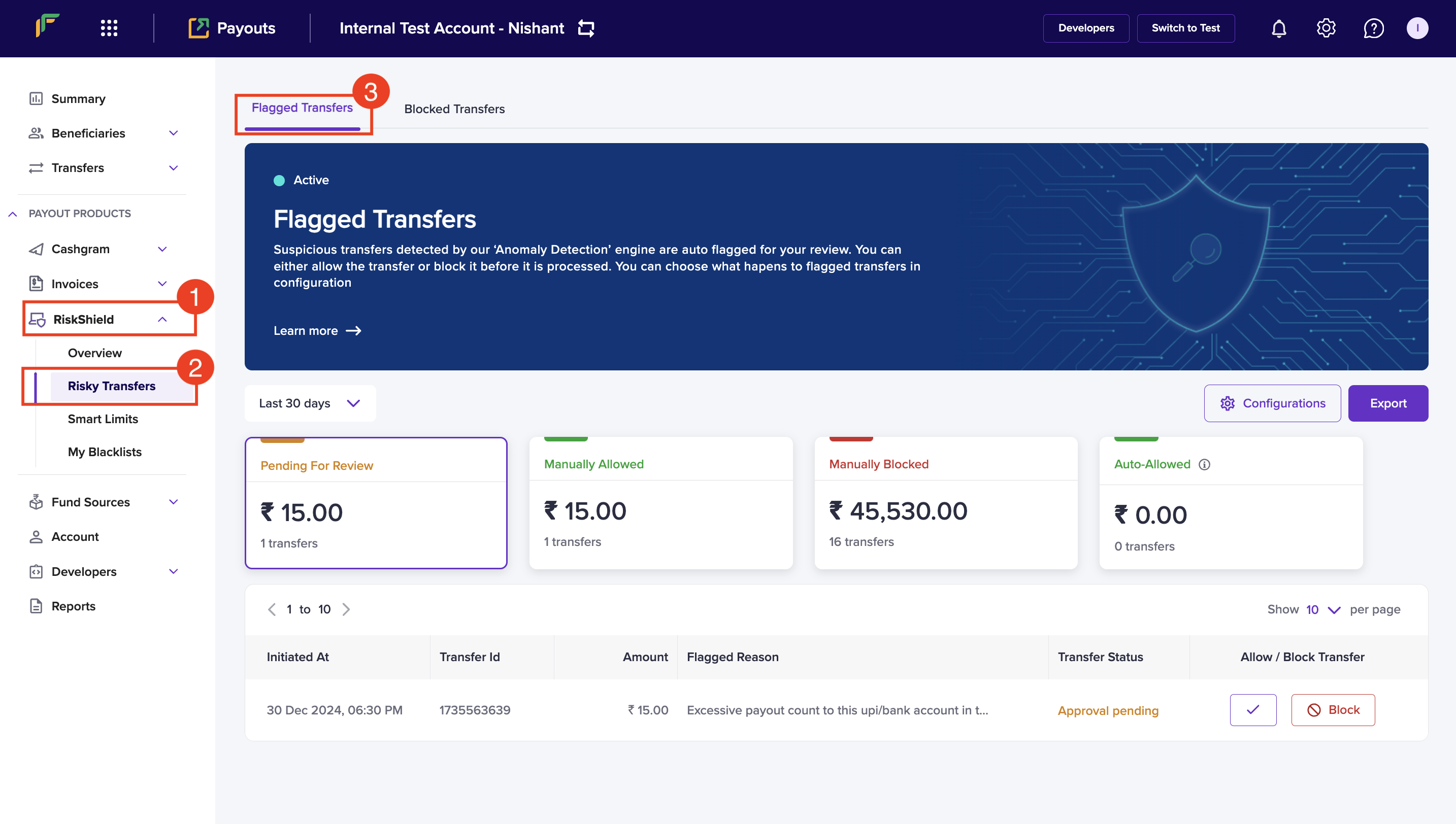
2. Go to **Payout Protect > Risky Transfers**. By default, you will land on the **Flagged Transfers** tab.
 ## Components of flagged transfers
The flagged transfers tab organizes transactions into four categories based on their review status.
* **[Pending for review](#pending-for-review)**: Transactions awaiting manual review.
* **[Manually allowed](#manually-allowed)**: Transactions approved manually by a reviewer.
* **[Manually blocked](#manually-blocked)**: Transactions rejected manually by a reviewer.
* **[Auto-allowed](#auto-allowed)**: Transactions approved automatically by the system.
## Pending for review
Transactions awaiting approval are paused until an authorised person approves them. The Pending for Review table shows the total amount and count of these transactions, with the following details:
* **Initiated At**: The time the transfer was initiated.
* **Transfer ID**: The unique identifier for the transfer.
* **Amount**: The transfer amount.
* **Flagged Reason**: The reason the transfer was flagged.
* **Transfer Status**: The current status of the transfer.
* **Allow / Block Transfer**: Actions to approve or block the transfer.
## Manually allowed
Approved transactions move here once an authorised person allows them to proceed. The Manually Allowed table shows the total amount and count of these transactions, with the following details:
* **Initiated At**: The time the transfer was initiated.
* **Transfer ID**: The unique identifier for the transfer.
* **Amount**: The transfer amount.
* **Flagged Reason**: The reason the transfer was flagged.
* **Transfer Status**: The current status of the transfer.
* **Allow / Block Transfer**: Identifies who manually approved the transfer.
## Manually blocked
Blocked transactions are stopped from proceeding once an authorised person rejects them. The Manually Blocked table shows the total amount and count of these transactions, with the following details:
* **Initiated At**: The time the transfer was initiated.
* **Transfer ID**: The unique identifier for the transfer.
* **Amount**: The transfer amount.
* **Flagged Reason**: The reason the transfer was flagged.
* **Transfer Status**: The current status of the transfer.
* **Allow / Block Transfer**: Identifies who manually blocked the transfer.
## Auto-allowed
Transactions that meet the configured auto-approval criteria proceed without manual review. The Auto-Allowed table shows the total amount and count of these transactions, with the following details:
* **Initiated At**: The time the transfer was initiated.
* **Transfer ID**: The unique identifier for the transfer.
* **Amount**: The transfer amount.
* **Flagged Reason**: The reason the transfer was flagged.
* **Allow / Block Transfer**: Indicates that the transfer was automatically approved.
## Additional features
The Flagged Transfers tab includes the following features:
* **Last 30 Days**: Use the dropdown menu to select the time period for viewing blocked transfers. You can also choose a custom date range.
* **Configuration**: Define how flagged transfers, identified by the Payout protect ML model, should be managed. The available options are:
* **Keep Pending for Review**: Flagged transfers will remain unprocessed until manually reviewed.
* **Auto-Allow**: Flagged transfers will be automatically approved, and you will receive a notification.
* **Export**: Export the table data in `.CSV` format for offline use or analysis.
* **Results per Page Filter**: Adjust the number of transactions displayed using this filter.
## Allow flagged transfers
Follow the instructions below to approve a flagged transfer:
1. Select the **Pending for Review** section.
2. Click the **Allow Transfer** button for the transfer you wish to approve.
3. In the **Authenticate** popup, enter the OTP and click **Confirm**. The transfer will move to the **Manually Allowed** section.
## Block flagged transfers
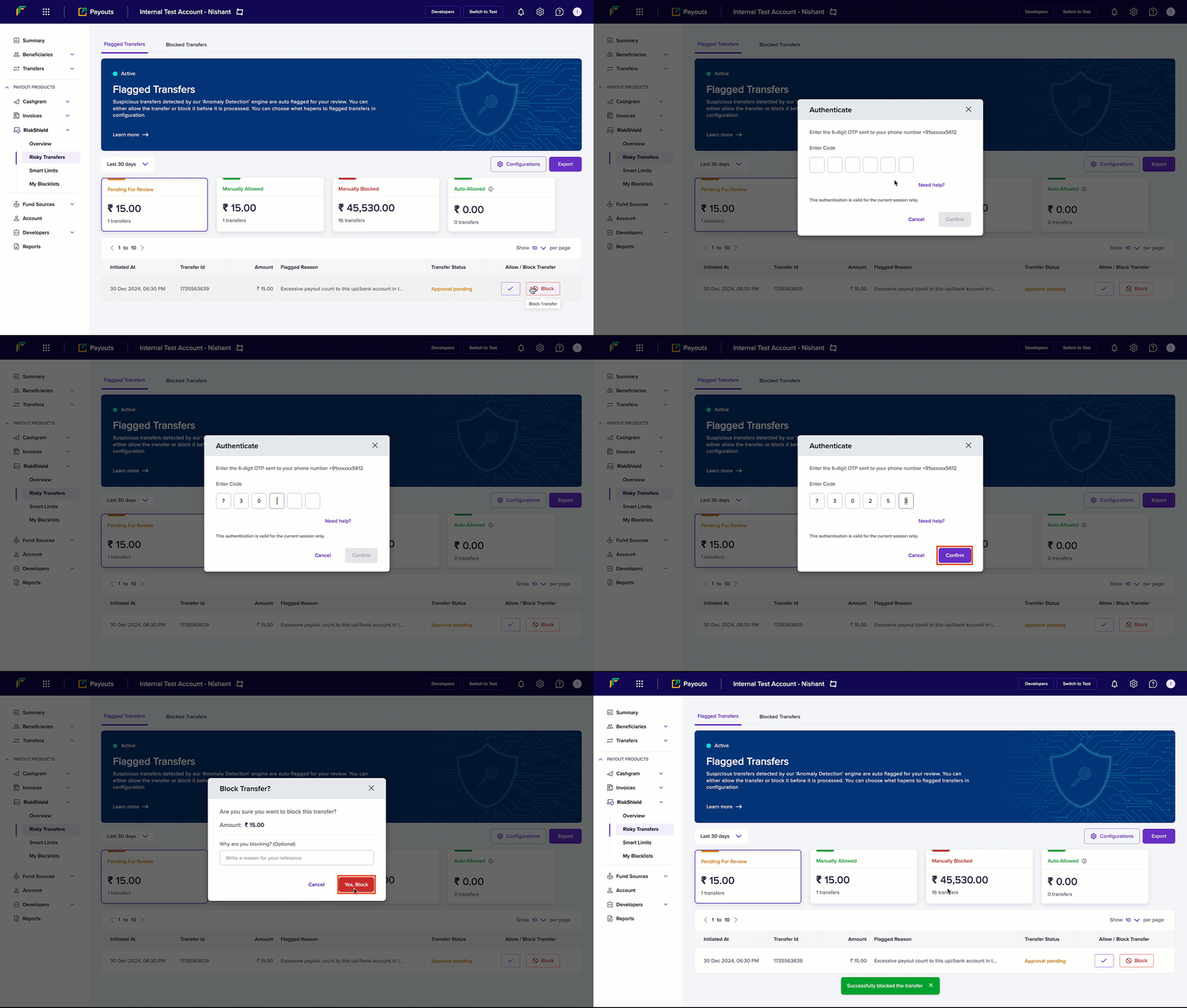
Follow the instructions below to block a flagged transfer:
1. Select the **Pending for Review** section.
2. Click the **Block Transfer** button for the transfer you wish to block.
3. In the **Authenticate** popup, enter the OTP and click **Confirm**.
4. In the **Block Transfer** popup, optionally enter a reason in the **Why are you blocking?** field.
5. Click **Yes, Block**. The transfer will move to the **Manually Blocked** section.
## Components of flagged transfers
The flagged transfers tab organizes transactions into four categories based on their review status.
* **[Pending for review](#pending-for-review)**: Transactions awaiting manual review.
* **[Manually allowed](#manually-allowed)**: Transactions approved manually by a reviewer.
* **[Manually blocked](#manually-blocked)**: Transactions rejected manually by a reviewer.
* **[Auto-allowed](#auto-allowed)**: Transactions approved automatically by the system.
## Pending for review
Transactions awaiting approval are paused until an authorised person approves them. The Pending for Review table shows the total amount and count of these transactions, with the following details:
* **Initiated At**: The time the transfer was initiated.
* **Transfer ID**: The unique identifier for the transfer.
* **Amount**: The transfer amount.
* **Flagged Reason**: The reason the transfer was flagged.
* **Transfer Status**: The current status of the transfer.
* **Allow / Block Transfer**: Actions to approve or block the transfer.
## Manually allowed
Approved transactions move here once an authorised person allows them to proceed. The Manually Allowed table shows the total amount and count of these transactions, with the following details:
* **Initiated At**: The time the transfer was initiated.
* **Transfer ID**: The unique identifier for the transfer.
* **Amount**: The transfer amount.
* **Flagged Reason**: The reason the transfer was flagged.
* **Transfer Status**: The current status of the transfer.
* **Allow / Block Transfer**: Identifies who manually approved the transfer.
## Manually blocked
Blocked transactions are stopped from proceeding once an authorised person rejects them. The Manually Blocked table shows the total amount and count of these transactions, with the following details:
* **Initiated At**: The time the transfer was initiated.
* **Transfer ID**: The unique identifier for the transfer.
* **Amount**: The transfer amount.
* **Flagged Reason**: The reason the transfer was flagged.
* **Transfer Status**: The current status of the transfer.
* **Allow / Block Transfer**: Identifies who manually blocked the transfer.
## Auto-allowed
Transactions that meet the configured auto-approval criteria proceed without manual review. The Auto-Allowed table shows the total amount and count of these transactions, with the following details:
* **Initiated At**: The time the transfer was initiated.
* **Transfer ID**: The unique identifier for the transfer.
* **Amount**: The transfer amount.
* **Flagged Reason**: The reason the transfer was flagged.
* **Allow / Block Transfer**: Indicates that the transfer was automatically approved.
## Additional features
The Flagged Transfers tab includes the following features:
* **Last 30 Days**: Use the dropdown menu to select the time period for viewing blocked transfers. You can also choose a custom date range.
* **Configuration**: Define how flagged transfers, identified by the Payout protect ML model, should be managed. The available options are:
* **Keep Pending for Review**: Flagged transfers will remain unprocessed until manually reviewed.
* **Auto-Allow**: Flagged transfers will be automatically approved, and you will receive a notification.
* **Export**: Export the table data in `.CSV` format for offline use or analysis.
* **Results per Page Filter**: Adjust the number of transactions displayed using this filter.
## Allow flagged transfers
Follow the instructions below to approve a flagged transfer:
1. Select the **Pending for Review** section.
2. Click the **Allow Transfer** button for the transfer you wish to approve.
3. In the **Authenticate** popup, enter the OTP and click **Confirm**. The transfer will move to the **Manually Allowed** section.
## Block flagged transfers
Follow the instructions below to block a flagged transfer:
1. Select the **Pending for Review** section.
2. Click the **Block Transfer** button for the transfer you wish to block.
3. In the **Authenticate** popup, enter the OTP and click **Confirm**.
4. In the **Block Transfer** popup, optionally enter a reason in the **Why are you blocking?** field.
5. Click **Yes, Block**. The transfer will move to the **Manually Blocked** section.
 ## Bulk allow and block flagged transfers
Bulk actions enable you to approve or block multiple flagged transfers at once, helping you review high-volume transfers more efficiently.
Follow the instructions below to bulk approve or block flagged transfers:
1. Go to the **Pending for Review** section under **Flagged Transfers**.
2. Use the checkbox on the left to select one or more transfers.
3. After selecting transfers, the bulk action bar will appear. Select **Allow** or **Block**.
4. In the **Authenticate** popup, enter the OTP and click **Confirm**.
5. After confirmation:
* Allowed transfers will move to the **Manually Allowed** section.
* Blocked transfers will move to the **Manually Blocked** section.
The bulk action flow follows the same approval and authentication pattern as individual actions. If additional confirmation or reason fields are required, they will appear during the process and must be completed accordingly.
## View transfer details
Click on a transfer to view detailed information about that specific transaction. The page provides the following details:
* **Reason**: The reason the transfer was flagged, manually allowed, manually blocked, or auto-allowed.
* **Date**: The date and time the transfer was flagged, manually allowed, manually blocked, or auto-allowed.
* **Transfer Options**: Provides the following options based on the transfer status:
* **Block**: Option to block the transfer.
* **Allow**: Option to approve the transfer.
* **Allow and Whitelist Beneficiary**: Option to approve the transfer and add the beneficiary to the whitelist.
* **Whitelist Beneficiary**: Option to add the beneficiary to the whitelist.
* **Person Allowed**: Indicates the person who approved the transfer.
* **Person Blocked**: Indicates the person who blocked the transfer.
* **Auto-Allowed**: Indicates that the transfer was automatically approved.
* **History of Successful Payouts**: Details of the first successful payout to this beneficiary.
* **Last 30 Days**: The number of payouts and the total amount transferred to this beneficiary in the past 30 days, categorised by Successful, Pending for Review, and Blocked statuses.
* **Lifetime**: The total number of payouts and the cumulative amount transferred to this beneficiary over time. The data refreshes every six hours.
* **Transfer ID**: The unique identifier for the transfer.
* **Transfer Status**: Current status of the transfer, such as **Pending Approval**.
* **Beneficiary Details**: Provides the following information about the recipient of the transfer:
* **Beneficiary ID**: The unique identifier for the beneficiary.
* **Phone Number**: The beneficiary's registered phone number.
* **Beneficiary Name**: The name of the beneficiary.
* **Email ID**: The beneficiary's registered email address.
* **Transfer Details**:Provides the following information about how and where the transfer was processed:
* **UTR Number**: The unique transaction reference number issued by the bank.
* **CF Reference ID**: The unique identifier assigned by Cashfree to the transfer.
* **Initiated At**: The time the transfer was initiated.
* **Processed On**: The date and time the transfer was processed.
* **Fund Source**: The account or balance used to fund the transfer.
* **Transfer Method**: The payout method used, such as bank transfer or UPI.
* **Acknowledged Status**: Whether the beneficiary's bank has acknowledged receipt of the transfer.
* **Status Description**: A short explanation of the current transfer status.
## Bulk allow and block flagged transfers
Bulk actions enable you to approve or block multiple flagged transfers at once, helping you review high-volume transfers more efficiently.
Follow the instructions below to bulk approve or block flagged transfers:
1. Go to the **Pending for Review** section under **Flagged Transfers**.
2. Use the checkbox on the left to select one or more transfers.
3. After selecting transfers, the bulk action bar will appear. Select **Allow** or **Block**.
4. In the **Authenticate** popup, enter the OTP and click **Confirm**.
5. After confirmation:
* Allowed transfers will move to the **Manually Allowed** section.
* Blocked transfers will move to the **Manually Blocked** section.
The bulk action flow follows the same approval and authentication pattern as individual actions. If additional confirmation or reason fields are required, they will appear during the process and must be completed accordingly.
## View transfer details
Click on a transfer to view detailed information about that specific transaction. The page provides the following details:
* **Reason**: The reason the transfer was flagged, manually allowed, manually blocked, or auto-allowed.
* **Date**: The date and time the transfer was flagged, manually allowed, manually blocked, or auto-allowed.
* **Transfer Options**: Provides the following options based on the transfer status:
* **Block**: Option to block the transfer.
* **Allow**: Option to approve the transfer.
* **Allow and Whitelist Beneficiary**: Option to approve the transfer and add the beneficiary to the whitelist.
* **Whitelist Beneficiary**: Option to add the beneficiary to the whitelist.
* **Person Allowed**: Indicates the person who approved the transfer.
* **Person Blocked**: Indicates the person who blocked the transfer.
* **Auto-Allowed**: Indicates that the transfer was automatically approved.
* **History of Successful Payouts**: Details of the first successful payout to this beneficiary.
* **Last 30 Days**: The number of payouts and the total amount transferred to this beneficiary in the past 30 days, categorised by Successful, Pending for Review, and Blocked statuses.
* **Lifetime**: The total number of payouts and the cumulative amount transferred to this beneficiary over time. The data refreshes every six hours.
* **Transfer ID**: The unique identifier for the transfer.
* **Transfer Status**: Current status of the transfer, such as **Pending Approval**.
* **Beneficiary Details**: Provides the following information about the recipient of the transfer:
* **Beneficiary ID**: The unique identifier for the beneficiary.
* **Phone Number**: The beneficiary's registered phone number.
* **Beneficiary Name**: The name of the beneficiary.
* **Email ID**: The beneficiary's registered email address.
* **Transfer Details**:Provides the following information about how and where the transfer was processed:
* **UTR Number**: The unique transaction reference number issued by the bank.
* **CF Reference ID**: The unique identifier assigned by Cashfree to the transfer.
* **Initiated At**: The time the transfer was initiated.
* **Processed On**: The date and time the transfer was processed.
* **Fund Source**: The account or balance used to fund the transfer.
* **Transfer Method**: The payout method used, such as bank transfer or UPI.
* **Acknowledged Status**: Whether the beneficiary's bank has acknowledged receipt of the transfer.
* **Status Description**: A short explanation of the current transfer status.