> ## Documentation Index
> Fetch the complete documentation index at: https://www.cashfree.com/docs/llms.txt
> Use this file to discover all available pages before exploring further.
# Smart Rules
> Use Cashfree Payout Protect Smart Rules to set velocity-based limits on outgoing transfers, capping count and amount per beneficiary or account to control risk.
Use Smart Rules to control outgoing transfers and manage risk with velocity-based limits. Smart Rules help you set limits on the maximum number of transfers and the total transfer amount.
Apply Smart Rules to help protect your business from:
* **Unauthorised access**: Prevent fraudsters or former employees from accessing your accounts and making large payouts.
* **Excessive payouts**: Avoid unintended duplicate or excess payouts caused by operational or technical errors.
* **Fraudulent penny drops**: Block attempts to misuse penny drop or micro-transactions to withdraw large amounts.
* **End-user abuse**: Stop fraud by end customers when redeeming payouts.
You can apply all recommended rules at once by selecting **Apply all Rules as Recommended**. Smart Rules support single-click application of all rules. By default, flagged transactions are marked for review. If you want to block transactions instead, you can change this setting for each rule.
## Limit breach actions
Smart Rules let you define how transfers should behave when an active limit is exceeded. You can choose one of the following actions:
1. **Reject transfers**: Transfers that breach an active limit are automatically rejected. No further review or approval is required, and the payout does not proceed.
2. **Stop transfers and request approval**: Transfers that exceed a limit are temporarily stopped and moved to the **Flagged Transfers** section under **Risky Transfers**. An authorised user can review these transfers and take action by selecting **Allow** or **Block** for each transfer.
## Configure amount limits
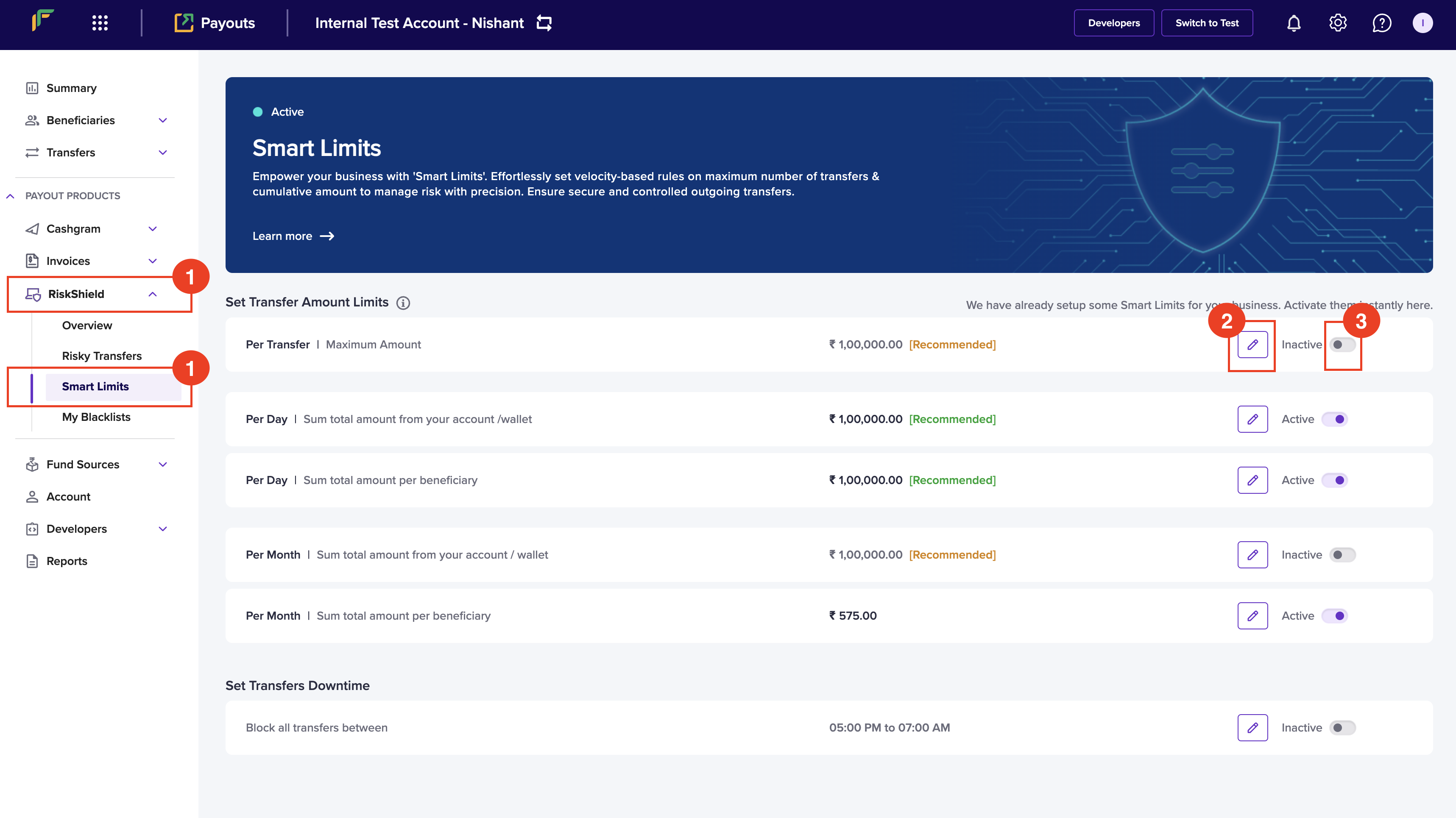
Follow the instructions below to configure transfer amount limits:
1. Log in to the [Merchant Dashboard](https://merchant.cashfree.com/auth/login).
2. Go to **Payout Protect** > **Smart Rules**.
3. Click the **Edit** icon to configure the following information:
* **Per Transfer**: Enter the maximum amount allowed per transaction.
* **Per Day**: Enter the allowed total sum of money for transfers from your account/wallet within a day. The day begins at 00:00:00 and ends at 23:59:59 hours.
* **Per Day**: Enter the allowed total sum of money for transfers within a day for a beneficiary. The day begins at 00:00:00 and ends at 23:59:59 hours.
* **Per Month**: Enter the allowed total sum of money for transfers from your account/wallet within a month.
* **Per Month**: Enter the allowed total sum of money for transfers for a beneficiary within a month.
4. Switch the toggle to activate or deactivate the smart limit.
 ## Configure transfer count limits
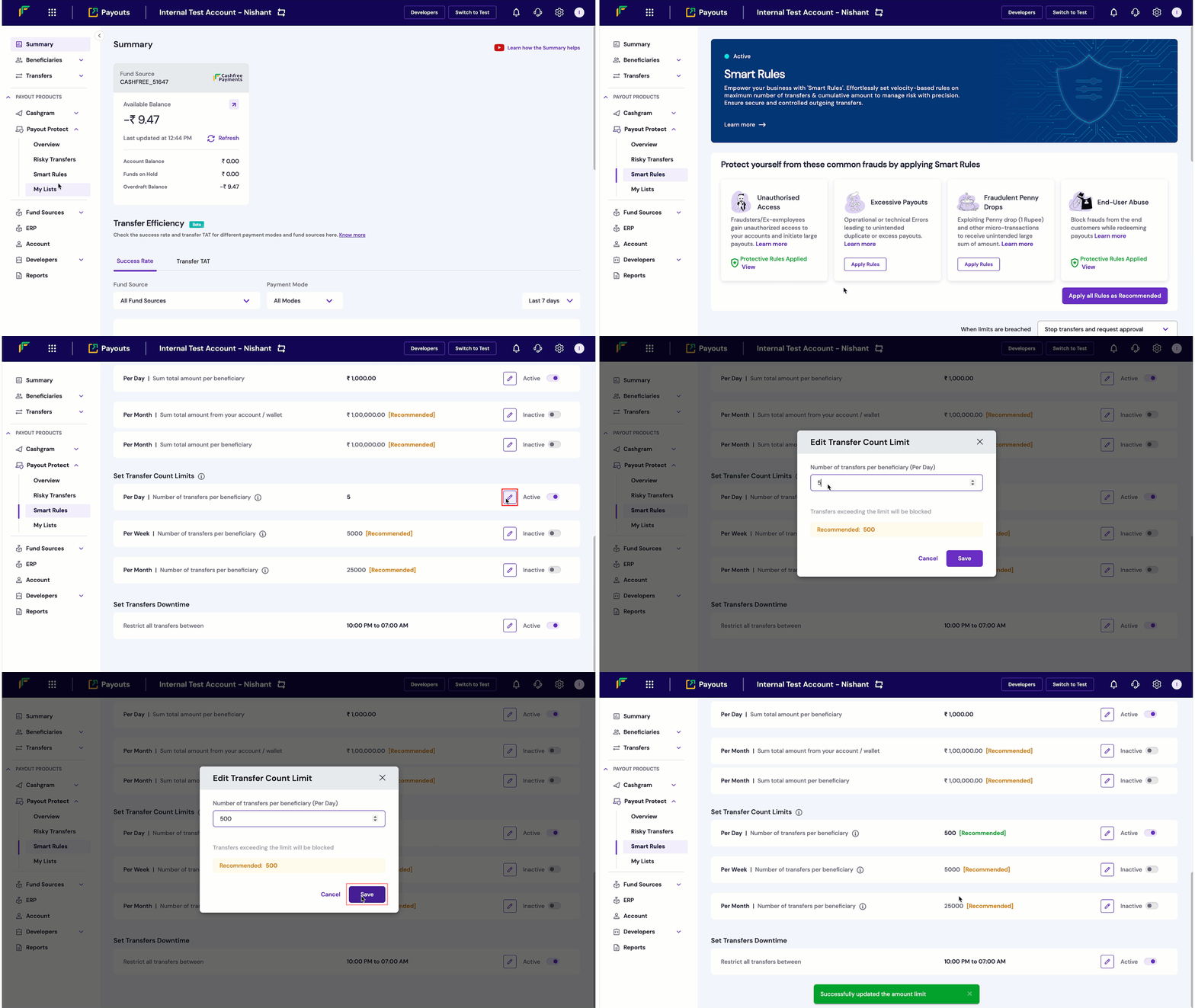
Follow the instructions below to configure transfer count limits:
1. Log in to the [Merchant Dashboard](https://merchant.cashfree.com/auth/login).
2. Go to **Payout Protect** > **Smart Rules** > **Set Transfer Count Limits**.
3. Click **Edit** and set the transfer count limits as required:
* **Per Day**: Number of transfers allowed per beneficiary in a single day. A day refers to the time window between 12:00 AM and 11:59:59 PM.
* **Per Week**: Number of transfers allowed per beneficiary in a week. A week starts on Monday and ends on Sunday.
* **Per Month**: Number of transfers allowed per beneficiary in a month. A month starts on the 1st and ends on the last day of the month (either the 30th or 31st).
4. Click **Save** to activate limit.
## Configure transfer count limits
Follow the instructions below to configure transfer count limits:
1. Log in to the [Merchant Dashboard](https://merchant.cashfree.com/auth/login).
2. Go to **Payout Protect** > **Smart Rules** > **Set Transfer Count Limits**.
3. Click **Edit** and set the transfer count limits as required:
* **Per Day**: Number of transfers allowed per beneficiary in a single day. A day refers to the time window between 12:00 AM and 11:59:59 PM.
* **Per Week**: Number of transfers allowed per beneficiary in a week. A week starts on Monday and ends on Sunday.
* **Per Month**: Number of transfers allowed per beneficiary in a month. A month starts on the 1st and ends on the last day of the month (either the 30th or 31st).
4. Click **Save** to activate limit.
 ## Configure downtime
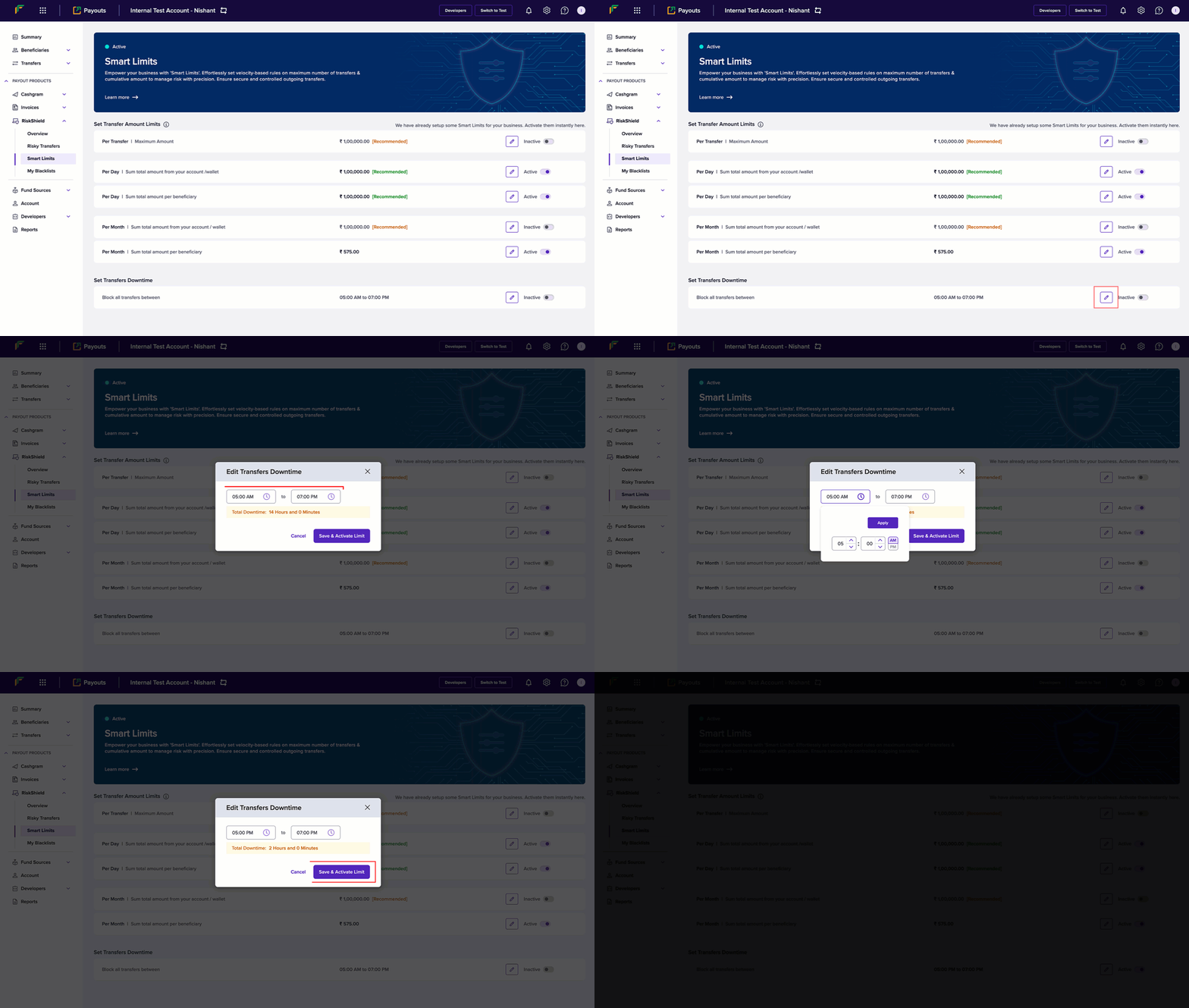
You can configure a specific time when you don't want to allow any payouts. Follow the instructions below to schedule a time that blocks transfers:
1. Log in to the [Merchant Dashboard](https://merchant.cashfree.com/auth/login).
2. Go to **Payout Protect** > **Smart Rules** > **Set Transfers Downtime**.
3. Click the **Edit** button.
4. Configure the start and end time in the *Edit Transfers Downtime* popup.
5. Click **Save** to activate limit.
## Configure downtime
You can configure a specific time when you don't want to allow any payouts. Follow the instructions below to schedule a time that blocks transfers:
1. Log in to the [Merchant Dashboard](https://merchant.cashfree.com/auth/login).
2. Go to **Payout Protect** > **Smart Rules** > **Set Transfers Downtime**.
3. Click the **Edit** button.
4. Configure the start and end time in the *Edit Transfers Downtime* popup.
5. Click **Save** to activate limit.