> ## Documentation Index
> Fetch the complete documentation index at: https://www.cashfree.com/docs/llms.txt
> Use this file to discover all available pages before exploring further.
# Overview
> Use Cashfree Smart OCR to extract structured data from government IDs and PDFs, with built-in quality, forgery, and rule checks for automated KYC flows.
Cashfree’s Smart OCR (Optical Character Recognition) simplifies document verification by using proprietary computer-vision and AI models to extract and validate data from government ID images or PDFs. It returns structured JSON with key document fields and includes built-in quality, forgery, and rule checks. Smart OCR combines OCR, fraud detection, and data extraction in a single API, enabling merchants to automate KYC, onboarding, and fraud prevention with less effort.
Smart OCR supports the following document types:
* Cancelled cheque
* Aadhaar card
* PAN card
* Invoice
* Driving license
* Vehicle RC
* Passport
* Voter ID
## Use cases
The following are key use cases for the Smart OCR:
* **KYC verification**: Instantly extract and verify customer details from official documents for onboarding or compliance.
* **Loan applications**: Validate income and identity documents in real-time during loan processing.
* **eCommerce and fintech platforms**: Speed up seller or partner registration by auto filling details from uploaded documents.
* **Gig economy platforms**: Automate the document submission and verification flow for contractors or service partners.
* **Travel and hospitality**: Document Verification of Passport, VISA OCR for travel bookings.
## Key benefits
Cashfree’s Smart OCR is a single solution that simplifies document verification, improves accuracy, reduces costs, and helps you go live faster.
* **Single integration**: Integrate once to handle different document types without managing multiple APIs. Smart OCR detects blurry or glary images, flags partial or obscured IDs, and prompts users to retake poor-quality images with clear feedback. This reduces rejections and lowers drop-offs.
* **Faster time to market**: Launch your verification process faster with less development and testing effort.
* **Cost efficiency**: Reduce maintenance costs with a single, streamlined API instead of managing multiple integrations.
* **Reliable accuracy**: Smart OCR uses industry-grade optical character recognition for high accuracy in text extraction and validation. It achieves over 97% accuracy across supported documents, extracts structured data, and works for all document types through one API.
* **Advanced fraud and quality checks**: Smart OCR automatically checks document quality and authenticity to prevent fraud and ensure reliable extraction. It detects blur, glare, partial images, black-and-white scans, and missing facial or QR information. It also flags screenshots and photos of screens to block tampered or fake documents.
**Upcoming Enhancement**:
* **Document Auto Classification**: Automatically identifies and categorises the document type eliminating the need to manually specify document types.
## Verification process
You can verify documents using Smart OCR through two primary methods:
* **Merchant dashboard**: Manual verification with upload interface for quick document processing.
* **REST API**: Programmatic integration for automated document verification workflows.
Use the merchant dashboard for quick manual Smart OCR verification:
### Smart OCR verification
1. Log in to the [Merchant Dashboard](https://merchant.cashfree.com/auth/login).
2. Navigate to **KYC Studio** > **Smart OCR**.
3. Select the document type from the dropdown (PAN card, Aadhaar card, Voter ID, Vehicle RC, Driving Licence, Passport).
4. Upload the document image (maximum 5 MB, supported formats: .png, .jpeg, .jpg).
5. Click **Verify** to start the OCR process.
**Upload guidelines:**
* Maximum file size: 5 MB
* Supported formats: .png, .jpeg, .jpg
* Upload the side containing critical information (photo and ID number)
* Ensure clear, well-lit images without glare or shadows
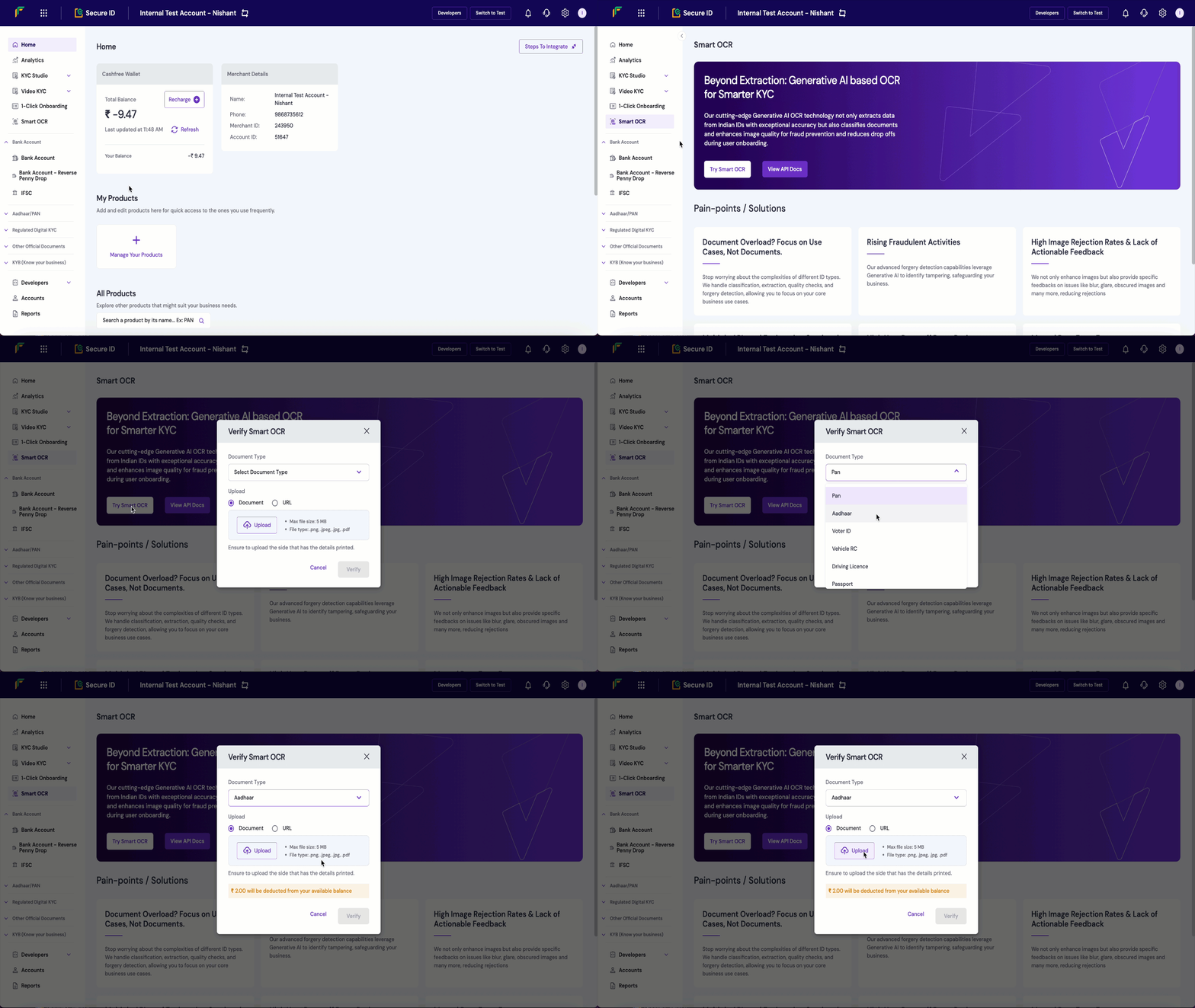 The dashboard displays extracted data, validation results, and document quality analysis upon completion.
Integrate Smart OCR verification programmatically using the REST API:
1. **Trigger the Smart OCR request** using the [Smart OCR API](/api-reference/vrs/v2/smart-ocr/smart-ocr).
2. **Pass the document image** and document type in the request payload for processing.
3. **Receive OCR results** with extracted data, validation status, and quality analysis.
**Endpoint**: `POST /verification/smart-ocr`
```json theme={"dark"}
{
"verification_id": "OCR00123",
"document_type": "PAN_CARD",
"image": "base64_encoded_image_string"
}
```
```json theme={"dark"}
{
"verification_id": "OCR00123",
"reference_id": 12345,
"document_type": "PAN_CARD",
"extracted_data": {
"pan_number": "ABCDE1234F",
"name": "John Doe",
"father_name": "Robert Doe",
"date_of_birth": "01/01/1990"
},
"quality_checks": {
"image_quality": "HIGH",
"blur_detection": "PASS",
"glare_detection": "PASS",
"document_completeness": "COMPLETE"
},
"fraud_checks": {
"screenshot_detection": "PASS",
"tampering_detection": "PASS",
"authenticity_score": 0.95
},
"verification_status": "SUCCESS"
}
```
```json theme={"dark"}
{
"type": "invalid_request_error",
"code": "ocr_failed",
"message": "Document processing failed",
"details": [
{
"field": "image",
"issue": "Image quality too low for processing"
}
]
}
```
Integrate the [Smart OCR API](/api-reference/vrs/v2/smart-ocr/smart-ocr) into your application to automatically extract and verify document data within your signup or onboarding flow.
snippets/related-topics-loader.mdx
The dashboard displays extracted data, validation results, and document quality analysis upon completion.
Integrate Smart OCR verification programmatically using the REST API:
1. **Trigger the Smart OCR request** using the [Smart OCR API](/api-reference/vrs/v2/smart-ocr/smart-ocr).
2. **Pass the document image** and document type in the request payload for processing.
3. **Receive OCR results** with extracted data, validation status, and quality analysis.
**Endpoint**: `POST /verification/smart-ocr`
```json theme={"dark"}
{
"verification_id": "OCR00123",
"document_type": "PAN_CARD",
"image": "base64_encoded_image_string"
}
```
```json theme={"dark"}
{
"verification_id": "OCR00123",
"reference_id": 12345,
"document_type": "PAN_CARD",
"extracted_data": {
"pan_number": "ABCDE1234F",
"name": "John Doe",
"father_name": "Robert Doe",
"date_of_birth": "01/01/1990"
},
"quality_checks": {
"image_quality": "HIGH",
"blur_detection": "PASS",
"glare_detection": "PASS",
"document_completeness": "COMPLETE"
},
"fraud_checks": {
"screenshot_detection": "PASS",
"tampering_detection": "PASS",
"authenticity_score": 0.95
},
"verification_status": "SUCCESS"
}
```
```json theme={"dark"}
{
"type": "invalid_request_error",
"code": "ocr_failed",
"message": "Document processing failed",
"details": [
{
"field": "image",
"issue": "Image quality too low for processing"
}
]
}
```
Integrate the [Smart OCR API](/api-reference/vrs/v2/smart-ocr/smart-ocr) into your application to automatically extract and verify document data within your signup or onboarding flow.
snippets/related-topics-loader.mdx