> ## Documentation Index
> Fetch the complete documentation index at: https://www.cashfree.com/docs/llms.txt
> Use this file to discover all available pages before exploring further.
# Payment Gateway
> Use this Payment Gateway quick guide to track Cashfree transactions, monitor downtimes, review analytics, and act on the most important dashboard insights.
Cashfree’s Payment Gateway allows you to process customer transactions while ensuring industry-best success rates. Transaction outcomes may also depend on external factors such as card details, one-time passwords (OTPs), or issuer bank systems.
This guide helps you understand how to monitor and manage payments effectively through the Cashfree dashboard. This is useful to:
* Monitor transaction statuses and identify failure reasons.
* Track bank and network downtimes affecting payments.
* Review business trends and conversion rates through analytics.
* Troubleshoot common payment issues.
## Quick reference
The following questions address common tasks and concerns when managing payments through the Merchant dashboard:
Cashfree provides one of the highest success rates in the industry. However, transaction failures can occur due to factors outside Cashfree's control.
* **User-related issues**: Invalid CVV, invalid OTP, failed 2-factor authentication, or card not enabled for online transactions.
* **Bank or network issues**: Issuer bank downtime such as SBI, HDFC, Kotak or card network downtime such as NPCI, Visa, Mastercard.
Use Cashfree's dashboard to monitor downtimes and configure email notifications for real-time updates.
**Related topics:** Learn more about [error codes and troubleshooting](/api-reference/payments/errors), [payment failure reasons for subscriptions](/api-reference/payments/latest/subscription/error-codes), [API troubleshooting](/api-reference/integration-troubleshooting/payments-ts), and [success rate monitoring](/payments/manage/monitor#success-rate-alerts).
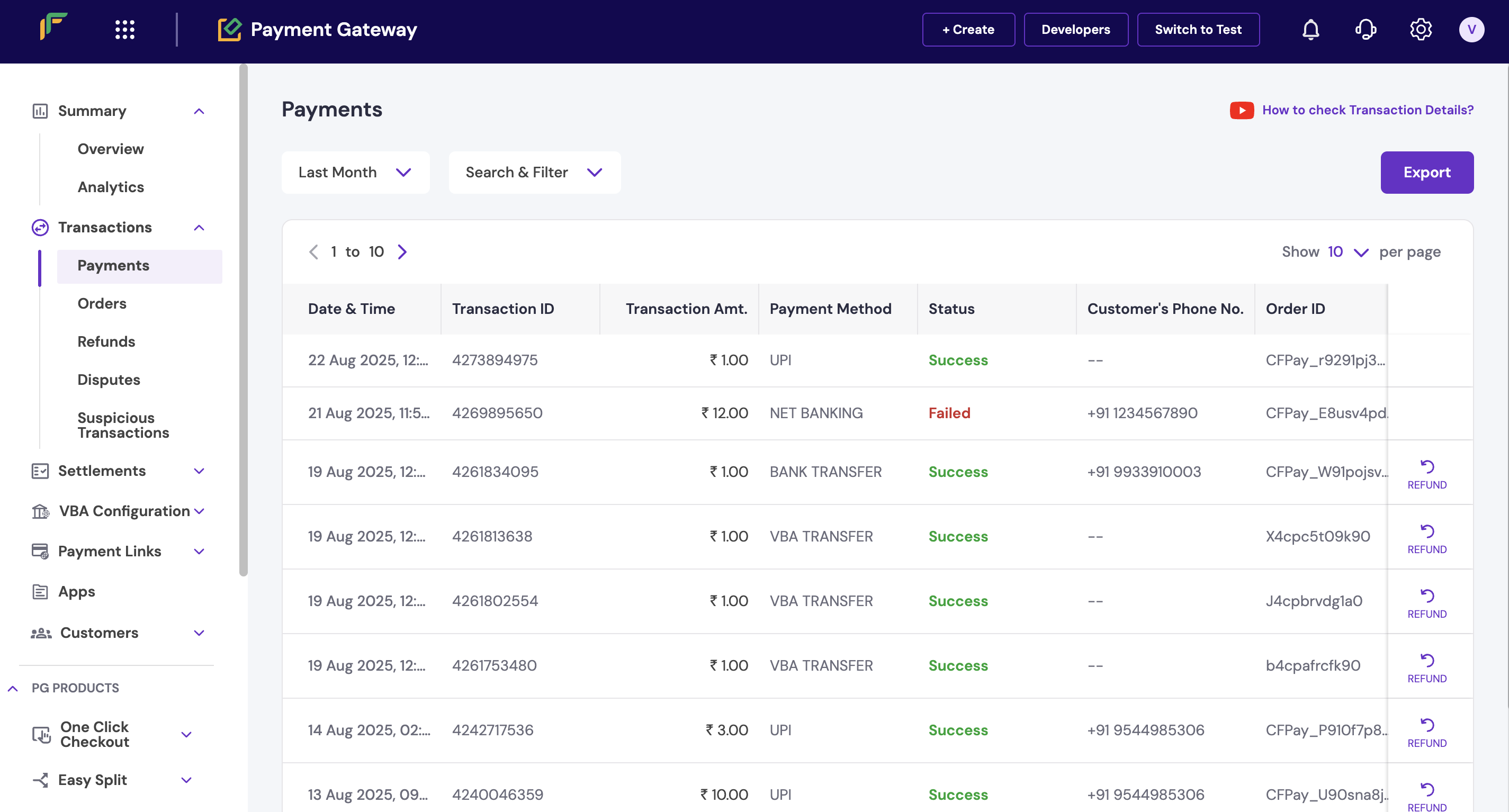
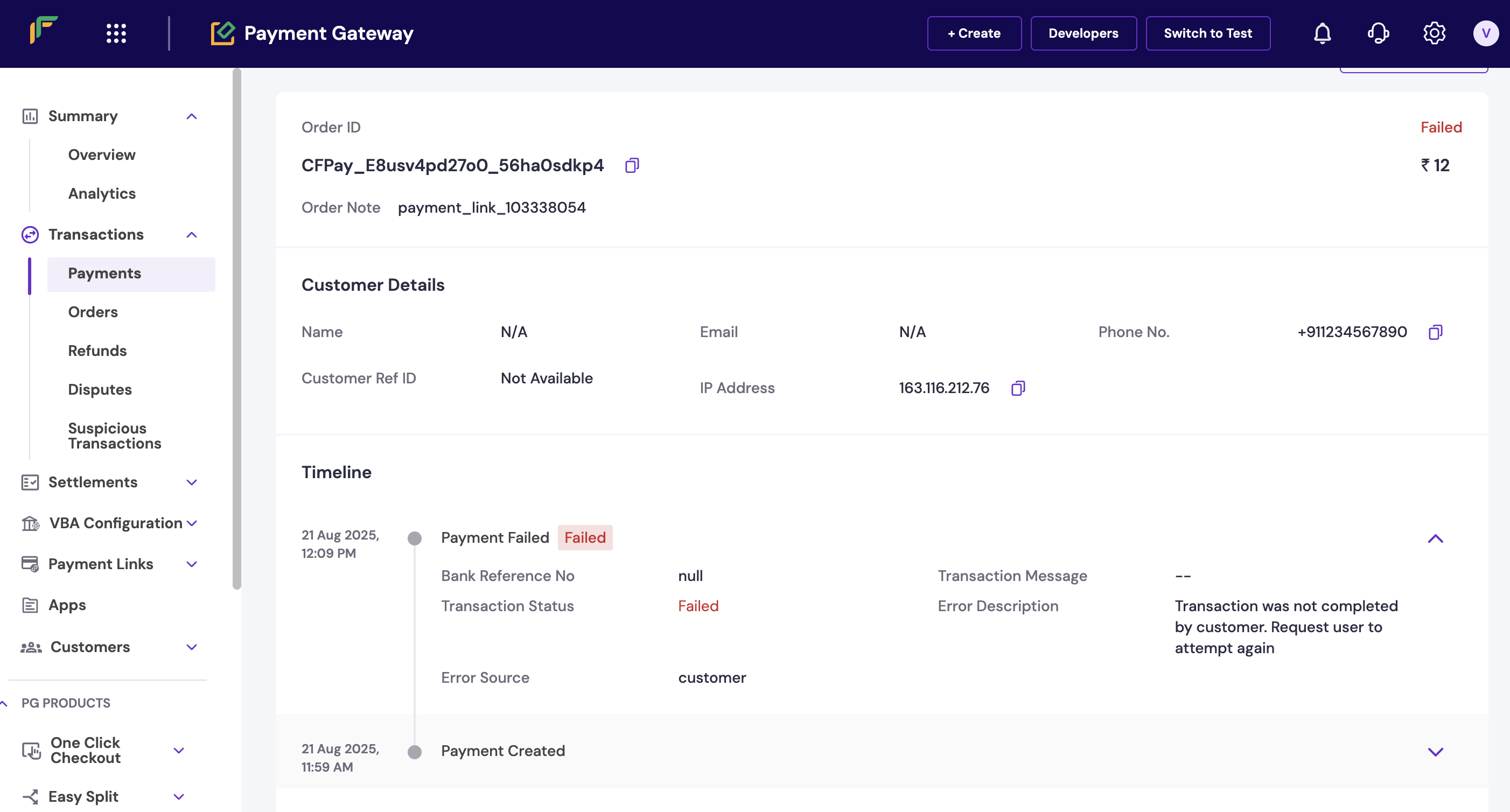
You can track whether a transaction was successful or failed directly from the dashboard. Complete these steps to check transaction status and failure reasons:
1. Log in to the [Merchant Dashboard](https://merchant.cashfree.com).
2. Go to **Payment Gateway > Transactions > Payments**.
3. Click on a **Transaction ID** to view complete details, including:
* Error description
* Error source
* Failure reason
 **Related topics:** For detailed transaction management, see [viewing transaction details](/payments/manage/transactions), [payment webhooks](/api-reference/payments/latest/payments/webhooks), [using APIs to check order status](/api-reference/payments/latest/orders/get), and [comprehensive dashboard overview](/payments/dashboard).
The dashboard provides real-time visibility into active, upcoming, and resolved downtimes. Complete these steps to track downtime information:
1. Log in to the [Merchant Dashboard](https://merchant.cashfree.com).
2. Go to **Payment Gateway**.
3. Scroll down to the **Downtime section**.
4. Click to view complete downtime details.
**Related topics:** For detailed transaction management, see [viewing transaction details](/payments/manage/transactions), [payment webhooks](/api-reference/payments/latest/payments/webhooks), [using APIs to check order status](/api-reference/payments/latest/orders/get), and [comprehensive dashboard overview](/payments/dashboard).
The dashboard provides real-time visibility into active, upcoming, and resolved downtimes. Complete these steps to track downtime information:
1. Log in to the [Merchant Dashboard](https://merchant.cashfree.com).
2. Go to **Payment Gateway**.
3. Scroll down to the **Downtime section**.
4. Click to view complete downtime details.
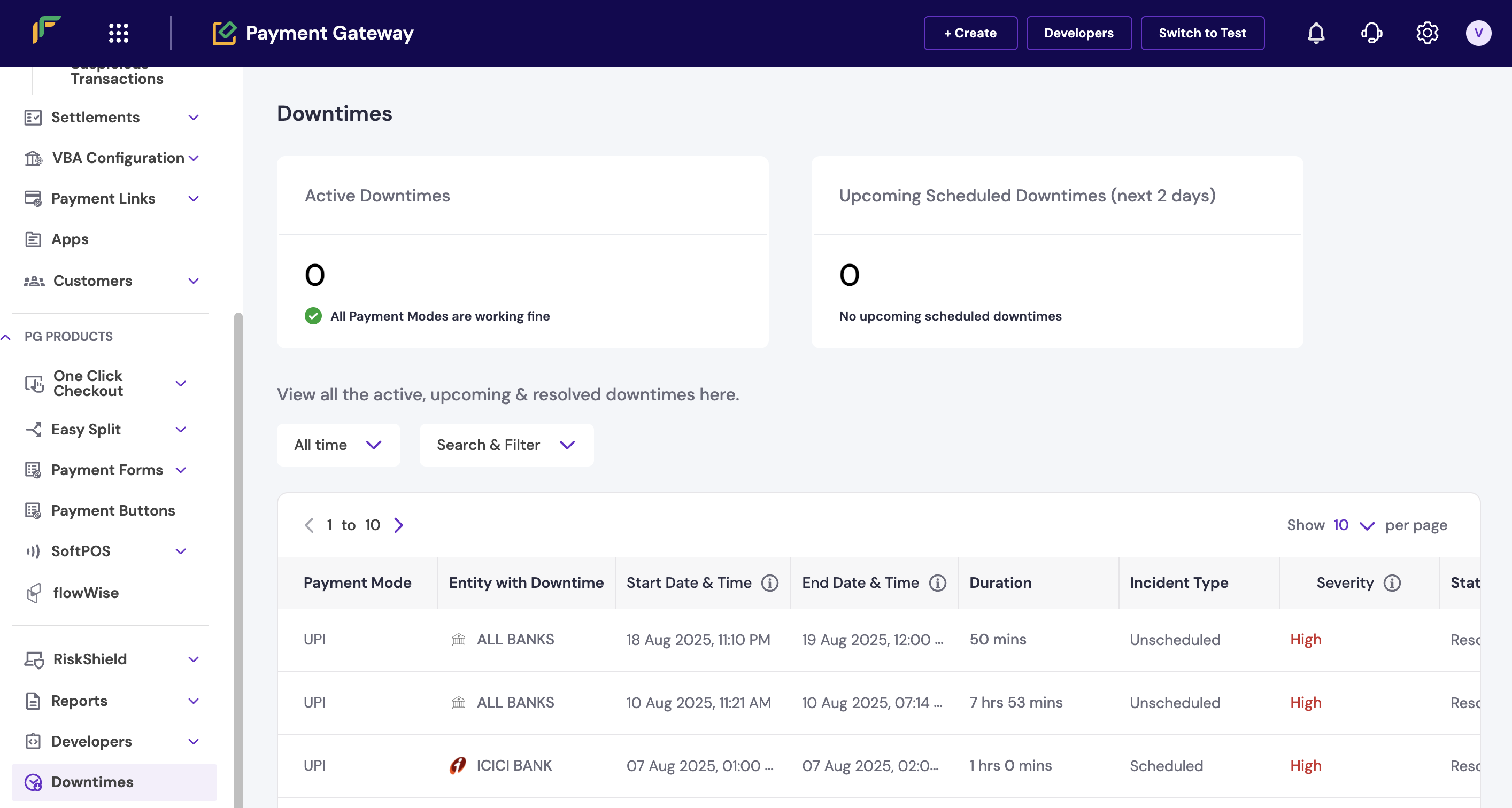 The downtime section displays:
* **Active downtimes**: Current issues affecting payments.
* **Upcoming downtimes**: Scheduled maintenance windows.
* **Resolved downtimes**: Recently fixed issues.
Configure email notifications to receive real-time downtime alerts and minimise impact on your business operations.
**Related topics:** For comprehensive downtime management, see [downtimes overview](/payments/manage/downtimes), [downtime APIs](/api-reference/payments/latest/utilities/incidents/fetch-all-downtimes), [downtime webhooks](/api-reference/payments/latest/utilities/incidents/incident-webhook), and [payouts downtime tracking](/payouts/payouts/downtimes).
The Analytics dashboard provides a consolidated view of your business performance, including conversion rates and payment failures. Complete these steps to access the analytics dashboard:
1. Log in to the [Merchant Dashboard](https://merchant.cashfree.com).
2. Go to **Payment Gateway > Transactions > Analytics**.
3. Review trends for:
* Conversion rate
* Business volume
* Payment failures
* Success rate patterns
The downtime section displays:
* **Active downtimes**: Current issues affecting payments.
* **Upcoming downtimes**: Scheduled maintenance windows.
* **Resolved downtimes**: Recently fixed issues.
Configure email notifications to receive real-time downtime alerts and minimise impact on your business operations.
**Related topics:** For comprehensive downtime management, see [downtimes overview](/payments/manage/downtimes), [downtime APIs](/api-reference/payments/latest/utilities/incidents/fetch-all-downtimes), [downtime webhooks](/api-reference/payments/latest/utilities/incidents/incident-webhook), and [payouts downtime tracking](/payouts/payouts/downtimes).
The Analytics dashboard provides a consolidated view of your business performance, including conversion rates and payment failures. Complete these steps to access the analytics dashboard:
1. Log in to the [Merchant Dashboard](https://merchant.cashfree.com).
2. Go to **Payment Gateway > Transactions > Analytics**.
3. Review trends for:
* Conversion rate
* Business volume
* Payment failures
* Success rate patterns
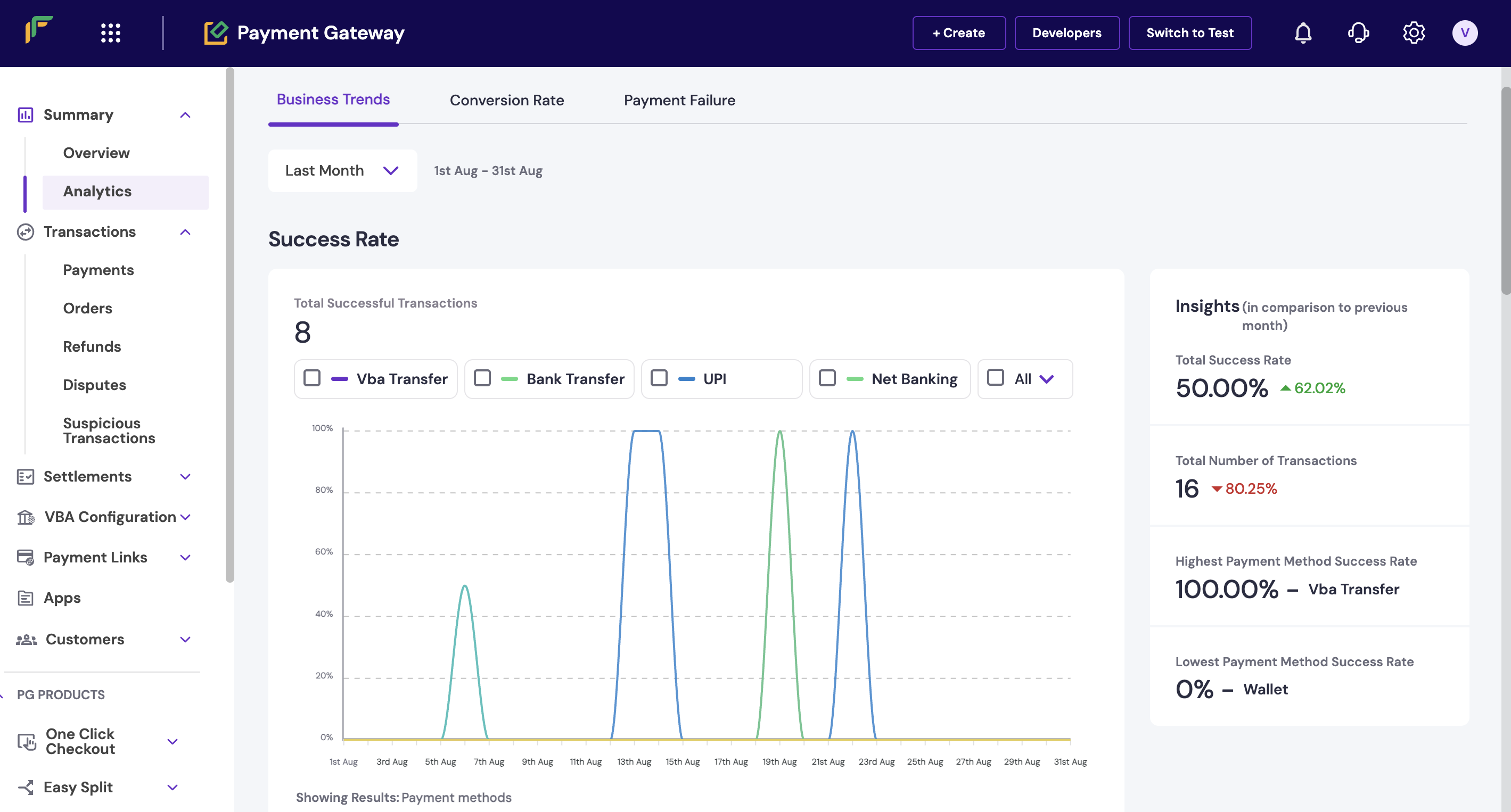 The analytics dashboard shows:
* **Conversion metrics**: Success rates and completion rates.
* **Volume trends**: Transaction amounts and counts over time.
* **Failure analysis**: Common failure reasons and patterns.
* **Performance insights**: Peak hours and method preferences.
**Related topics:** Explore advanced analytics with [payment analytics](/payments/checkout/after/analytics), [external analytics integration](/payments/checkout/after/external-analytics), [comprehensive reports](/payments/manage/reports), [API monitoring](/payments/manage/monitor), and [scheduled reports](/payments/manage/schedule-reports).
If you notice increased payment failures, follow these troubleshooting steps to identify and resolve issues:
1. **Check downtime status**: Review the downtime section to identify any active bank or network issues affecting payments.
2. **Analyse failure patterns**: Use the analytics dashboard to identify common failure reasons and affected payment methods.
3. **Review transaction details**: Check individual failed transactions for specific error codes and failure sources.
4. **Monitor success rates**: Set up success rate alerts to receive notifications when rates drop below acceptable thresholds.
Sudden drops in success rates often indicate external issues like bank downtimes or network problems rather than technical integration issues.
**Related topics:** For additional support, see [payment troubleshooting](/api-reference/integration-troubleshooting/payments-ts), [error handling best practices](/api-reference/payments/errors), and [success rate optimisation](/payments/manage/monitor).
You can configure various monitoring and alert systems to stay informed about payment performance. Complete these steps to set up monitoring:
1. Log in to the [Merchant Dashboard](https://merchant.cashfree.com).
2. Go to **Payment Gateway > Settings > Notifications**.
3. Configure alerts for:
* Success rate drops
* Downtime notifications
* Transaction volume changes
* Failed payment thresholds
Set up multiple notification channels (email, SMS, webhooks) to ensure you receive critical alerts even when offline.
**Related topics:** For comprehensive monitoring setup, see [notification configuration](/payments/manage/monitor), [webhook implementation](/api-reference/payments/latest/payments/webhooks), and [automated reporting](/payments/manage/schedule-reports).
## Next steps
After familiarising yourself with payment monitoring basics:
* Set up [payment webhooks](/api-reference/payments/latest/payments/webhooks) for real-time transaction notifications.
* Configure [automated monitoring](/payments/manage/monitor) for success rate alerts.
* Explore [comprehensive reporting](/payments/manage/reports) for business insights.
* Implement [error handling best practices](/api-reference/payments/errors) in your integration.
The analytics dashboard shows:
* **Conversion metrics**: Success rates and completion rates.
* **Volume trends**: Transaction amounts and counts over time.
* **Failure analysis**: Common failure reasons and patterns.
* **Performance insights**: Peak hours and method preferences.
**Related topics:** Explore advanced analytics with [payment analytics](/payments/checkout/after/analytics), [external analytics integration](/payments/checkout/after/external-analytics), [comprehensive reports](/payments/manage/reports), [API monitoring](/payments/manage/monitor), and [scheduled reports](/payments/manage/schedule-reports).
If you notice increased payment failures, follow these troubleshooting steps to identify and resolve issues:
1. **Check downtime status**: Review the downtime section to identify any active bank or network issues affecting payments.
2. **Analyse failure patterns**: Use the analytics dashboard to identify common failure reasons and affected payment methods.
3. **Review transaction details**: Check individual failed transactions for specific error codes and failure sources.
4. **Monitor success rates**: Set up success rate alerts to receive notifications when rates drop below acceptable thresholds.
Sudden drops in success rates often indicate external issues like bank downtimes or network problems rather than technical integration issues.
**Related topics:** For additional support, see [payment troubleshooting](/api-reference/integration-troubleshooting/payments-ts), [error handling best practices](/api-reference/payments/errors), and [success rate optimisation](/payments/manage/monitor).
You can configure various monitoring and alert systems to stay informed about payment performance. Complete these steps to set up monitoring:
1. Log in to the [Merchant Dashboard](https://merchant.cashfree.com).
2. Go to **Payment Gateway > Settings > Notifications**.
3. Configure alerts for:
* Success rate drops
* Downtime notifications
* Transaction volume changes
* Failed payment thresholds
Set up multiple notification channels (email, SMS, webhooks) to ensure you receive critical alerts even when offline.
**Related topics:** For comprehensive monitoring setup, see [notification configuration](/payments/manage/monitor), [webhook implementation](/api-reference/payments/latest/payments/webhooks), and [automated reporting](/payments/manage/schedule-reports).
## Next steps
After familiarising yourself with payment monitoring basics:
* Set up [payment webhooks](/api-reference/payments/latest/payments/webhooks) for real-time transaction notifications.
* Configure [automated monitoring](/payments/manage/monitor) for success rate alerts.
* Explore [comprehensive reporting](/payments/manage/reports) for business insights.
* Implement [error handling best practices](/api-reference/payments/errors) in your integration.