> ## Documentation Index
> Fetch the complete documentation index at: https://www.cashfree.com/docs/llms.txt
> Use this file to discover all available pages before exploring further.
# Settlements
> Use this settlements quick guide to track Cashfree payouts, review settlement reports, and reconcile bank credits from the Payment Gateway Merchant Dashboard.
Settlements represent the amount collected from customers through the payment gateway that's transferred to the merchant's bank account. The cycle determines when the funds are credited, based on the type of settlement configured.
This guide helps you understand how to track and manage settlements effectively through the Cashfree dashboard. This is useful to:
* Understand different settlement types and cycles.
* Track settlement status and processing details.
* Review charges, deductions, and settlement breakdowns.
* Troubleshoot delayed settlement issues.
## Quick reference
The following questions address common tasks and concerns when managing settlements through the Merchant dashboard.
Cashfree offers multiple settlement options to meet different business cash flow requirements.
* **Standard settlements (T+2 cycle)**: Default settlement where funds are credited two business days after transaction, excluding weekends and holidays.
* **Instant settlements**: Access funds within 15 minutes instead of waiting for the standard T+2 cycle.
* **On-demand settlements**: Transfer funds instantly including holidays for a small fee, providing 24/7 access to your money.
Example timing: Transaction on Friday, June 3 → T+1: Monday, June 6 → T+2: Tuesday, June 7
**Related topics:** Learn more about [settlement cycles](/payments/manage/settlements), [instant settlement configuration](/help/payments/settlements/instant-settlements), and [settlement fee structures](/help/payments/settlements/settlements).
You can monitor settlement status and view detailed processing information directly from the dashboard. Complete these steps to check settlement status:
1. Log in to the [Merchant Dashboard](https://merchant.cashfree.com).
2. Go to **Payment Gateway**
3. Select **Settlements > Online**.
4. Apply filters to view pending or processed settlements.
5. Click the **UTR** to view details for a specific settlement.
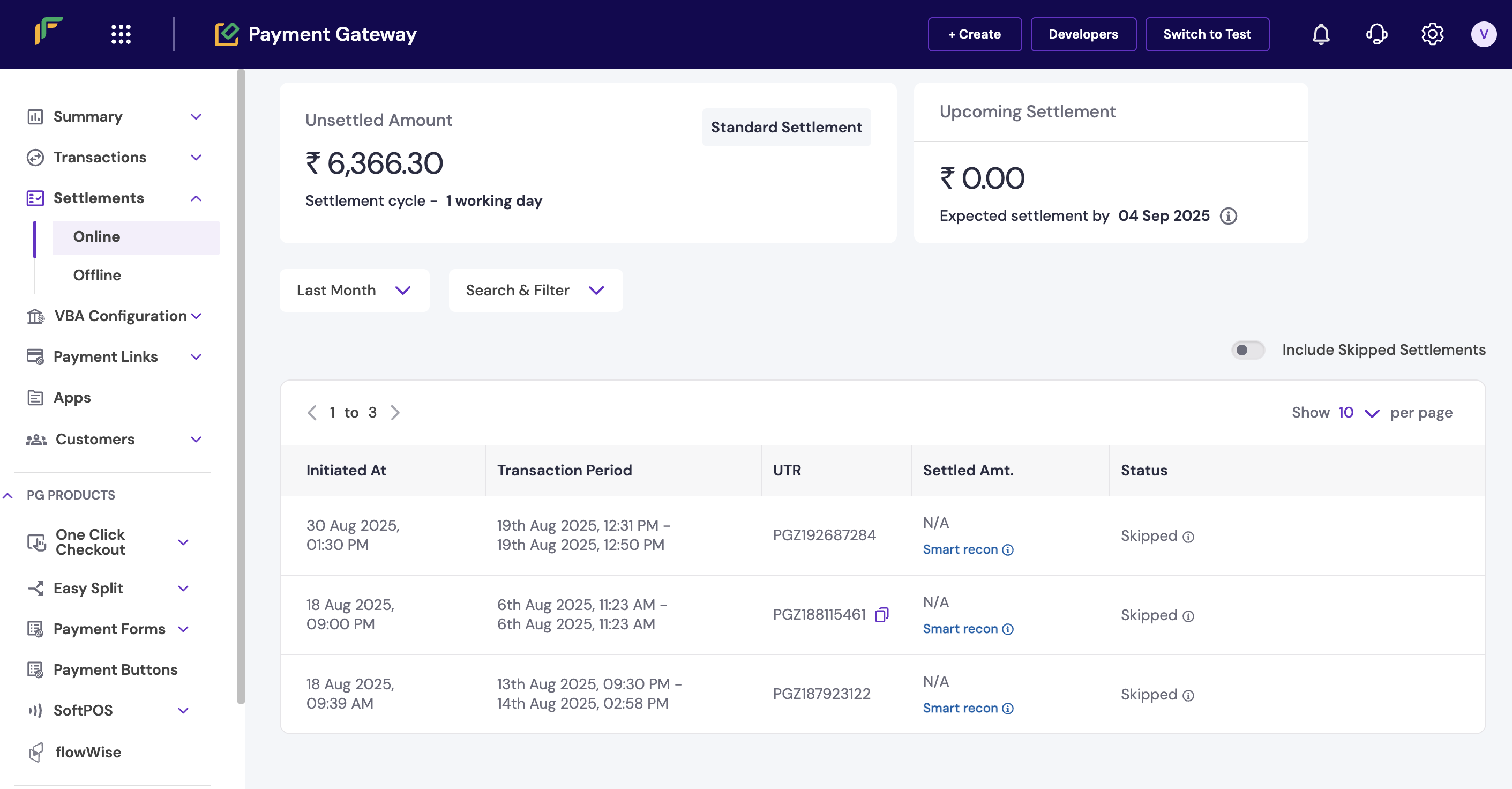
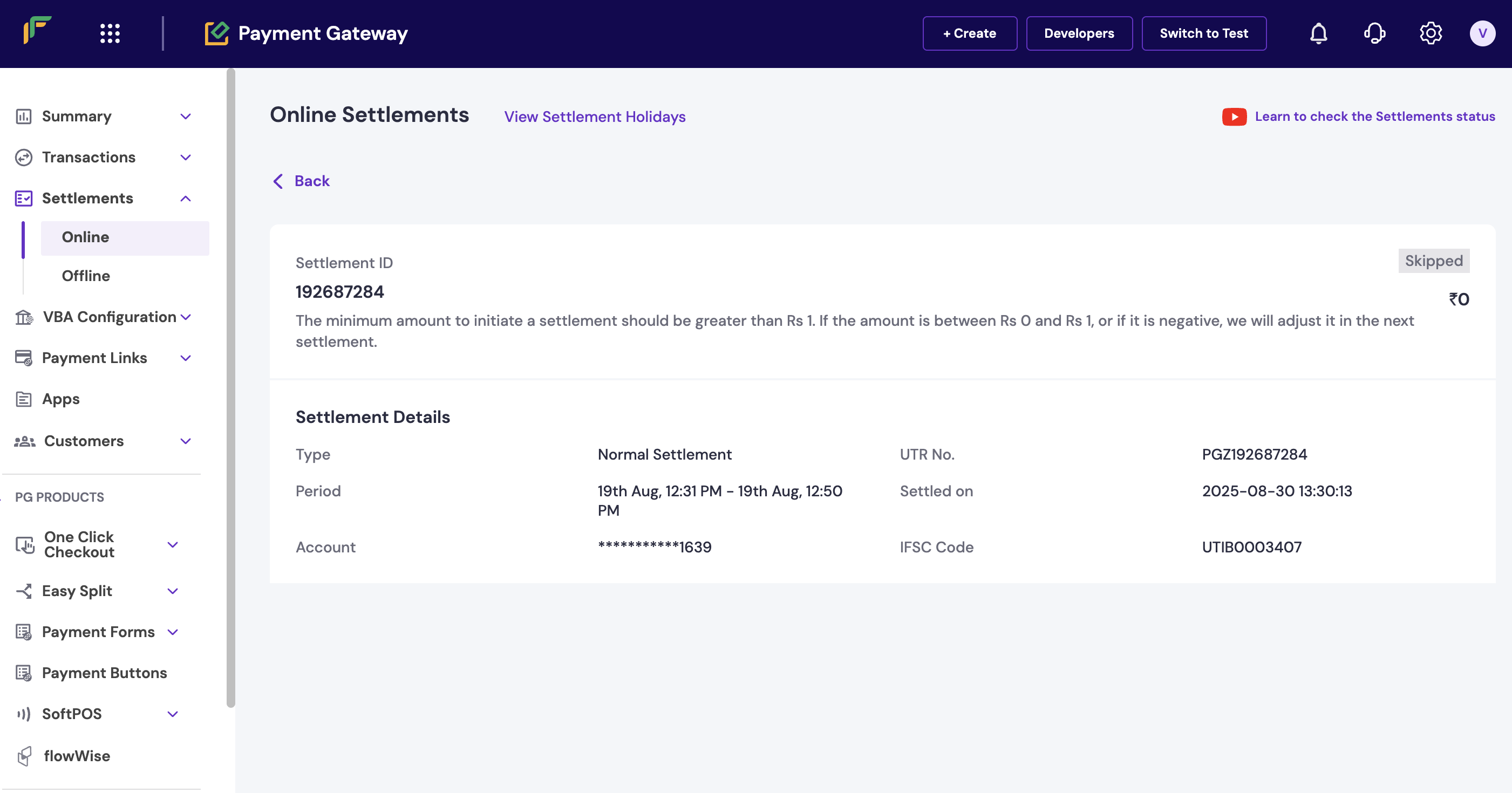 The dashboard displays settlement status as:
* **Pending**: Settlement initiated but not yet processed.
* **Processed**: Settlement completed and funds transferred.
* **Failed**: Settlement couldn't be completed.
**Related topics:** For programmatic tracking, see [settlement APIs](/api-reference/payments/latest/settlements/get-settlements), [settlement webhooks](/api-reference/payments/latest/settlements/settlement-webhooks), and [comprehensive settlement reports](/payments/manage/reports).
The dashboard provides detailed breakdowns of all charges and deductions applied to your settlements. Complete these steps to review settlement charges:
1. Log in to the [Merchant Dashboard](https://merchant.cashfree.com).
2. Go to **Payment Gateway > Settlements > Online**.
3. Select a settlement from the list.
4. Review the **charges and explanation** section for detailed breakdown.
The dashboard displays settlement status as:
* **Pending**: Settlement initiated but not yet processed.
* **Processed**: Settlement completed and funds transferred.
* **Failed**: Settlement couldn't be completed.
**Related topics:** For programmatic tracking, see [settlement APIs](/api-reference/payments/latest/settlements/get-settlements), [settlement webhooks](/api-reference/payments/latest/settlements/settlement-webhooks), and [comprehensive settlement reports](/payments/manage/reports).
The dashboard provides detailed breakdowns of all charges and deductions applied to your settlements. Complete these steps to review settlement charges:
1. Log in to the [Merchant Dashboard](https://merchant.cashfree.com).
2. Go to **Payment Gateway > Settlements > Online**.
3. Select a settlement from the list.
4. Review the **charges and explanation** section for detailed breakdown.
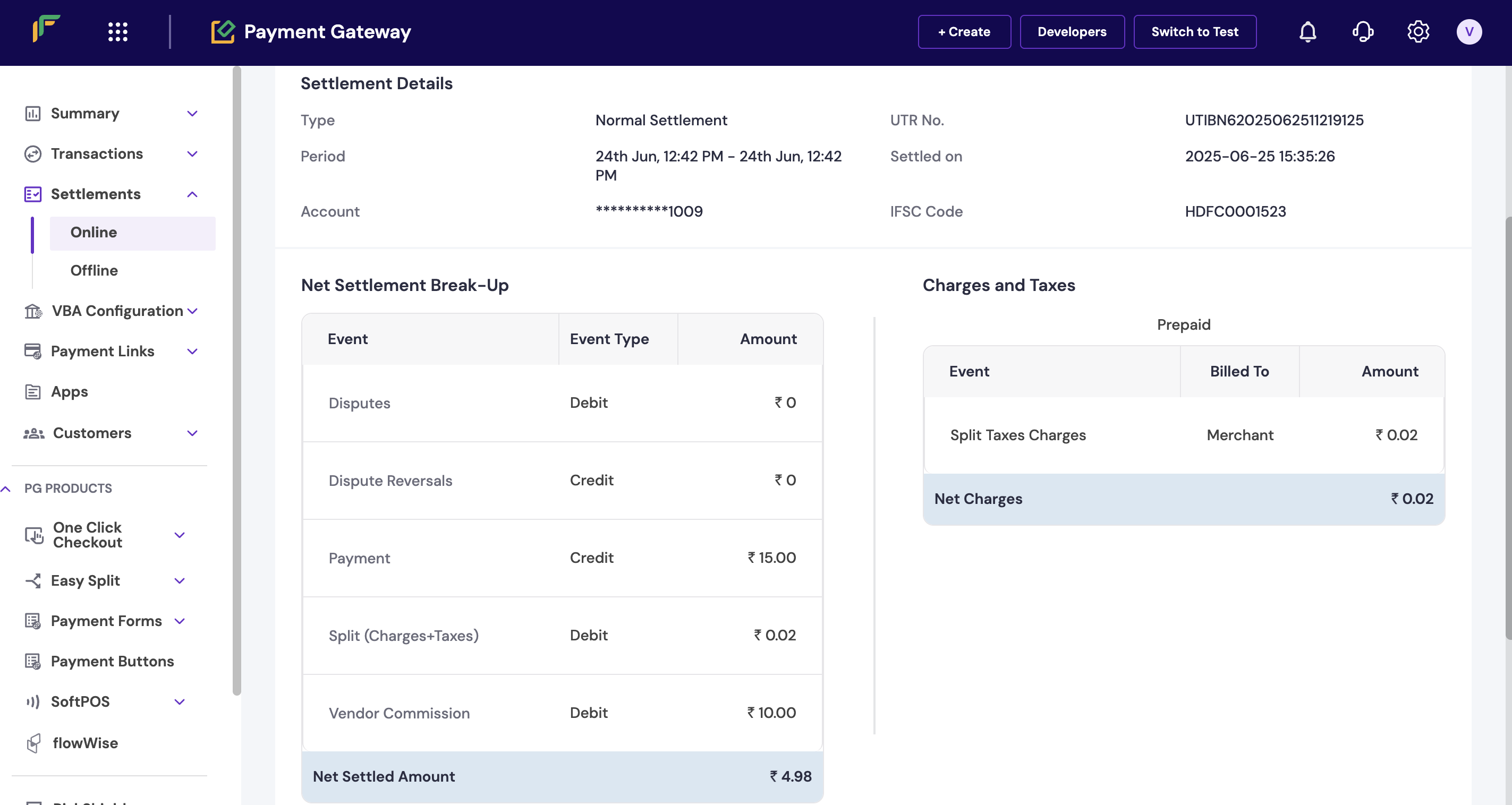 The charges section shows:
* **Transaction fees**: Payment processing charges.
* **Gateway fees**: Platform usage charges.
* **Refund deductions**: Refunds processed during the settlement period.
* **Adjustment charges**: Any account adjustments or corrections.
**Related topics:** For detailed fee information, see [pricing structure](/help/account/pricing), [refund impact on settlements](/payments/manage/refunds), and [settlement reconciliation reports](/payments/manage/reports).
You can monitor your daily instant settlement limits and usage directly from the dashboard. Complete these steps to view instant settlement limits:
1. Log in to the [Merchant Dashboard](https://merchant.cashfree.com).
2. Go to **Payment Gateway > Settlements > Online**.
3. Review instant settlement limits and current usage in the limits section.
The charges section shows:
* **Transaction fees**: Payment processing charges.
* **Gateway fees**: Platform usage charges.
* **Refund deductions**: Refunds processed during the settlement period.
* **Adjustment charges**: Any account adjustments or corrections.
**Related topics:** For detailed fee information, see [pricing structure](/help/account/pricing), [refund impact on settlements](/payments/manage/refunds), and [settlement reconciliation reports](/payments/manage/reports).
You can monitor your daily instant settlement limits and usage directly from the dashboard. Complete these steps to view instant settlement limits:
1. Log in to the [Merchant Dashboard](https://merchant.cashfree.com).
2. Go to **Payment Gateway > Settlements > Online**.
3. Review instant settlement limits and current usage in the limits section.
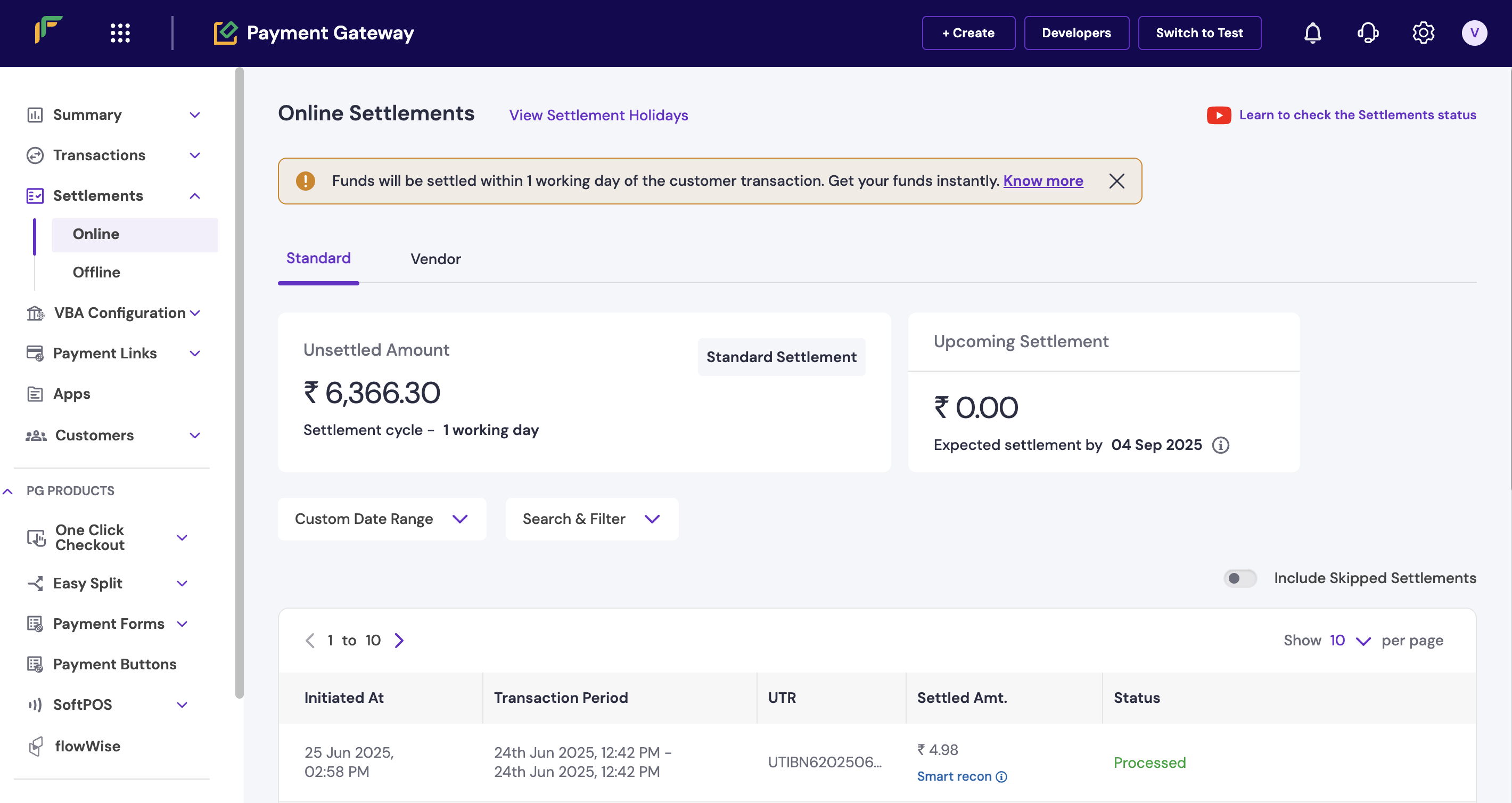 The limits section displays:
* **Daily limit**: Maximum amount available for instant settlements.
* **Used today**: Amount already settled instantly.
* **Available balance**: Remaining instant settlement capacity.
Instant settlement limits reset daily and may vary based on your account configuration and transaction history.
**Related topics:** For limit increases, see [account upgrades](/help/account/account-management), [instant settlement pricing](/help/payments/settlements/instant-settlements), and [settlement configuration](/payments/manage/settlements).
Settlement timelines exclude weekends and bank holidays, which can affect when you receive funds. Complete these steps to view the holiday calendar:
1. Log in to the [Merchant Dashboard](https://merchant.cashfree.com).
2. Go to **Payment Gateway > Settlements > Online**.
3. Click **View settlement holidays** to see the complete holiday list.
The limits section displays:
* **Daily limit**: Maximum amount available for instant settlements.
* **Used today**: Amount already settled instantly.
* **Available balance**: Remaining instant settlement capacity.
Instant settlement limits reset daily and may vary based on your account configuration and transaction history.
**Related topics:** For limit increases, see [account upgrades](/help/account/account-management), [instant settlement pricing](/help/payments/settlements/instant-settlements), and [settlement configuration](/payments/manage/settlements).
Settlement timelines exclude weekends and bank holidays, which can affect when you receive funds. Complete these steps to view the holiday calendar:
1. Log in to the [Merchant Dashboard](https://merchant.cashfree.com).
2. Go to **Payment Gateway > Settlements > Online**.
3. Click **View settlement holidays** to see the complete holiday list.
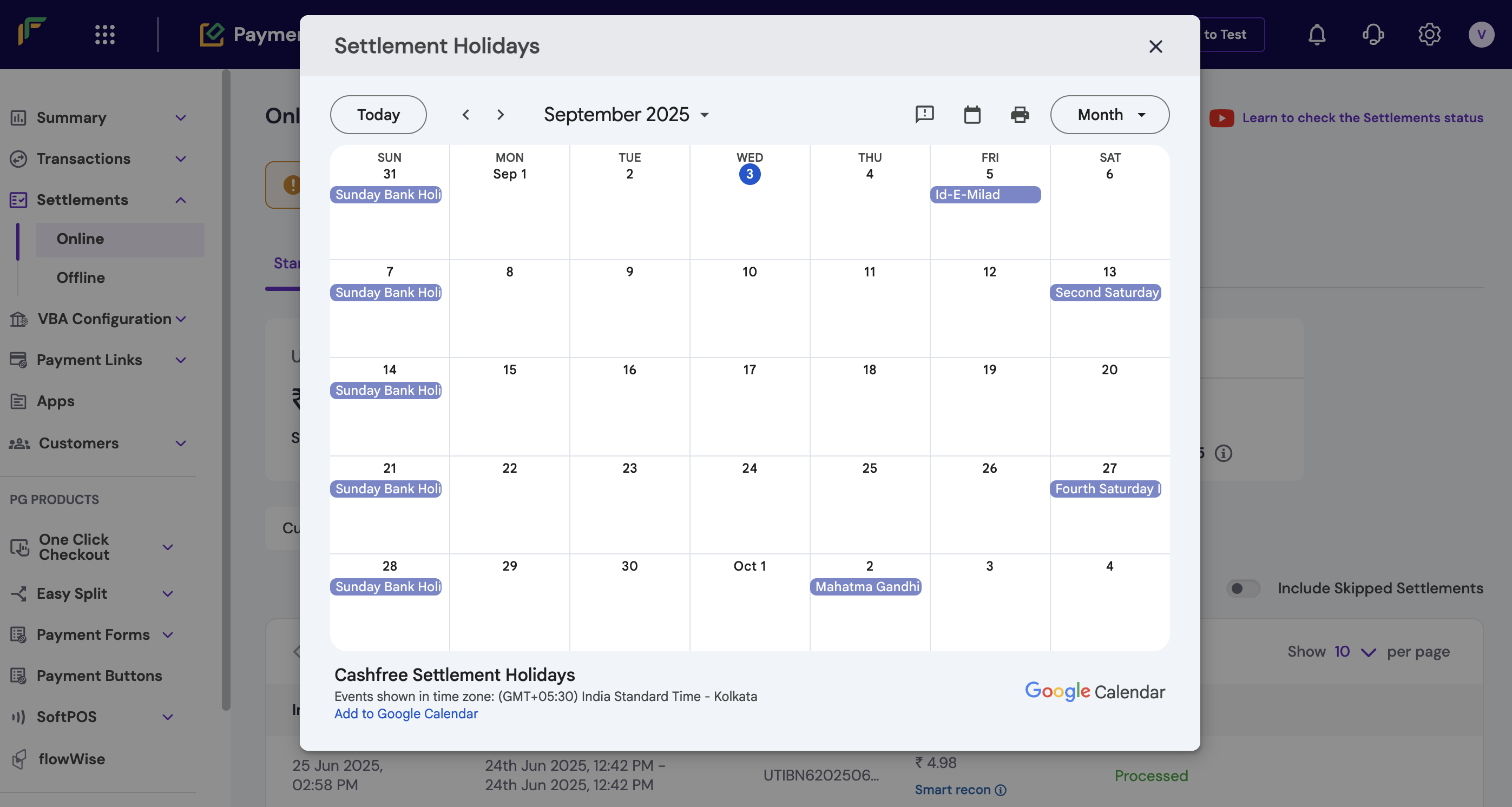 During bank holidays, T+1 and T+2 cycles are extended by the number of non-working days. Instant and on-demand settlements remain available.
**Related topics:** For holiday impact details, see [settlement timing guidelines](/help/payments/settlements/settlements), [holiday calendar updates](/help/payments/settlements/settlements), and [alternative settlement options](/help/payments/settlements/instant-settlements).
If settlement funds haven't been credited to your account, follow these troubleshooting steps:
1. **Verify transaction details**: Check the transaction date and status in the dashboard. Successful transactions settle after deductions as per the configured cycle.
2. **Confirm settlement cycle**: Verify your settlement cycle: T+1, T+2, instant, or on-demand configuration.
3. **Check settlement status**: Review the settlement status in the dashboard to confirm processing completion.
4. **Contact bank if needed**: If settlement is marked as processed but funds aren't reflected, wait up to two additional business days or contact your bank using the ARN/settlement reference number.
For settlement issues, always verify the cycle and status before contacting support. Most delays are due to weekend/holiday timing.
**Related topics:** For additional support, see [settlement troubleshooting](/help/payments/settlements/settlements), [bank account verification](/help/account/account-management), and [settlement dispute resolution](/payments/manage/disputes).
## Next steps
After familiarising yourself with settlement management basics:
* Configure [settlement webhooks](/api-reference/payments/latest/settlements/settlement-webhooks) for real-time settlement notifications.
* Set up [automated settlement tracking](/api-reference/payments/latest/settlements/get-settlements) via APIs.
* Review [comprehensive settlement reports](/payments/manage/reports) for financial reconciliation.
* Explore [instant settlement options](/help/payments/settlements/instant-settlements) for improved cash flow.
snippets/related-topics-loader.mdx
During bank holidays, T+1 and T+2 cycles are extended by the number of non-working days. Instant and on-demand settlements remain available.
**Related topics:** For holiday impact details, see [settlement timing guidelines](/help/payments/settlements/settlements), [holiday calendar updates](/help/payments/settlements/settlements), and [alternative settlement options](/help/payments/settlements/instant-settlements).
If settlement funds haven't been credited to your account, follow these troubleshooting steps:
1. **Verify transaction details**: Check the transaction date and status in the dashboard. Successful transactions settle after deductions as per the configured cycle.
2. **Confirm settlement cycle**: Verify your settlement cycle: T+1, T+2, instant, or on-demand configuration.
3. **Check settlement status**: Review the settlement status in the dashboard to confirm processing completion.
4. **Contact bank if needed**: If settlement is marked as processed but funds aren't reflected, wait up to two additional business days or contact your bank using the ARN/settlement reference number.
For settlement issues, always verify the cycle and status before contacting support. Most delays are due to weekend/holiday timing.
**Related topics:** For additional support, see [settlement troubleshooting](/help/payments/settlements/settlements), [bank account verification](/help/account/account-management), and [settlement dispute resolution](/payments/manage/disputes).
## Next steps
After familiarising yourself with settlement management basics:
* Configure [settlement webhooks](/api-reference/payments/latest/settlements/settlement-webhooks) for real-time settlement notifications.
* Set up [automated settlement tracking](/api-reference/payments/latest/settlements/get-settlements) via APIs.
* Review [comprehensive settlement reports](/payments/manage/reports) for financial reconciliation.
* Explore [instant settlement options](/help/payments/settlements/instant-settlements) for improved cash flow.
snippets/related-topics-loader.mdx