

Supported integrations
The following integrations are available for use in agents.Add a connection
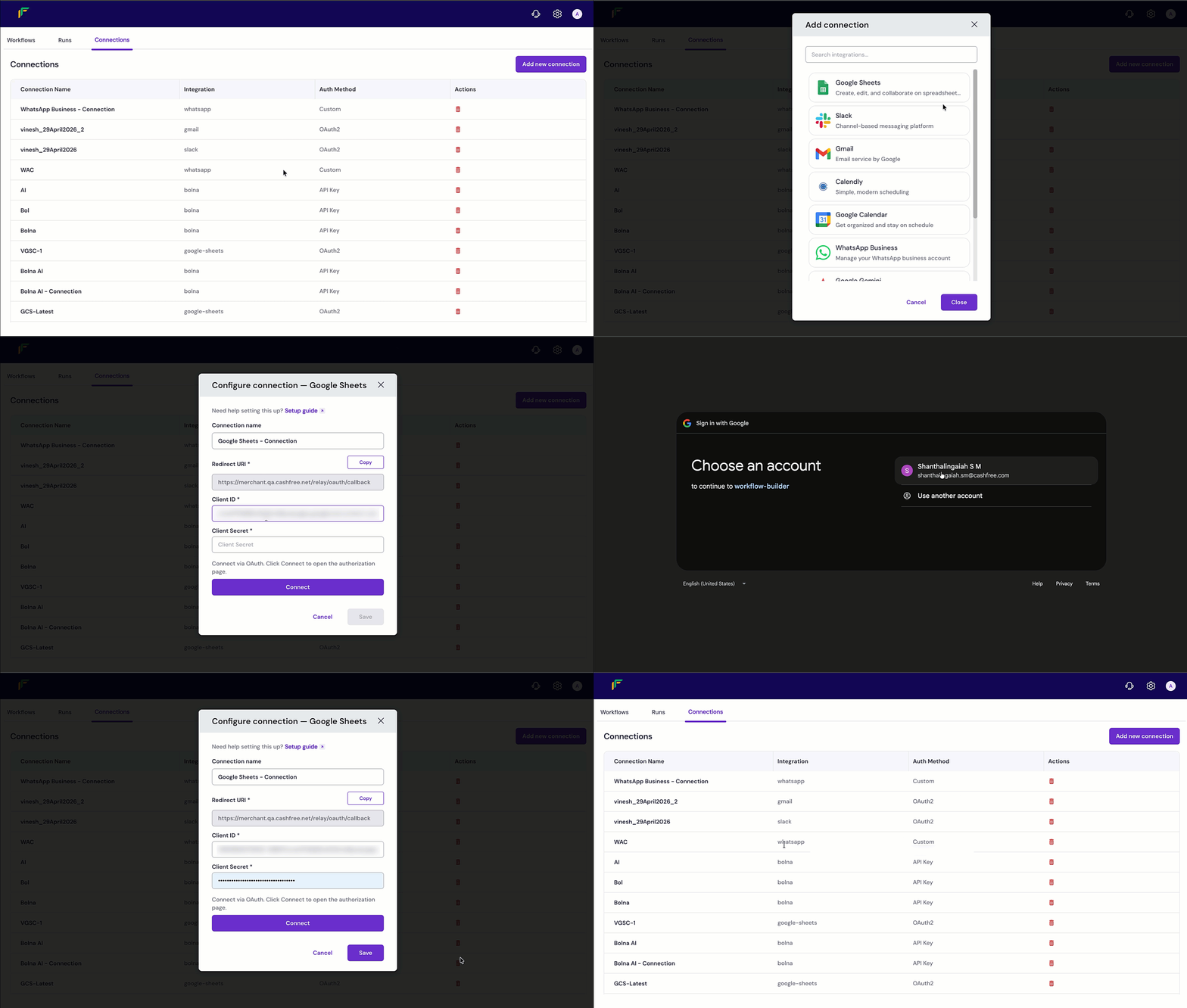
To add a connection, follow these steps.- Log in to the Merchant Dashboard and go to Payment Gateway > Relay.
- Click the Connections tab.
- Click Add new connection. The Add connection dialogue opens, listing all available integrations.
- (Optional) Use the Search integrations field to filter the list by name.
- Select the integration you want to connect. The Configure connection panel opens for the selected app.
- In the Connection name field, enter a name to identify this connection.
- Fill in the required fields for the selected integration. See Configure a connection for integration-specific steps.
- Click Connect or Test to authenticate, depending on the integration.
- Click Save to add the connection.
Each connection is specific to the account you authenticate with during setup. If you need
to connect a different account for the same app, add a new connection for it.
Delete a connection
You can delete a connection that is no longer needed. Connections cannot be edited; to update a connection, delete it and create a new one.- Go to Payment Gateway > Relay > Connections.
- In the Actions column for the connection, click the delete icon. A confirmation dialogue appears.
- Click Delete to confirm, or Cancel to go back.
Configure a connection
The configuration steps and required credentials vary by integration. Select your integration below for the required fields and authentication steps. Human-in-the-Loop (HITL) approvals let you pause an agent so a person can approve or reject an action, such as a high-value refund, before it continues. Some integrations require additional setup beyond the standard connection steps to support HITL approvals. Currently, this applies to the Slack and WhatsApp Business integrations; the extra steps are included in their sections below.Google Sheets and Gmail both use OAuth2 and share the same Google Cloud
credentials. You can use a single Client ID and Client Secret for both integrations by
registering one OAuth2 application in the Google Cloud Console and enabling each Google API
under the same project. To enable APIs, go to APIs & Services > Library in the
Google Cloud Console and enable the APIs for the services
you want to connect. This avoids creating separate credentials for each integration.
Cashfree

Cashfree
Authentication type: Client ID and Client SecretCashfree uses your App ID and Secret Key for authentication. Each Cashfree
product requires its own set of credentials. If you are connecting multiple products
such as Payments and Payouts, you must generate separate API keys for each.To get your App ID and Secret Key:
- Log in to the Merchant Dashboard and go to Developers.
- Click API Keys under the product you want to connect, such as Payment Gateway.
- Generate your API keys based on your environment:
- Test environment: Cashfree auto-generates your API keys. No additional action is required.
- Production environment: Click Generate API Keys and complete two-factor authentication (2FA) to generate the keys.
- Once generated, the keys are shown in masked format. Click the ellipsis and select View API Key to reveal them.
- Copy the App ID and Secret Key and store them securely.
- In the Configure connection — Cashfree panel, update the Connection name if needed.
- Paste your App ID in the Cashfree Client ID field.
- Paste your Secret Key in the Cashfree Client Secret field.
- Click Save.
Cashfree Payouts
Cashfree Payouts
Authentication type: Client ID and Client SecretCashfree Payouts uses your Client ID and Client Secret for authentication. These credentials
are separate from your Cashfree credentials; generate them from the Payouts Dashboard
even if you already have API keys for another Cashfree product.To get your Client ID and Client Secret:
- Log in to the Merchant Dashboard and go to Payouts Dashboard > Developers.
- Click API Keys.
- Click Generate API Keys and complete the required authentication to generate the keys.
- Copy the Client ID and Client Secret and store them securely.
- In the Configure connection — Cashfree Payouts panel, update the Connection name if needed.
- Paste your Client ID in the Cashfree Client ID field.
- Paste your Client Secret in the Cashfree Client Secret field.
- Click Save.
Cashfree Secure ID
Cashfree Secure ID
Authentication type: Client ID and Client SecretCashfree Secure ID uses your Client ID and Client Secret for authentication, generated the
same way as your other Cashfree product credentials.To get your Client ID and Client Secret:
- Log in to the Merchant Dashboard and go to Developers.
- Click API Keys under Secure ID.
- Generate your API keys based on your environment: auto-generated for the test environment, or click Generate API Keys and complete the 2FA authentication for the production environment.
- Copy the Client ID and Secret and store them securely.
- In the Configure connection — Cashfree Secure ID panel, update the Connection name if needed.
- Paste your Client ID in the Cashfree Client ID field.
- Paste your Secret in the Cashfree Client Secret field.
- Click Save.
Cashfree Subscription
Cashfree Subscription
Authentication type: Client ID and Client SecretCashfree Subscription reuses your Payment Gateway credentials. If you already have a
Cashfree connection, use the same Client ID and Client Secret; otherwise, follow
the steps in the Cashfree section above to generate them.To configure the connection:
- In the Configure connection — Cashfree Subscription panel, update the Connection name if needed.
- Paste your Client ID in the Cashfree Client ID field.
- Paste your Client Secret in the Cashfree Client Secret field.
- Click Save.
Google Sheets
Google Sheets
Authentication type: OAuth2Google Sheets uses OAuth2 to authenticate via your Google account. Before setting up this
connection, you must enable both the Google Sheets API and the Google Drive API, and
register an OAuth2 application in the Google Cloud Console to obtain a Client ID and Client
Secret.To enable the required APIs:For more information, refer to Setting up OAuth 2.0: Google Cloud.
- Go to the Google Cloud Console and select your project.
- Go to APIs & Services > Library.
- Search for Google Sheets API and Google Drive API and click Enable.
- In the Google Cloud Console, go to APIs & Services > Credentials.
- Click Create Credentials > OAuth client ID, select Web application as the application type, and paste the Redirect URI (copied from the Configure connection panel) under Authorised redirect URIs.
- Copy the generated Client ID and Client Secret.
- In the Configure connection — Google Sheets panel, update the Connection name if needed.
- Copy the Redirect URI by clicking Copy.
- Complete the OAuth2 credential steps above, then enter the Client ID and Client Secret in the respective fields in the panel.
- Click Connect. The Google authorisation page opens.
- Log in and grant the requested permissions.
- Click Save.
If you have already created OAuth2 credentials for Gmail, you can reuse
the same Client ID and Client Secret for this connection. See the note at the top of this
section for details.
Slack
Slack
Authentication type: OAuth2Slack uses OAuth2 with a Slack app you register in the Slack API. Install the app to your
workspace after configuring scopes so Relay can act on behalf of the bot. If you plan to use
HITL approvals in your agents, you must also enable Slack’s Interactivity feature, covered
in the steps below.For more information, refer to Installing with OAuth: Slack Developer Docs.
You need a Slack app to complete this connection. Create one using either of the methods
below.
- Quick setup (manifest)
- Manual setup
Slack lets you create an app from an app manifest, a JSON file that configures the app
name, OAuth scopes, redirect URL, and Interactivity request URL in a single step. The
manifest below is pre-configured for use with Cashfree Relay, including HITL approvals.
- Go to api.slack.com/apps and click Create New App.
- Select From an app manifest.
- Select your workspace and click Next.
- Paste the manifest below in the JSON tab, click Next, then click Create.
- Go to OAuth & Permissions, then click Install to Workspace and grant the requested permissions.
- From the Basic Information page, copy the Client ID and Client Secret.
- In the Configure connection — Slack panel, update the Connection name if needed, then enter the Client ID and Client Secret.
- Click Connect. The Slack authorisation page opens.
- Log in and grant the requested permissions.
- Click Save.
If you change scopes after installing the app, reinstall it to your workspace so the
updated permissions take effect.
Gmail
Gmail
Authentication type: OAuth2Gmail uses OAuth2 to authenticate via your Google account. Before setting up this connection,
register an OAuth2 application in the Google Cloud Console to obtain a Client ID and
Client Secret.For more information, refer to Setting up OAuth 2.0: Google Cloud.
- In the Configure connection — Gmail panel, update the Connection name if needed.
- Copy the Redirect URI by clicking Copy.
- In the Google Cloud Console, go to APIs & Services > Credentials.
- Click Create Credentials > OAuth client ID, select Web application as the application type, and paste the copied Redirect URI under Authorised redirect URIs.
- Copy the generated Client ID and Client Secret from the Google Cloud Console and enter them in the respective fields in the panel.
- Click Connect. The Google authorisation page opens.
- Log in and grant the requested permissions.
- Click Save.
If you have already created OAuth2 credentials for Google Sheets, you
can reuse the same Client ID and Client Secret for this connection. See the note at the
top of this section for details.
WhatsApp Business
WhatsApp Business
Authentication type: System user access tokenWhatsApp Business uses a system user access token and a WhatsApp Business Account ID
(WABA ID) for authentication. These are generated from Meta Business Suite and are
long-lived, making them suitable for automated integrations. If you plan to use HITL
approvals in your agents, you must also configure a webhook for your app on
Meta for Developers, covered later in this section.
To configure the connection:
Get your system user access token and WABA ID
Get your system user access token and WABA ID
To get your system user access token and business account ID:
- Go to Meta for Developers and open your app, or create one if you don’t have one. Choose an App, not a Test App created via the Create Test App menu.
- If the WhatsApp product is not already added to your app, add it.
- On the app’s main page, select the Connect with customers through WhatsApp use case and click Customize.
- Log in to Meta Business Suite.
- Click the Settings (gear) icon for your business portfolio.
- Go to Users > System Users.
- Click Add and create a system user with the Admin role.
- Click Assign Assets, select both your WhatsApp app and your WhatsApp Business Account, enable Full control for each, and click Assign assets.
- Click Generate Token, select your app, enable the
whatsapp_business_messagingandwhatsapp_business_managementpermissions, and click Generate Token. - Copy and store the token securely. It is displayed only once.
- Copy your WhatsApp Business Account ID from Meta for Developers under WhatsApp > API Setup.
- In the Configure connection — WhatsApp Business panel, update the Connection name if needed.
- Paste your system user access token in the System User Access Token field.
- Paste your business account ID in the Business Account ID field.
- Click Save.
Configure a webhook for HITL approvals
Configure a webhook for HITL approvals
To use HITL approvals with WhatsApp Business, configure a webhook for your app on
Meta for Developers so Cashfree can receive approval
responses.
- In Meta for Developers, open your app, go to the WhatsApp product, then Configuration.
- Under Webhooks, click Configure webhooks (or Edit if already configured).
- In Callback URL, enter the URL for your environment from the following table:
- In Verify Token, enter a secret string of your choice. Meta echoes this value back to confirm the request is genuinely from Meta.
- Click Verify and Save.
- Under Webhook fields, find messages and click Test. In the dialogue that opens, click Send to server to verify Cashfree receives the test payload, then toggle the field from Unsubscribed to Subscribed.
Google Gemini
Google Gemini
Authentication type: API keyGoogle Gemini uses an API key for authentication. API keys are created and managed in
Google AI Studio.To get your Google Gemini API key:
The Google Gemini integration uses an API that is currently in beta and may change
at any time.
- Go to Google AI Studio and log in with your Google account.
- Click Create API key.
- Select an existing Google Cloud project or create a new one.
- Copy the generated API key and store it securely.
- In the Configure connection — Google Gemini panel, update the Connection name if needed.
- Paste your API key in the Enter API key field.
- Click Test to verify the connection.
- Click Save.
OpenAI
OpenAI
Authentication type: API keyOpenAI uses an API key for authentication. API keys are created and managed from the
OpenAI platform dashboard.To get your OpenAI API key:
Add your billing information and upgrade to a paid OpenAI plan before generating an
API key. This helps prevent
429 rate limit errors when the integration is in use.- Go to platform.openai.com/api-keys and log in.
- Click Create new secret key.
- Give the key a name and click Create secret key.
- Copy the key and store it securely. It is displayed only once.
- In the Configure connection — OpenAI panel, update the Connection name if needed.
- Paste your API key in the Enter API key field.
- Click Test to verify the connection.
- Click Save.
Calendly
Calendly
Authentication type: API key (Personal Token)Calendly uses a personal access token for authentication. Follow the steps below to obtain
your token from the Calendly app.To get your Calendly personal access token:To configure the connection:
- Log in to your Calendly account.
- Go to Integrations > API & Webhooks.
- Under Personal Access Tokens, click Get a token now if you have no prior tokens, or Generate new token if you already have one.
- Enter a name for the token and click Create Token.
- Copy the token.
Calendly does not display your personal access token again after generation. Copy and store
it securely before closing the dialogue.
- In the Configure connection — Calendly panel, update the Connection name if needed.
- Paste your personal token in the Enter API key field.
- Click Test to verify the connection.
- Click Save.
Bolna AI

Bolna AI
Authentication type: API keyBolna AI uses an API key for authentication, generated from the Bolna AI dashboard.To get your Bolna AI API key:
- Log in to the dashboard at platform.bolna.ai.
- Go to the Developers tab from the left menu bar.
- Click Generate a new API Key.
- Copy the generated key and store it securely. It is shown only once.
- In the Configure connection — Bolna AI panel, update the Connection name if needed.
- Paste your key in the Bolna AI API Key field.
- Click Save.
Osvi AI

Osvi AI
Authentication type: API tokenOsvi AI uses an API token for authentication, generated from your Osvi account settings.To get your API token:
- Log in to your Osvi account.
- Go to Settings > API.
- Copy the 16-character API-Token.
- In the Configure connection — Osvi AI panel, update the Connection name if needed.
- Paste your token in the API-Token field.
- Click Save.
Sarvam AI

Sarvam AI
Authentication type: API keySarvam AI uses an API subscription key for authentication, created from the Sarvam Dashboard.To get your API subscription key:
- Log in to the Sarvam Dashboard.
- Go to API Keys.
- Create and copy your API subscription key.
- In the Configure connection — Sarvam AI panel, update the Connection name if needed.
- Paste your key in the API Subscription Key field.
- Click Save.
Anthropic Claude

Anthropic Claude
Authentication type: API keyAnthropic Claude uses an API key for authentication, generated from the Claude Platform Console.To get your Claude API key:To configure the connection:
- Sign in at platform.claude.com, creating an account if you don’t have one.
- Go to Settings > API keys.
- Click Create key, name the key, and optionally choose a workspace and expiration.
- Copy the generated key and store it securely. The key starts with
sk-ant-and is shown only once; if you lose it, create a new one.
If Create key is disabled, you do not have permission to create keys in that workspace. Ask a workspace admin to grant access or create the key for you.
- In the Configure connection — Anthropic Claude panel, update the Connection name if needed.
- Paste your key in the API Key field.
- Click Save.