Match Cashfree One Click Checkout to your brand: configure logo, colours, button styles, layout, and typography for a consistent visual experience.
The Customisation dashboard lets you configure the visual aspects of the checkout page—including your logo, brand colours, button styles, and typography—to maintain a consistent appearance with your platform and ensure visual continuity between your site and the payment page.The Customisation page includes two tabs:
Visual Customisation. Controls the appearance of the checkout page, including branding, layout, and UI components.
Business Customisation. Controls business-level payment gateway settings, such as payment methods, ordering, and related behaviour.
Select a tab to view the configuration options available for each mode.
Basic
Advanced
Basic configuration applies minimal branding quickly. The following options are available when Advanced Customisation is off.
Logo: Enter your brand logo URL in the Logo field. The logo appears in the checkout header. The supported logo dimensions are 256 px × 256 px. Upload your logo in this format to ensure it displays correctly. To remove the logo, select the × icon next to the URL.
Primary brand colour: Enter a hex colour code for your primary brand colour. This colour applies to the header and primary action buttons across the checkout page. To restore the default, select the reset control next to the colour field.
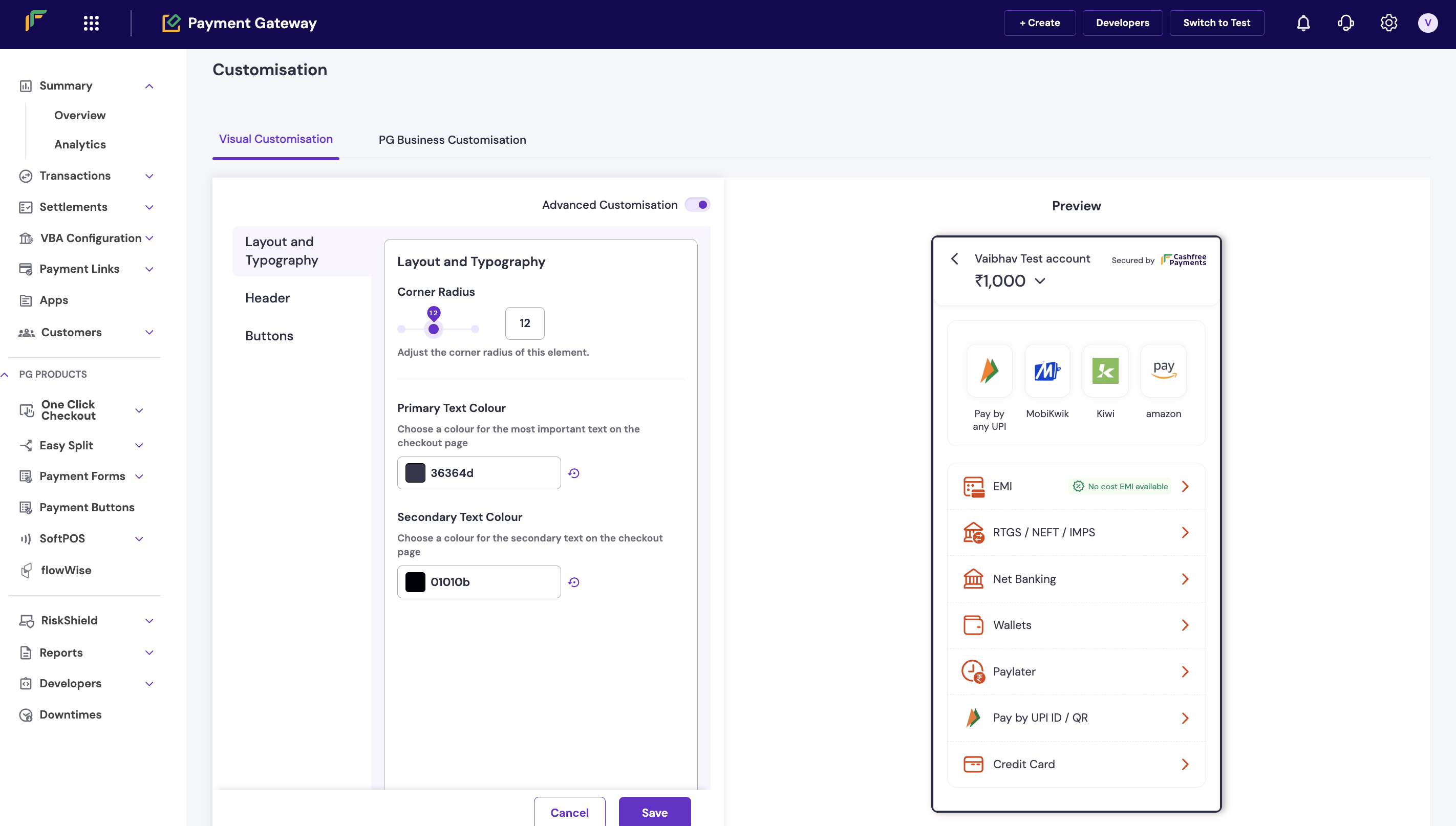
Turn on Advanced Customisation for granular control. The left navigation includes Layout and Typography, Header, and Buttons.
Use this section to control the overall structure and text styling of the checkout page.
Corner radius: Use the slider or numeric field to set the corner radius for applicable UI elements. A value of 0 produces square corners; higher values increase rounding.
Primary text colour: Enter a hex code for the most prominent text on the checkout page, such as headings and key labels.
If the colour you choose does not meet contrast requirements against the checkout background or card colours, the dashboard displays an inline warning. Adjust the colour to keep text easy to read.
Secondary text colour: Enter a hex code for supporting text, such as descriptions and secondary labels.
The dashboard checks secondary text for contrast as well. If a warning appears, change the colour to improve readability.
The header is the top section of the checkout page and displays your brand identity.
Logo: Enter the URL of your brand logo. This is the same Logo field as in basic configuration. To remove the logo, select the × icon.
Header colour: Enter a hex code for the header background. Select the reset control to return to the default.
Header text colour: Enter a hex code for text displayed in the header.
If the header text and header background colours do not meet contrast standards, the dashboard displays an inline warning. Adjust one or both colours until the warning clears.
Brand display: Choose how your brand appears in the header:
Show Both Logo and Name: Displays both the logo image and the brand name.
Show Logo Only: Displays only the logo image.
Show Name Only: Displays only the brand name as text.
Once Cashfree reviews and approves your brand name update request, you will see Verified Successfully under Visual Customisation > Header in the Merchant Dashboard.
Where can I check the status of my brand name update request?
Once your brand name update request is reviewed and approved, the status shows as Verified Successfully in the Merchant Dashboard under Visual Customisation > Header.
Was this page helpful?
Assistant
Responses are generated using AI and may contain mistakes.