Android, React Native, Flutter, Cordova, Ionic, Capacitor blocks the transaction and you get the following error.
json
onPaymentFailure callback. Check the error log for details.
Below are the sample scenarios when Cashfree Integrity will fail in the PRODUCTION Environment ( In Sandbox, it will always work).
How to properly test in production env?
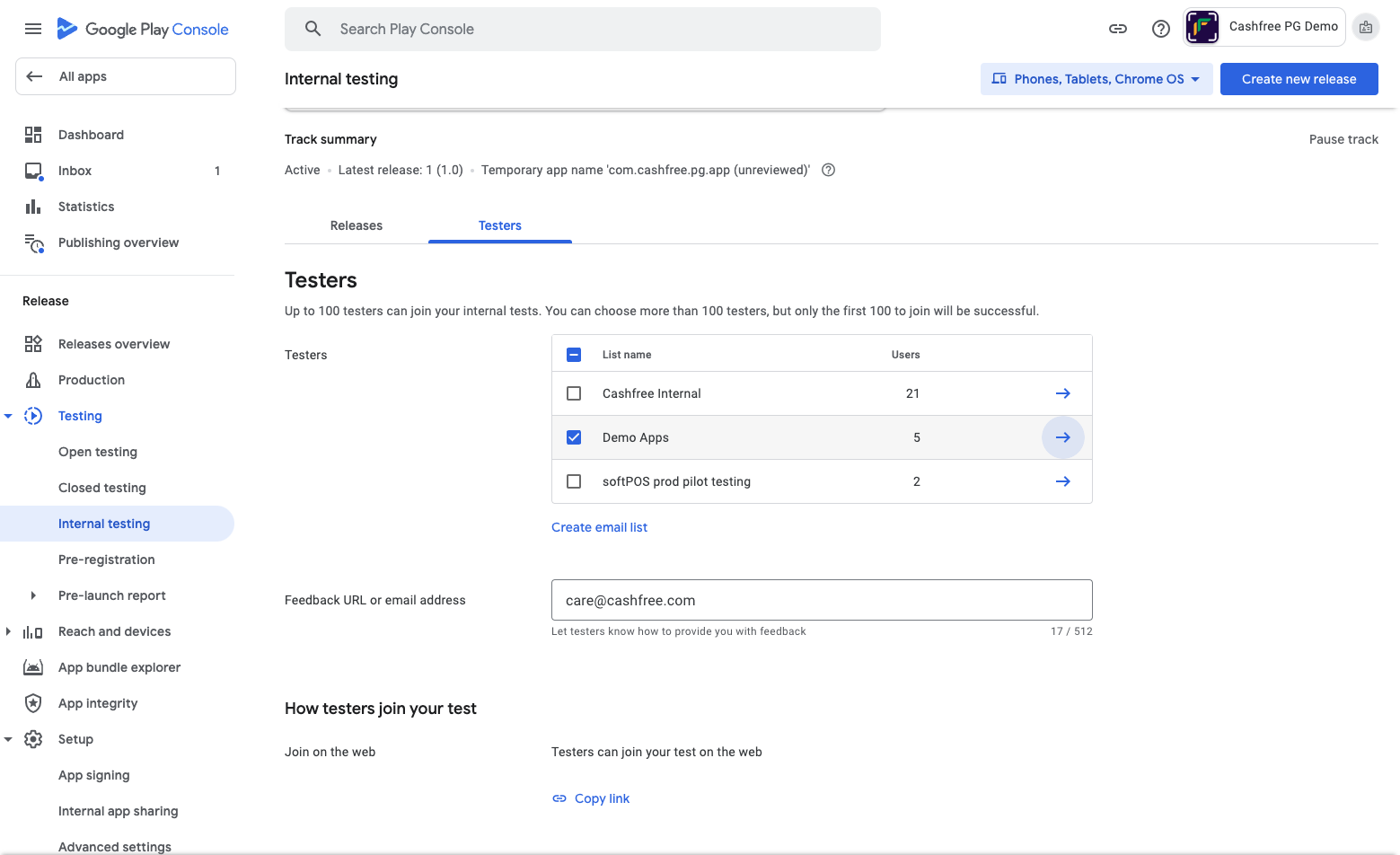
To test in production, upload your app bundle/APK to the Play Store under an internal testing environment and invite your testing team to test it.How to do the internal testing setup?
Create a tester list and share the invitation
- Open the Play console and open the Internal testing page under Testing.
- Select the Testers tab
- Click on Create email list which opens a popup for adding multiple emails.
- Add email addresses separated by commas or click Upload CSV file. If you use a .CSV file, put each email address on its line.
- Select Save Changes.
- As shown in the below screenshot Copy the link from the Tester tab.
- Now share this link with all testers.
- Testers have to open this link in Browser where it is logged in with a shared email.
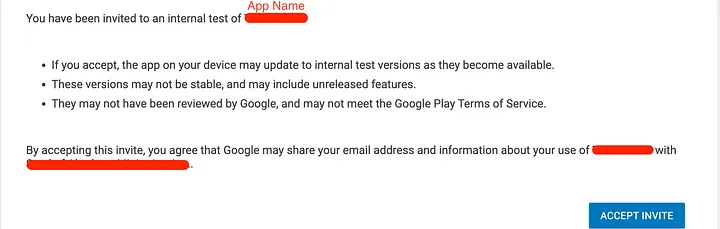
- When you open the invitation link in the browser, you can find this type of invitation information and click Accept Invitation.
- Create a release for the internal track in the Play Console and upload an app bundle. The app is then available on the Play Store for testers to download.
Turn on internal app sharing
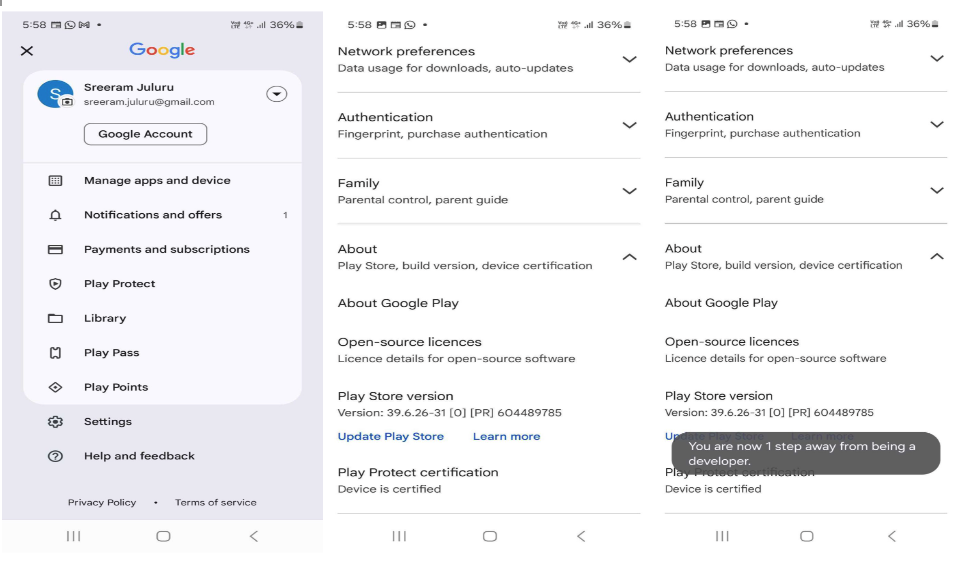
If your app has any build in production then these steps are optional but if your app has not live any version yet then this step must be followed by testers.- Open the Google Play Store app Google Play.
- Tap Menu Menu > Settings.
- In the “About” section, tap the Play Store version 7 times.
- After the Internal app sharing setting appears, tap the switch to turn on internal app sharing. Tap Turn on.
Download app
- Open the Play Store and make sure the sign-in email is your tester’s email address.
- Now search the application on the store.
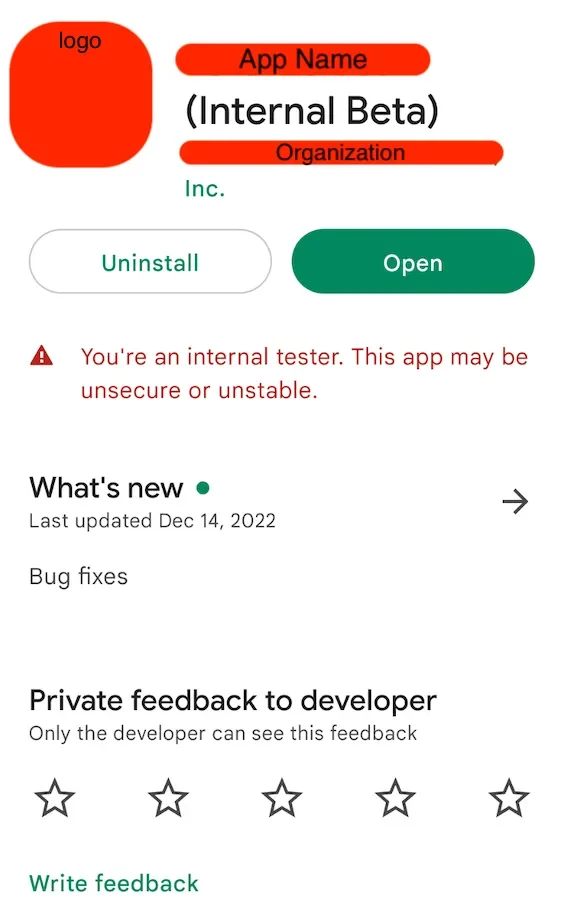
- You can find the application shown with an internal beta label, you can download this application and start testing.
- Make sure the Android device has Developer Mode enabled.