

Refund options
You can process the following types of refunds:- Full refund: Refund the entire captured amount.
- Partial refund: Refund a portion of the captured amount.
- Multiple partial refunds: Process multiple partial refunds for a single payment. The total of all partial refunds can’t exceed the captured amount.
Some payment methods don’t support partial refunds.
Refunds, reversals, and chargebacks
A refund, a reversal, and a chargeback all return money to the customer, but each starts differently. A reversal is different from an auto refund, which Cashfree starts automatically when the payment transaction time limit (TTL) is breached. The following table compares refunds, reversals, and chargebacks:Refund rules for UPI payments
The following rules apply when you refund a UPI payment:- Successful payments only: You can refund only a successful payment. You can’t refund a pending, failed, or reversed payment.
- Original account only: A UPI refund always returns to the account, card, or UPI ID that the customer paid from. You can’t send it to a different account or UPI ID.
- Direct settlement: If your account uses direct settlement, the refund APIs aren’t available. Send refunds as payouts from your own account.
Refund statuses
The refund webhook notifies you only when a refund reachesSUCCESS or CANCELLED. The refund_status field in the Get Refund API takes one of the following values:
Refund lifecycle
The refund lifecycle shows the different stages of a refund from when it is initiated until the customer receives the funds.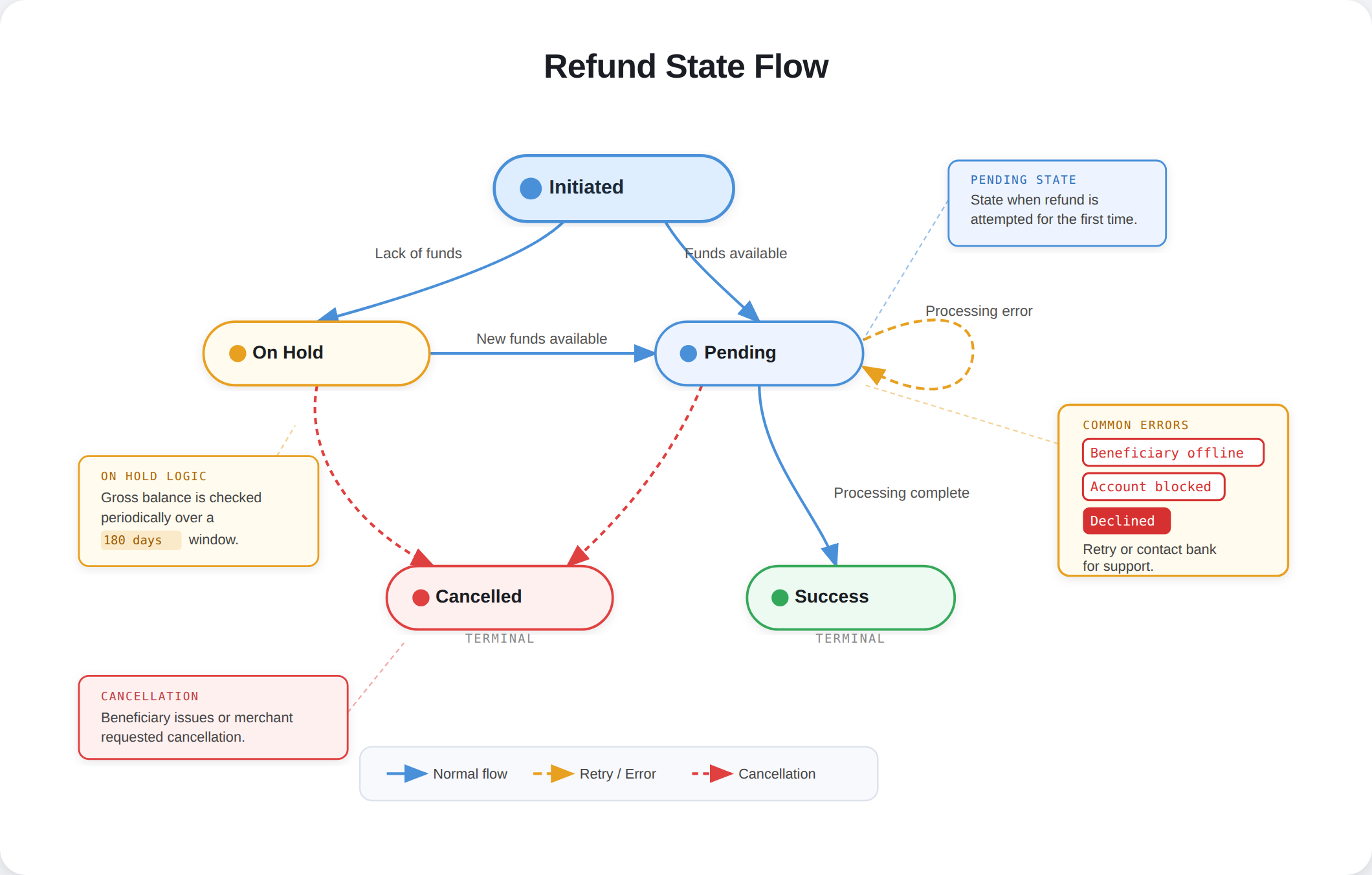
Refund a payment
Cashfree supports two types of refunds:- Merchant-initiated refunds: Refunds that you initiate from your dashboard or API.
- Auto refunds: Funds that Cashfree automatically refunds to the customer when the payment TTL is breached. For more information, view Transaction time limit (TTL).
- Dashboard
- API
Single refund
You can initiate a refund for individual transactions directly from the dashboard. Use this option to process refunds for specific payments that require customer service or order corrections.To initiate a single refund:- Log in to the Merchant Dashboard.
- Go to Payment Gateway > Transactions > Payments.
- Search for the transaction that you want to refund.
- Select the Refund option, enter the refund amount (full or partial), and click Initiate Refund.
The refund option is only visible for successful transactions that have been settled. Voided or failed transactions will not display the refund option.
Batch refunds
Use the Batch Refunds feature to initiate refunds for a large number of payments at a time. Add all the required refund details in a single file as per the required format and upload the file.To initiate a batch refund:- Log in to the Merchant Dashboard.
- Go to Payment Gateway > Transactions > Refunds > Batch Refunds > Upload File.
- Download the sample file to know the refund details required in the batch file.
- Read the upload instructions before you upload the file.
- If the file is not in the suggested format, it will not be uploaded. Resolve any errors in the uploaded file and reupload it.
Auto refunds
You can track and view all automatic refunds initiated by Cashfree directly from the dashboard. Use this option to monitor refunds triggered for failed payment attempts or other automated scenarios.To view auto refunds:- Log in to the Merchant Dashboard.
- Go to Payment Gateway > Transactions > Refunds.
- Select the Auto Refunds tab.
Auto refunds
Auto refunds are refunds triggered automatically for unsuccessful payments, disputes, duplicate payments, or instances where payments are received directly to your VPA, regardless of whether an order has been generated. Auto refunds usually occur when customers:- Make a payment after the order has reached a terminal state.
- Make a direct payment to the UPI ID.
Refund communication
Customers are kept informed about their refund status and stay up to date on every stage of the process. Refunds, as reversals, involve multiple stages: initiation, processing, cancellation, and potential delays that are essential to monitor. With refund communication, customers receive timely notifications, helping build trust and satisfaction. Customers can also use Cashfree Customer Hub to track these refunds better.Refund wallet
Refund wallets offer a streamlined and efficient solution for managing your refund process. The following table provides more information:FAQs
What is the time limit for initiating a refund?
What is the time limit for initiating a refund?
You can initiate a refund only within six months of the original successful transaction.
Which parameters does the Create Refund API accept?
Which parameters does the Create Refund API accept?
Send a
POST request to /pg/orders/{order_id}/refunds with the x-api-version, x-client-id, and x-client-secret headers. We recommend that you also send the x-idempotency-key header so that retries don’t create duplicate refunds.The request body accepts the following parameters:refund_amount(required): The amount to refund. It cannot exceed the original transaction amount.refund_id(required): A unique alphanumeric identifier between 3 and 40 characters. We recommend deriving it from theorder_idfor easier tracking.refund_note(optional): A description for the refund, between 3 and 100 characters.refund_speed(optional):STANDARDorINSTANT. The default isSTANDARD.
refund_status field, which can be SUCCESS, PENDING, PENDING_APPROVAL, CANCELLED, ONHOLD, or REJECTED. Use refund webhooks to track the refund to completion. For the full request and response schema, see the Create Refund API.How do I automatically refund a customer if service delivery fails after a successful payment?
How do I automatically refund a customer if service delivery fails after a successful payment?
Cashfree can’t detect failures in your internal application logic, so your backend must trigger the refund. Follow this flow:
- Confirm that the payment is successful using the
PAYMENT_SUCCESS_WEBHOOKor the Get Payments for an Order API. - Attempt to deliver the service.
- If service delivery fails after retries, call the Create Refund API for that order.
- Include the
x-idempotency-keyheader to prevent duplicate refunds during retries. A409response means the refund already exists. - Make sure your application doesn’t deliver the service for any order that has been refunded.
What is the difference between ARN and RRN for tracking refunds across different payment modes?
What is the difference between ARN and RRN for tracking refunds across different payment modes?
The reference number you use to track a refund depends on the payment mode. The
refund_arn field in the refund webhook carries the applicable reference for each mode:- UPI: The RRN (Retrieval Reference Number). Use the RRN to track UPI refunds.
- Card and other payment methods: The ARN (Acquirer Reference Number). Use the ARN when you track a refund with the bank.